An advertising insertion order records what a publisher agrees to deliver for a sponsor. It is the document a buyer can send to procurement when they need the placements, run dates, price and terms in writing. Sponsy builds that document from the proposal or deal and can collect the signature alongside the agreement. Your sales rep can find the order again when the buyer asks what they signed.
Build the order around what you sold
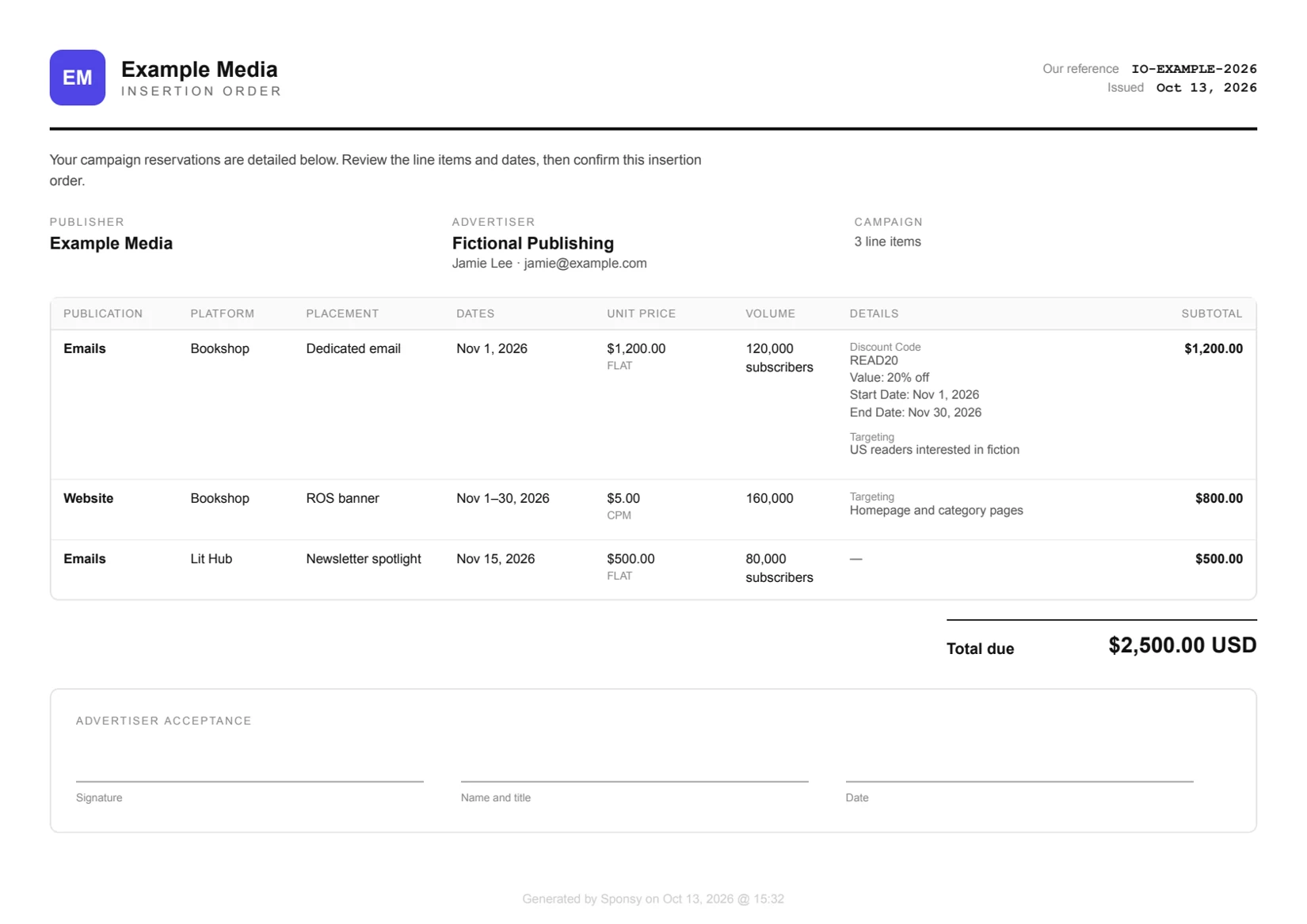
Start with the deal items. A dedicated email, a week of website inventory and two event mentions should each be recognizable on the order. Include the publication and the placement, the date or flight and the quantity. If every item has a quantity of one, Sponsy can leave the quantity column out. An order with multiple units shows the quantities so the buyer can check the count.
Consider how the buyer approved the price. A sponsor buying a package may need a total for their purchase order without seeing the negotiated price of each mention. Item-price visibility controls that presentation. Preview the document after making the choice. Sales can keep the commercial breakdown it needs while the buyer receives the agreed view.
The IO reference gives both teams a short way to identify the document. If an agency emails a reference with a question about delivery, paste it into global search, Deals or a Deals report to locate the booking. That helps when an agency runs several campaigns for different clients under similar names.
Put delivery commitments in the right columns
Two orders for the same amount can promise quite different things. A dedicated email might promise distribution to a particular audience. A website placement might carry an impression goal. Choose the fields in your customer portal’s deal settings so the buyer can see which commitment applies to each line.
Changing the field printed under Volume leaves the negotiated price in place. Before sending the order, preview a booking with an empty field as well as one with every detail filled in. That lets you check the fallback the buyer will actually see.
| PDF field | What the sponsor sees |
|---|---|
| Platform | The saved field value. If a booking has no saved value, a valid dropdown default can appear. A value the team deliberately cleared stays blank. |
| Volume | The value in your chosen field, or the impression goal as a fallback. Selecting a private field here makes its value visible on the PDF. |
| Targeting | The customer-visible field you selected, printed under Details. You can also choose to show slot tags when targeting is empty. |
| Collection details | Only the properties you select. For a discount, you might print its value and the dates it applies. |
| Qty | The quantity column appears if any line has a quantity other than one. When every line has a quantity of one, Sponsy omits the column. |
Collect the signature at the right point
If the buyer is still choosing dates, require signing in the proposal acceptance flow. The sponsor reviews the offered items, completes the required steps and signs as part of accepting. The accepted offer remains attached to the deal. That is useful if production later swaps an issue and someone needs the original schedule for comparison.
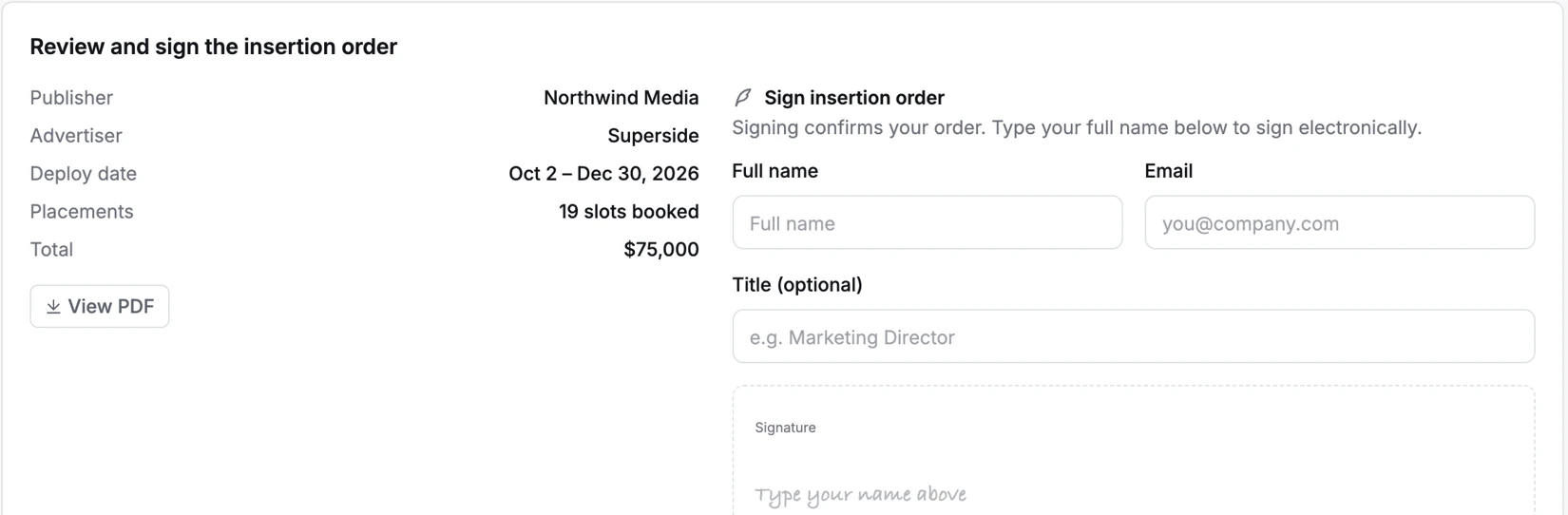
For a deal your team has already set up, use the advertiser’s customer portal. An unsigned order appears on the deal page and in the outstanding orders on Home in the new portal. The sponsor opens Review and sign, checks the summary and supplies their name and email. They can add their title before signing. Portal signing is a Pro feature.
The signer receives a copy by email. The portal then offers the signed PDF for download. If the sponsor already accepted the insertion order on the offer, the deal page shows that it was accepted there. An account manager answering a request for a second copy can point the buyer back to the deal instead of starting a second signing request.
Review the buyer’s version before sharing
Walk through a representative order as the advertiser would. Check the names of the publications and the first and last day of each flight. Read the terms and the targeting text at normal PDF size. A label such as “segment B” may be obvious to the person building the campaign and meaningless to the agency signing it.
If your workspace has different defaults for showing booked items or prices, check the individual deal as well. A deal can override workspace visibility choices. When you change a field or a document setting, download a fresh preview to see the current version. The signed agreement on an accepted proposal serves a different purpose. Keep it as the record of what the buyer originally accepted.
Some publishers handle contracting elsewhere. They can hide insertion orders from the customer portal and still use the deal for scheduling and asset collection. That makes the portal easier to explain to a buyer who has already signed through their procurement team.
Frequently asked questions
Can the sponsor sign without leaving the booking process?
Yes. Configure signing on the proposal to collect the signature during acceptance. For an eligible public deal, the sponsor can also review and sign an outstanding order from their customer portal.
Where does a buyer get their signed insertion order?
Sponsy emails a copy to the signer. In the new portal the deal’s insertion order card also offers a signed PDF for download. Look for the deal containing the placements on the agreement.
Does an insertion order replace a performance report?
The IO describes the agreement. A campaign report shows which placements ran and the performance data available for them. A buyer reconciling a campaign can use the two documents together.
Can we include a discount or targeting terms on individual items?
Yes. Select the fields and collection properties to include under Deals & IOs. Preview a representative order, including an item with an empty value, so you know exactly what the buyer will see.