Deals
Create and share proposals, manage your deal pipeline, book campaign items, and report on sponsorship revenue and performance.
Use Deals to manage sponsorship opportunities, send proposals for sponsor approval, and run the campaigns that follow. A proposal lets the sponsor choose dates and complete the acceptance steps you set. A deal holds the campaign's items, booked slots, contacts, payments, tasks, and reporting.
Deals and proposals are available on Starter, Pro, and Custom plans. E-signatures and conversion tracking require Pro or Custom. Your workspace role also controls which settings, prices, and actions you can access.
Deal items have separate Create, Update, and Delete permissions, enabled for every role by default. A teammate can work on line items even when Deals → Update is turned off, while the deal's details stay read-only. Prices and booked slots still follow their financial and slot permissions. See team member permissions for setup.
Understanding the Deals module
Open Deals in the left sidebar. Switch between Overview for revenue and pipeline reporting and Pipeline for day-to-day work. In Pipeline, use the view switch in the top right to choose a board or table.
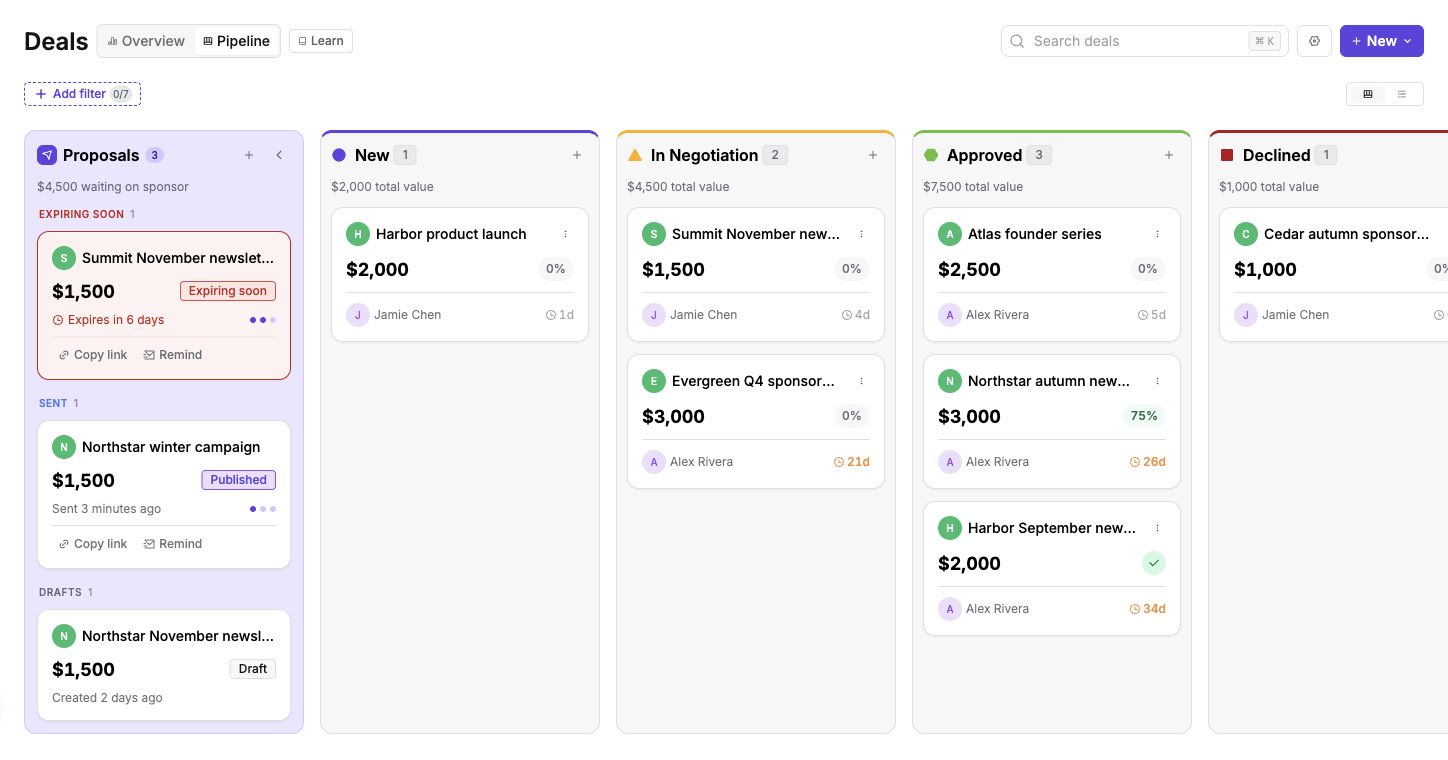
The board has a Proposals lane followed by your deal statuses. Outstanding proposals stay in the proposal lane while the sponsor reviews them. Accepted proposals become deals and appear in a status column.
The table groups proposals and deals by status. Use Columns to choose the fields you see and click sortable column headers to change their order.
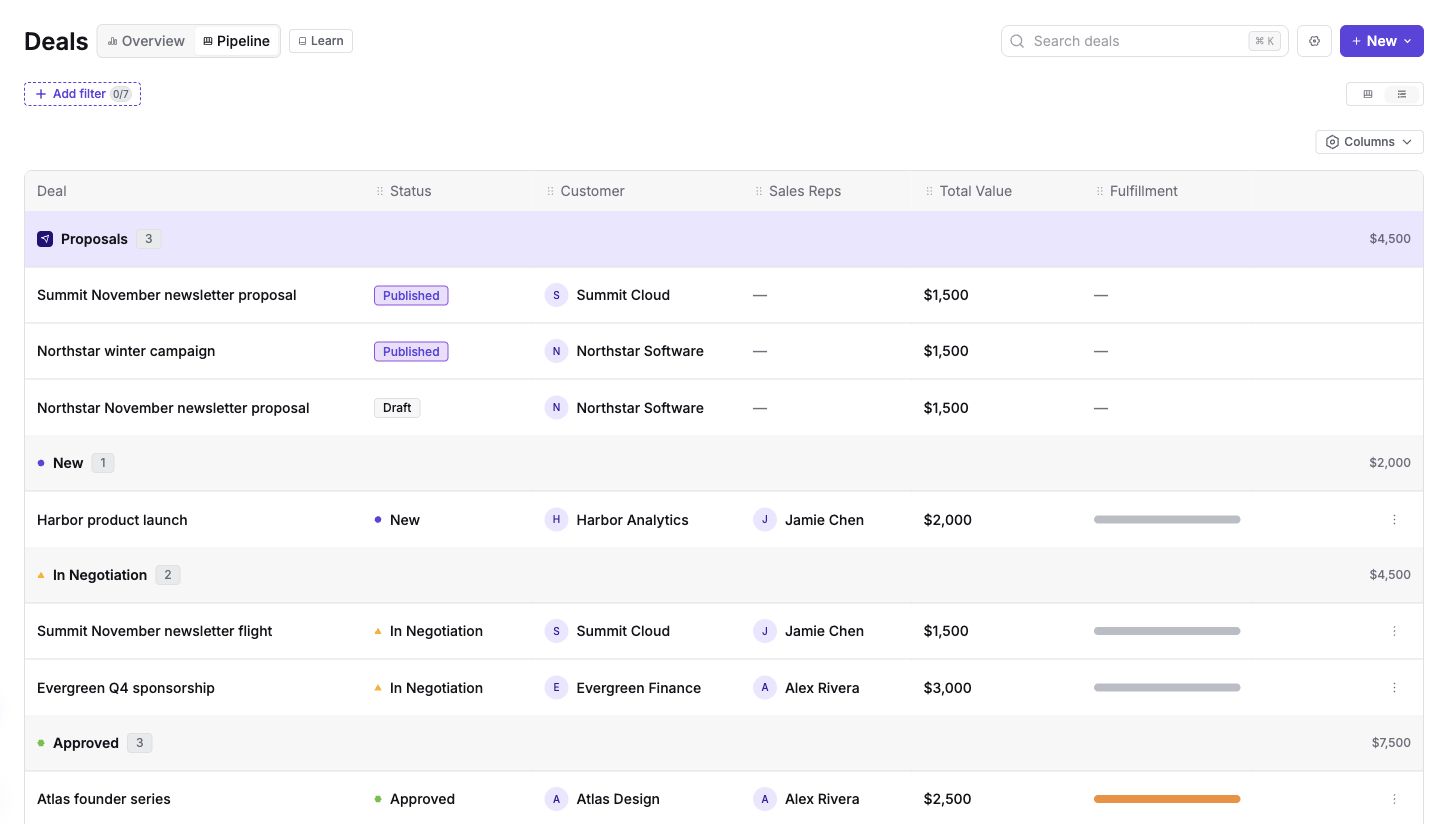
Click New → New deal when you are managing the booking yourself, or New → New proposal when the sponsor should review the offer first. The + in a status column starts a deal in that status; the + in the Proposals lane starts a proposal.
The Overview dashboard
Open Overview to see the current pipeline alongside revenue and sales performance for a selected period.
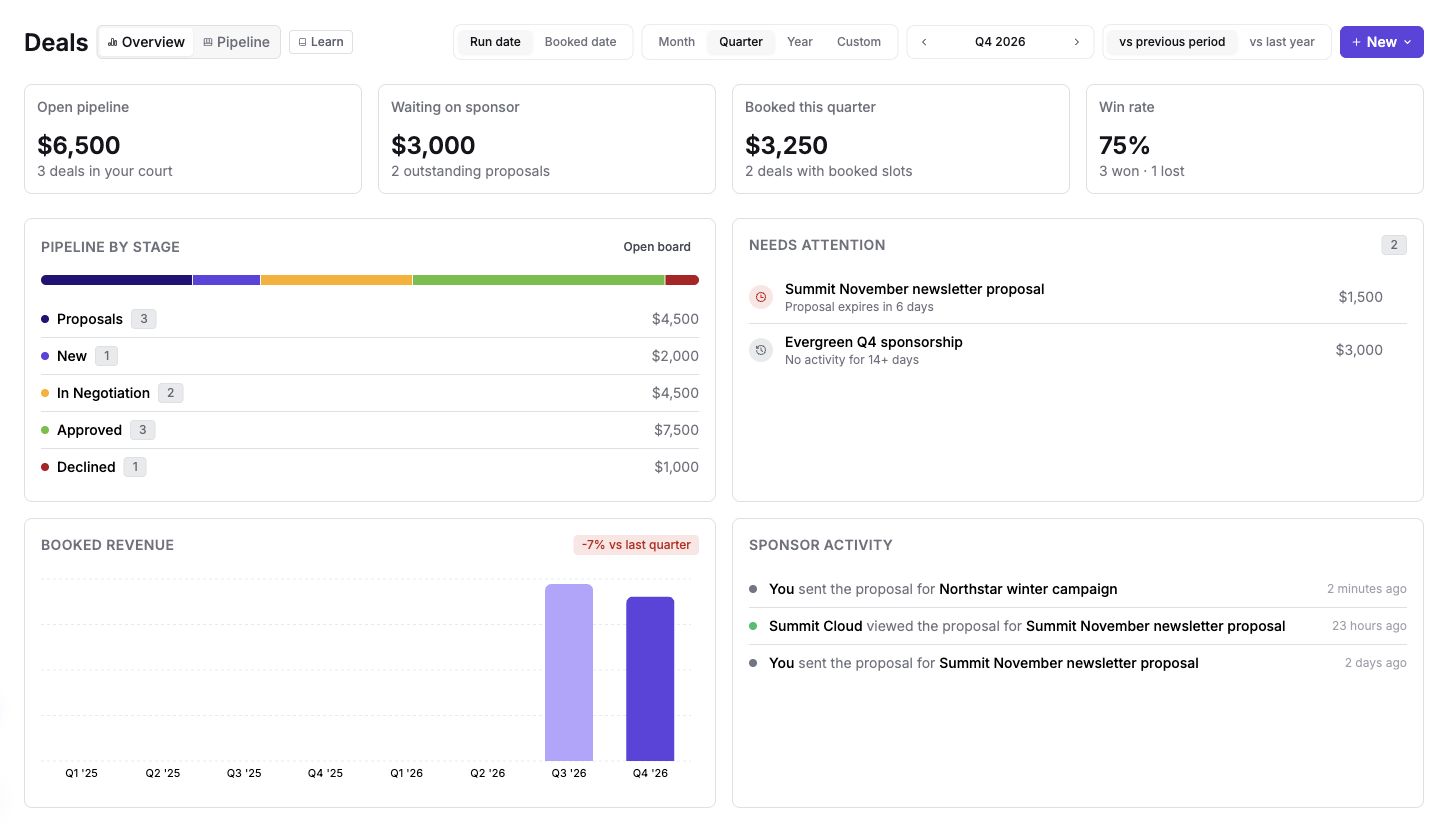
- Open pipeline: Value and count of active deals still in play.
- Waiting on sponsor: Outstanding proposals awaiting a response.
- Booked revenue: Revenue from booked inventory slots in the selected period.
- Win rate: Won deals compared with won and lost deals.
- Pipeline by stage: Current value in proposals and each deal status.
- Needs attention: Proposals nearing expiry and deals without recent activity.
- Sponsor activity: Recent proposal events, including sending, acceptance, and signing.
Pipeline values describe the current state of your deals. Selecting a past quarter does not turn the pipeline into a historical snapshot.
Choosing the period
Choose Month, Quarter, Year, or Custom, then use the period arrows or enter a date range. The shortcut beside the period returns to the current period.
Use Run date to group booked revenue by the slot's scheduled date. Booked date uses the deal date, falling back to the deal's creation date, or the slot's creation date when there is no deal. Booked date is not the date a payment arrived.
Choose vs previous period or vs last year. This selects the comparison shown in the revenue chart and performance tables. Only one comparison is shown at a time. Hover a comparison percentage to see the amounts behind it. Publication custom-field filters are also available when your workspace has them configured.
Sales rep performance
The Sales rep performance table shows proposals, pipeline added, won deals, win rate, average sales cycle, and booked revenue for each team member. The selected comparison appears beside booked revenue. Click a sortable column header to compare reps by that measure.
Revenue by account
The Revenue by account table groups results by Companies, Contacts, Agencies, or Sales reps. Change the grouping with the dropdown. It includes proposals, pipeline, booked revenue, and the selected comparison.
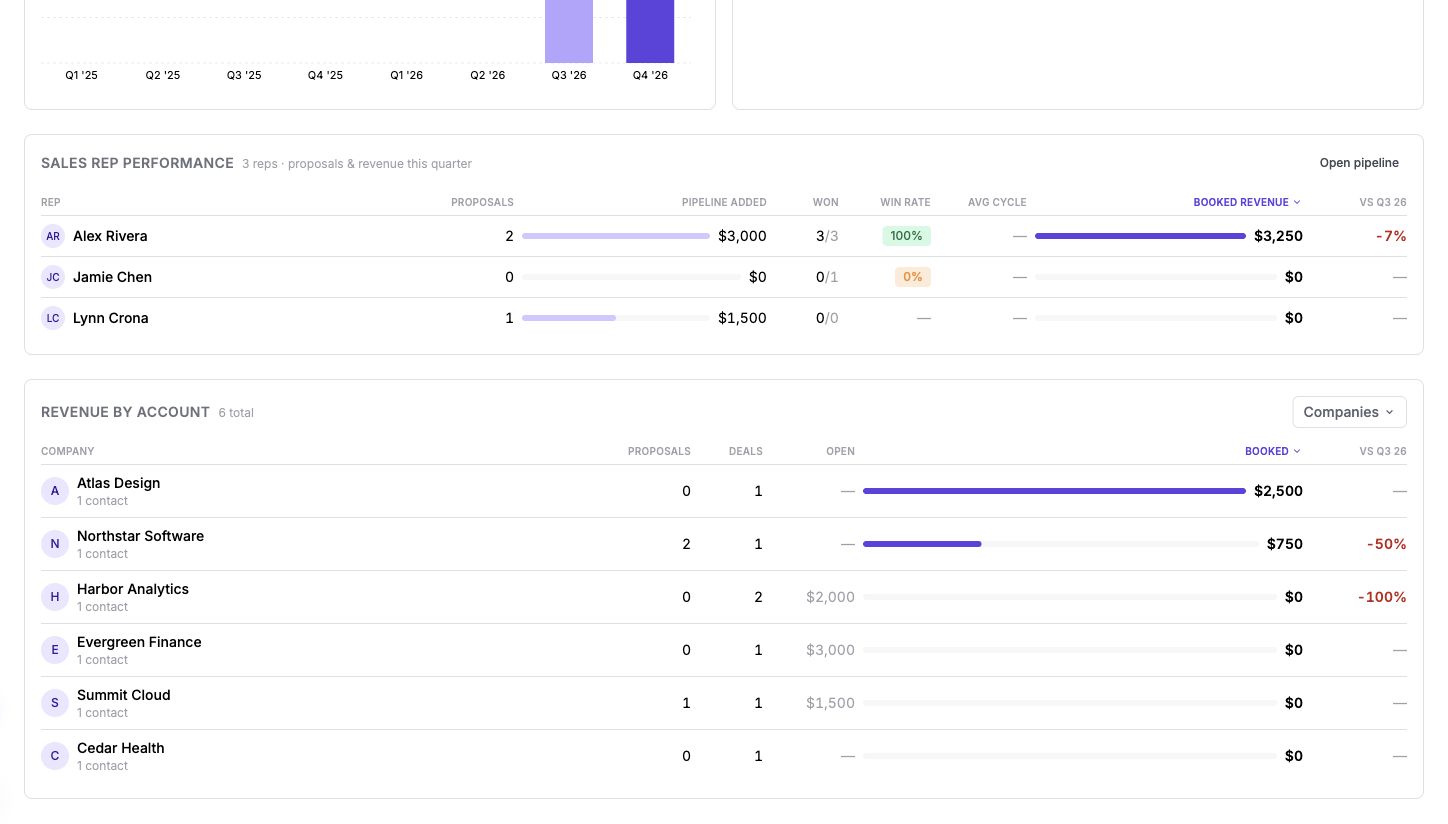
Financial values and comparisons depend on your permission to view financial information.
Customizing your pipeline
Click the gear icon beside New to open Deals settings.
Statuses and outcomes
In Statuses, drag statuses into the order you want. Use Add another status to create one, or the controls beside a status to edit or duplicate it. Give each status a name, color, and Outcome.
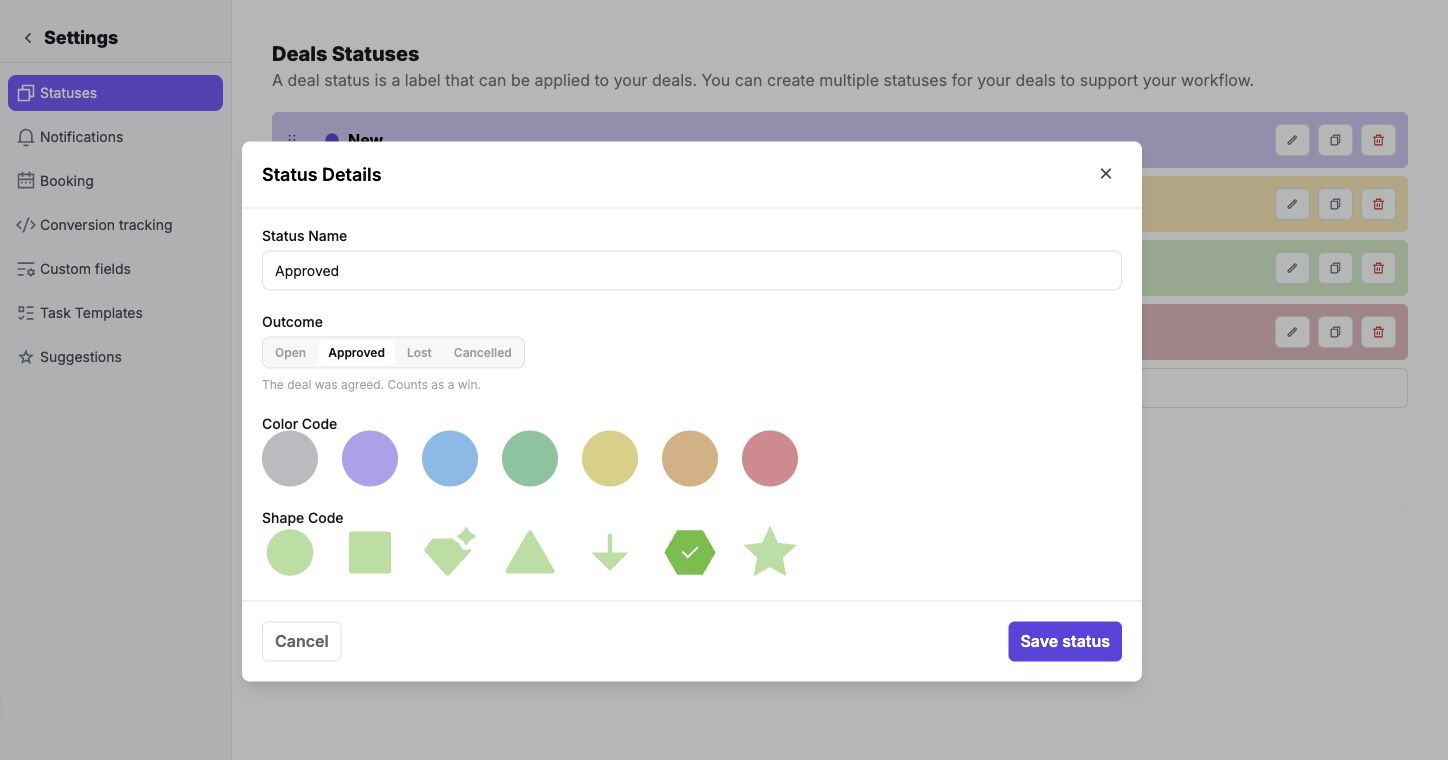
| Outcome | Meaning |
|---|---|
| Open | The opportunity is still in play and counts toward open pipeline. |
| Approved | The deal was agreed and counts as a win. |
| Lost | The opportunity was never agreed. |
| Cancelled | An agreed deal was later called off. |
Reporting uses the outcome, so a status called Closed won should have the Approved outcome. Sponsy records when a deal reaches an Approved, Lost, or Cancelled status for period-based reporting. Check the outcomes of custom statuses if your reporting does not match your workflow.
Moving a deal to an Approved status does not book its items into inventory. Booking is a separate action.
Booking restrictions
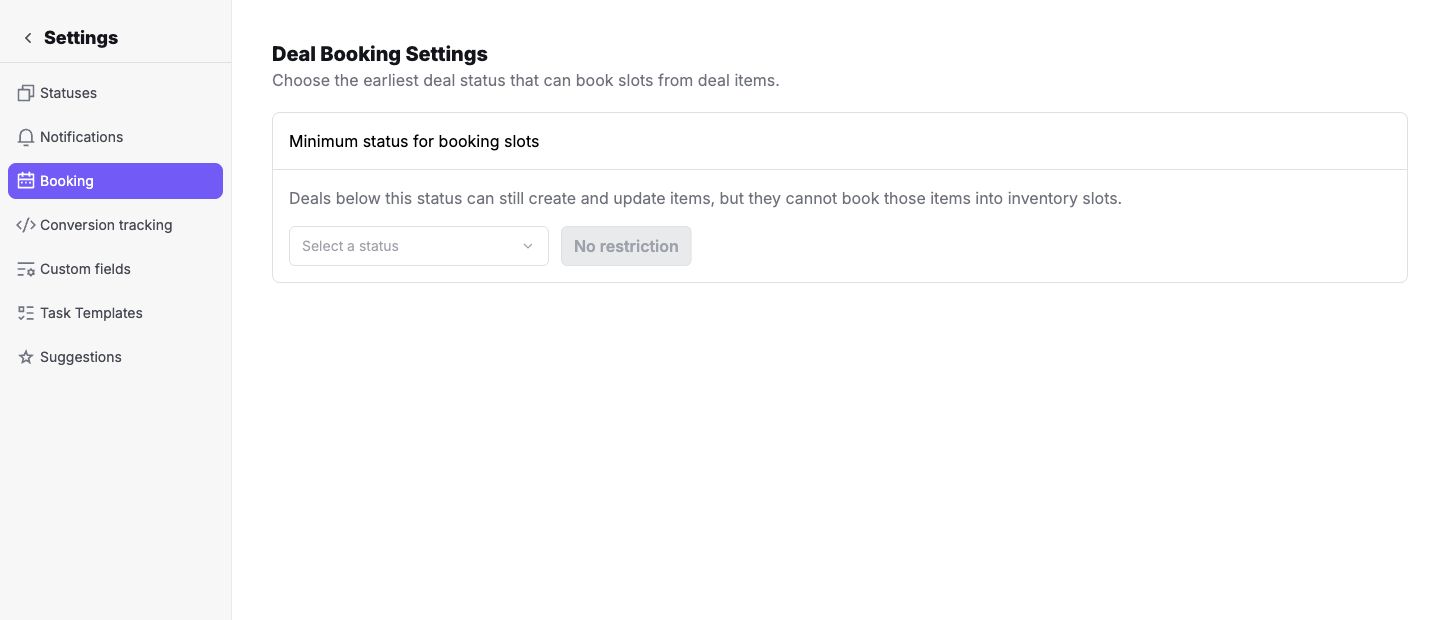
Under Booking, set Minimum status for booking slots if your team should wait until a deal reaches a particular stage before reserving inventory. Deals below that status in the ordered pipeline can still have items and proposed dates, but cannot book slots. Choose No restriction to allow booking at any stage.
Custom fields and other settings
Use Custom fields for information such as a PO number or billing reference. These fields appear on deal and proposal details. To have the sponsor fill one in during proposal acceptance, enable Ask the sponsor on proposals and choose whether it is optional or required. Sponsor-provided order details are saved on the accepted deal and included in the insertion order.
Deals settings also include Notifications, Task Templates, Suggestions, and Conversion tracking, depending on workspace access. Task templates require Pro or Custom. See Tasks for task templates and CRM integrations for importing deals from your CRM.
Create a new deal
Choose New → New deal. The page has deal details on the left and the items table on the right.
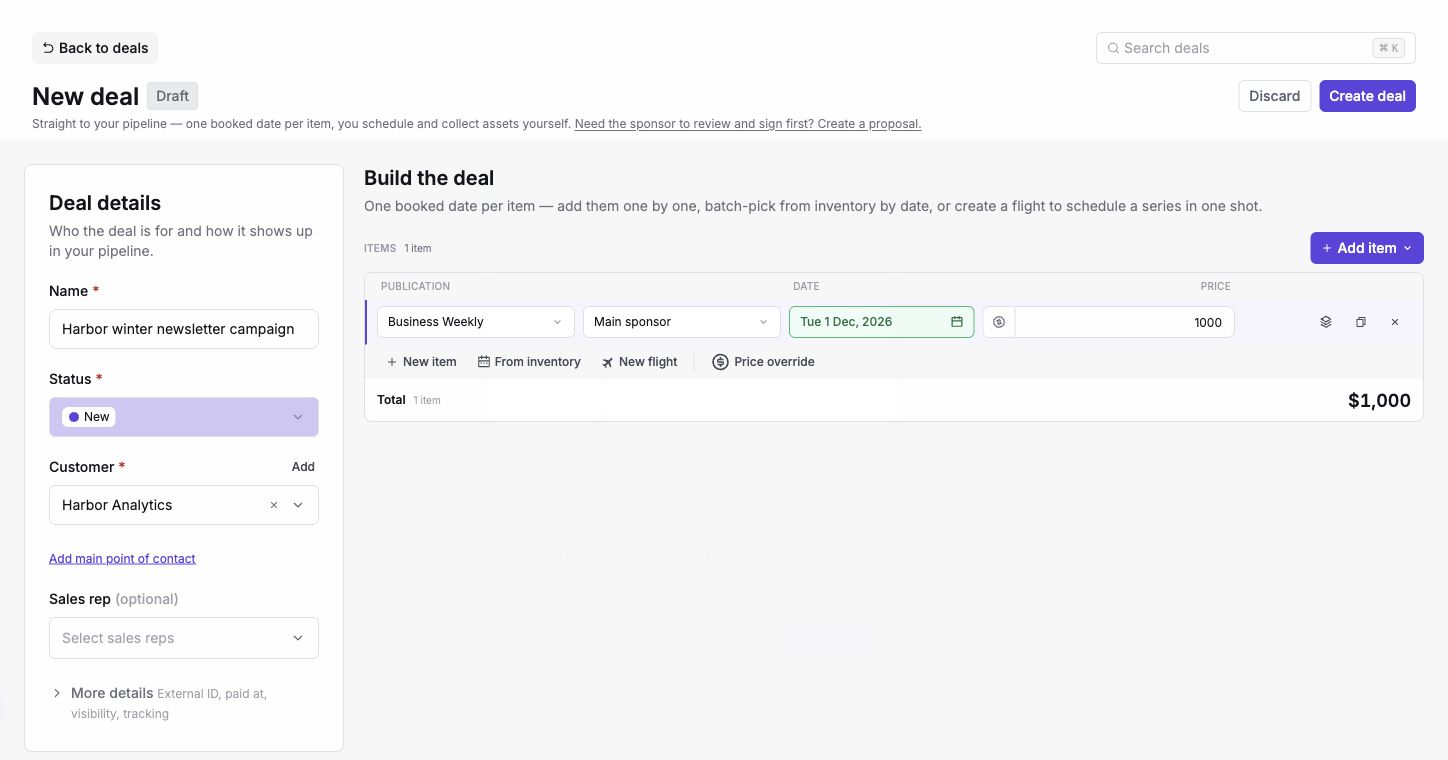
Enter a Name, initial Status, and Customer. Use Add beside Customer if you need to create one. You can also select the main point of contact, sales reps, and an agency where applicable. For agency-managed campaigns, the contact can belong to the advertiser or the agency coordinating the campaign.
Expand More details for External ID, Paid at, public visibility, and conversion tracking. Fill any custom fields and add internal notes where needed.
Add items and prices
Choose a publication and placement for each item. A date is optional while you are negotiating. A regular deal item has one date; a website placement can have a start and end date for a continuous run.
Use New item to add a row, From inventory to pick available dates in bulk, or New flight to build a series. Item details lets you prepare placement content, including copy, links, and creative, before booking.
Choose Flat price, CPC, or CPM for the pricing type. For CPC and CPM, enter the rate and any available estimate or impression goal. Price override distributes a total across flat-price items; it does not change CPC or CPM rates. Check the resulting item prices before saving.
Create a flight
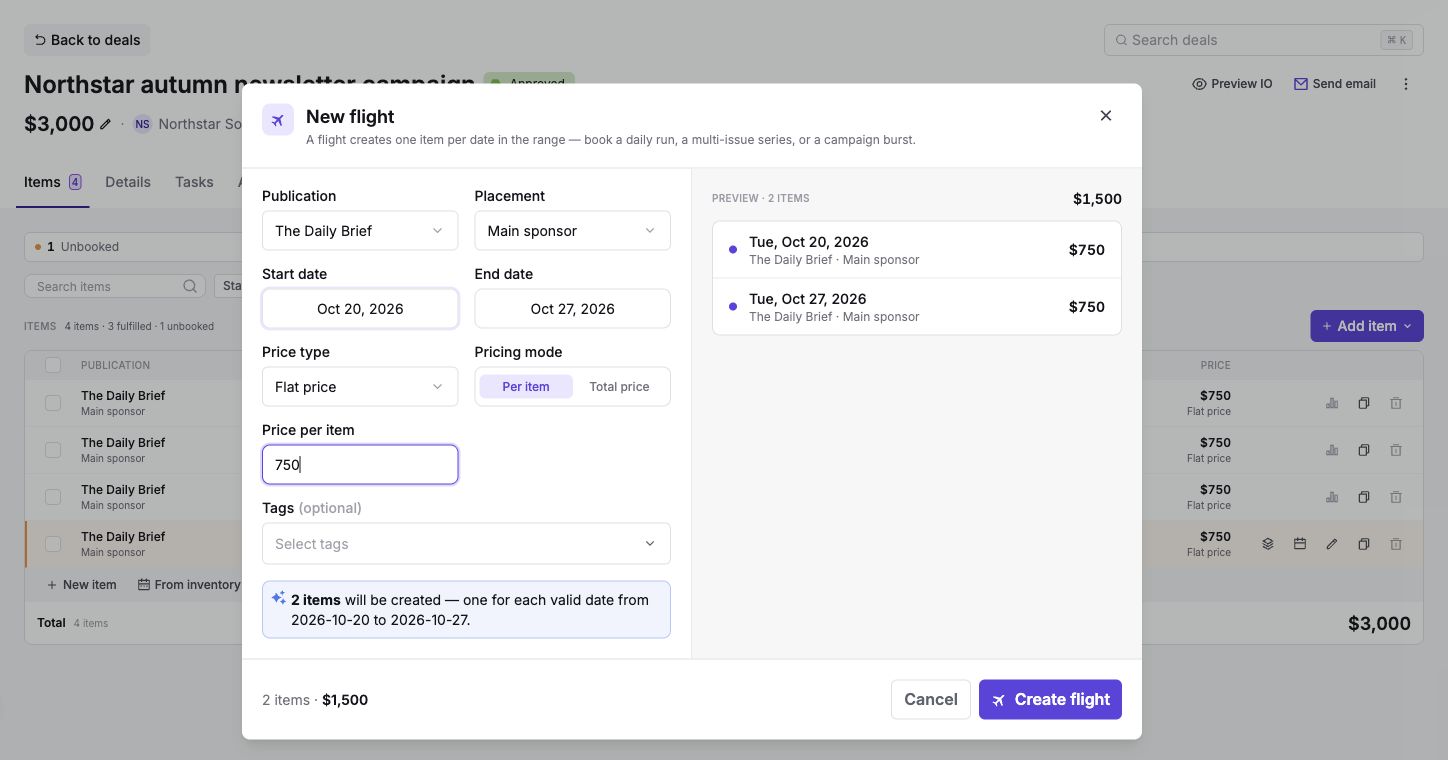
A flight creates one item per eligible date in a range and keeps the items grouped together. Choose the publication, placement, start date, and end date, then review the dates in the preview. The publication's schedule determines which dates are included.
For flat pricing, choose Per item or Total price. Total price is split across the flight's items. CPC and CPM use a rate per item. Add tags if needed, then click Create flight to add the items to the deal.
Save and book
Click Create deal. If items have dates, the confirmation offers two actions. Create deal and book N slots is the primary action and creates inventory slots for the dated items. Choose Create deal without booking to keep the items unbooked with tentative dates.
If no items have dates, the confirmation has a single Create deal button. Agency deals that create proposals also use this single action, since items are added after the proposals are accepted.
A dated, unbooked item is a hold. It shows interest in that date and placement, but does not reserve inventory. Booking the slot is what reserves it. A booking restriction may prevent booking until the deal reaches the required status.
The creation page can recover an unfinished local draft after a refresh. Use Discard when you want to abandon it.
Managing Deals
Filters and status changes
Click Add filter and choose Status, Publications, Visibility, Archived, Customers, Sales Rep, or Created By. Each filter becomes a pill you can edit or remove. Reset clears all filters. Filters are stored in the URL, so copying the page link shares the same filtered view with a teammate.
On the board, drag a deal into another status column. The card's three-dot menu also lets you change its status, open a quick view or the full deal, create a proposal, select deals for bulk actions, customize cards, archive, or delete.
Customizing deal cards
Open a card's menu and choose Customize card. Select a position in the preview, then choose the field it shows: name, customer, status, source, value, fulfillment, sales rep, activity, deal date, or a deal custom field.
The layout applies to your cards on that browser and device. Reset to default restores the standard layout.
Archiving Deals
Use Archive in a deal's actions menu or on its pipeline card. Archiving removes the deal from the active pipeline while keeping its history and booked slots. Add the Archived filter to find archived deals and unarchive them when needed.
Deleting Deals
Use Delete deal in the deal's actions menu or the card menu. Deletion is permanent. In the confirmation, Delete all is the primary action on the right. It deletes the deal and all its associated ad slots. Choose Delete deal and keep slots beside it only if you want to keep the slots booked without a deal. Hover either button for an explanation of what it deletes.
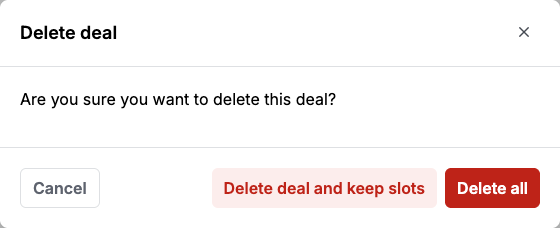
Archive campaigns that happened and should retain their history. Delete deals created by mistake or for testing.
What happens to revenue when you archive or delete a Deal
Sponsy reports revenue in two ways:
- Deal values come from the deal itself: pipeline and status totals on the Deals board and Overview, and Deals reports.
- Booked revenue comes from inventory slots: Metrics, revenue goals, Revenue Recognition, the Customers page, and Slots reports.
Archiving a deal leaves its slots and prices unchanged. Booked revenue, including booked revenue on Overview, stays the same. The deal leaves active pipeline totals but remains on the customer page and in search. Deals reports include archived deals unless you filter them out. You can unarchive the deal later.
Deleting a deal with slots kept removes its deal value and its entry in Deals reports. Its slots remain booked for the same customer and still count toward slot-based revenue, but no longer belong to a deal.
Deleting a deal and its slots removes both the deal and the slots, including their booked revenue from dashboards and reports.
Deal Details
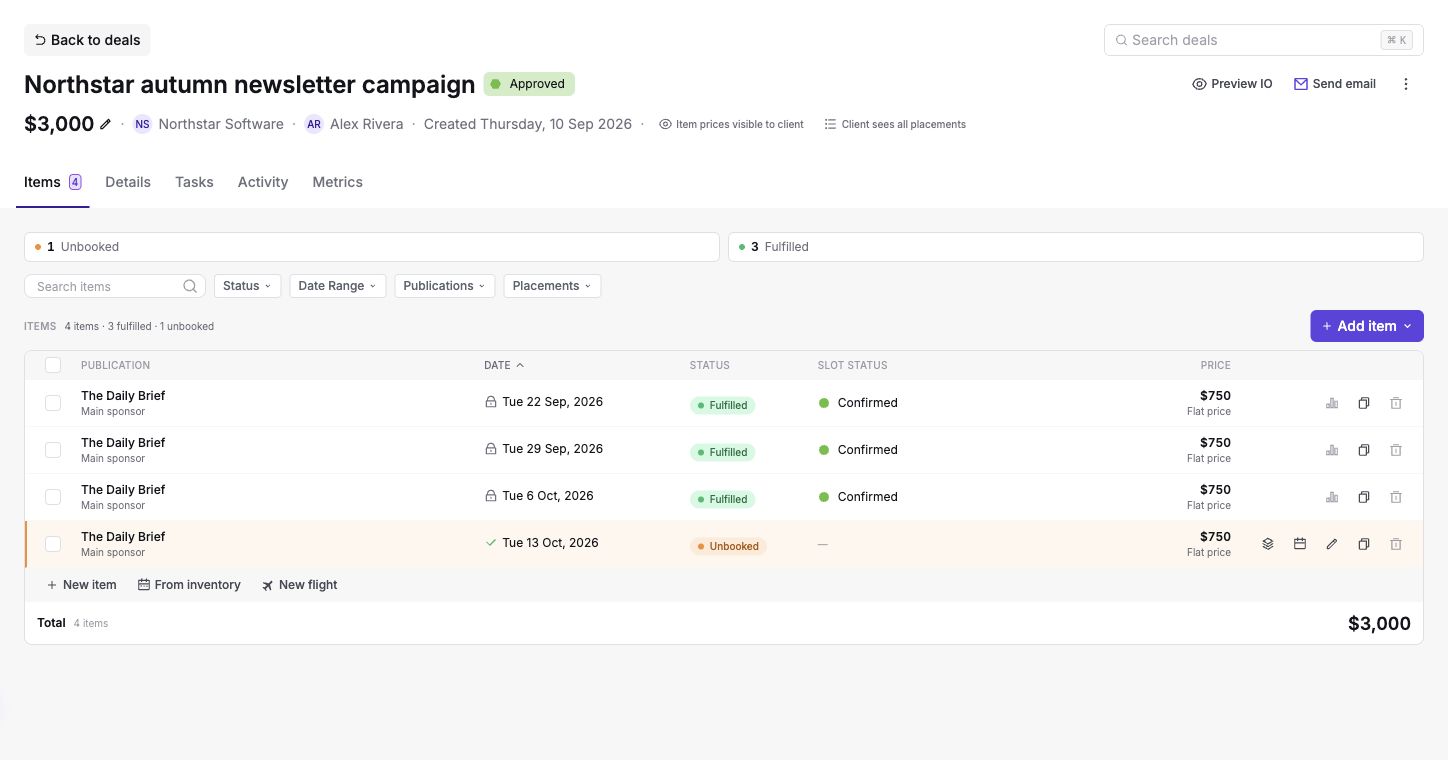
Open a deal from the pipeline card menu or quick view. The header shows the deal's name, customer, sales reps, status, value, and client visibility controls. The tabs organize the campaign's items, details, tasks, activity, and metrics.
Items
The Items tab combines booked slots, unbooked items, unplanned slots, and flights. Search, sort, or filter by status, dates, publications, and placements. Expand a flight to work with its individual items. Open a booked row's slot to manage it in the Inventory Hub.
The Ad submission status column describes item readiness:
| Item status | Meaning |
|---|---|
| Needs date | The item is not booked and has no date. |
| Unbooked | The item has a date but no inventory slot. |
| Booked | A future slot is booked; readiness may still be loading. |
| Missing assets | A future booked slot is missing required placement content. |
| Ready | The future booked slot has its required content. |
| Fulfilled | The booked slot's run date has passed. |
Slot status is separate. For example, an item can be Fulfilled while its slot still has your Reserved status. Neither item readiness nor slot status changes the deal's sales status automatically.
Click a booked row's Slot status to choose a different status, just as you would in Inventory. Changes save immediately. You need permission to update slots, and the slot must be managed by your workspace. Unbooked items have no slot status to edit.
Add rows with New item, From inventory, or New flight. For unbooked items, edit dates, prices, and item details before choosing Book slot. The booking flow lets you confirm the date and add content. Resolve availability conflicts by changing the date or placement; a hold is not a guaranteed reservation.
Select rows with the checkboxes for bulk actions such as Book, Unbook, Create proposal, and Remove, where applicable. Unbooking removes the inventory slots and keeps the deal items available to schedule again. Removing a booked item detaches its slot from the deal rather than leaving a broken link.
To update content across booked items, select their rows, choose Bulk edit, and open the Content tab. Shared content brings together text, rich-text, and link fields with the same name and field type across the selected placements. For example, you can enter an ISBN or click-through link once. With autosave enabled, it saves after a short pause; otherwise choose Save shared content. Each field shows how many selected slots it applies to.
Only fields you change are saved. Fields showing Multiple values keep each slot's existing value until you edit them. Files, grouped fields, and fields with different types stay in the placement editors below. If a save stops partway through, the message tells you how many slots were saved and keeps your edits available to retry. Content editing requires permission to update slots.
Slot-panel autosave also covers Details and Metrics, including bulk content edits. The badge beside Editing shows whether changes are pending, saving, saved, or need attention. You can close the panel while saves continue, but wait for Saved before closing the browser tab. See slot-panel autosave for flight scope, failed saves, and metric sync behavior.
After you save slot assets, item readiness refreshes in the deal. Optional fields such as extra notes do not block Ready when the placement's required content is complete. Slot status remains separate from asset readiness.
Where available, impression goals and forecasts help you compare planned delivery with capacity across dates and placements.
Holds on Calendar
Dated, unbooked items appear as holds in inventory. Labels show the advertiser and placement; hover for the full details. Multiple deals can hold the same candidate date. Once another campaign books that inventory, you may need to choose a different date. Holds managed by another workspace hide the advertiser.
Unplanned Slots
You can assign an existing inventory slot to a deal from the slot details. Sponsy matches it to a suitable unbooked item when possible. If there is no matching item, it appears as Unplanned in the deal's Items table, so you can see bookings added beyond the original scope.
Details, Tasks, and Activity
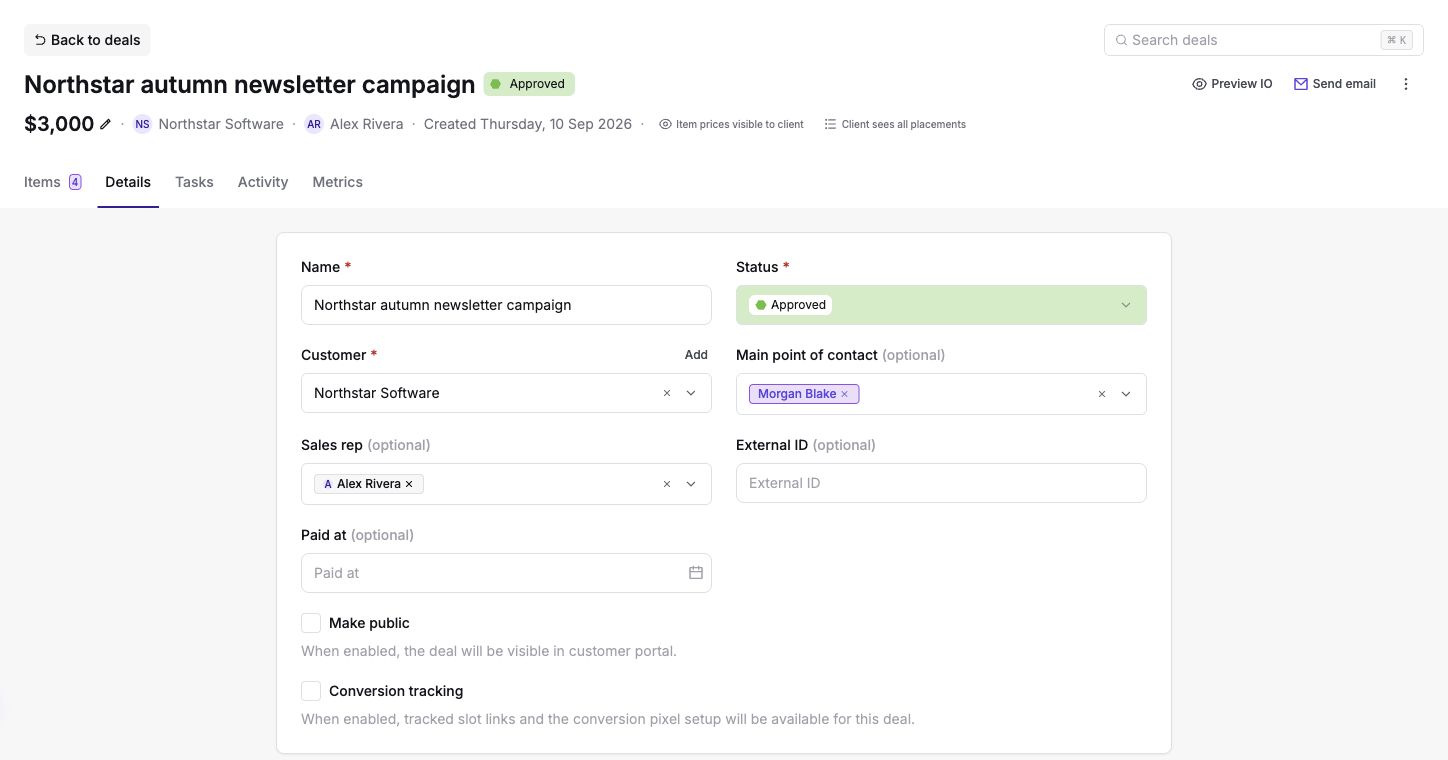
Details contains the editable name, status, customer, contacts, sales reps, external ID, payment date, visibility, tracking, custom fields, and notes. Tasks shows the campaign's related work. Activity records updates and discussions so teammates can follow what changed.
When autosave is enabled for your workspace, changes in Details save after a short pause on both the deal page and side panel. The header badge shows Saving…, Saved, or any changes that need attention. You can keep editing while a save runs, and Save remains available to save sooner. Workspaces without autosave keep the manual Save flow.
Closing the panel or switching tabs lets queued saves continue while Sponsy stays open. Failed or invalid edits remain available through the app's unsaved-changes indicator. The browser-leave warning includes these edits; they are not recovered after closing the browser. Changing a deal's customer still asks before updating the customers on its booked slots. Creating deals, editing items, archiving and deleting remain explicit actions.
The Proposals tab lists scheduling proposals created from the deal's items. Its badge counts drafts and open proposals. Open a proposal to check its status, edit a draft, or share its link. To change a published proposal, choose Edit proposal, save your changes, then Publish & share again. The sponsor cannot open it while it is a draft.
Deals accepted from a new proposal also have a Proposal tab with the original agreement. When conversion tracking is enabled, the Conversion pixel tab provides setup and testing.
Metrics
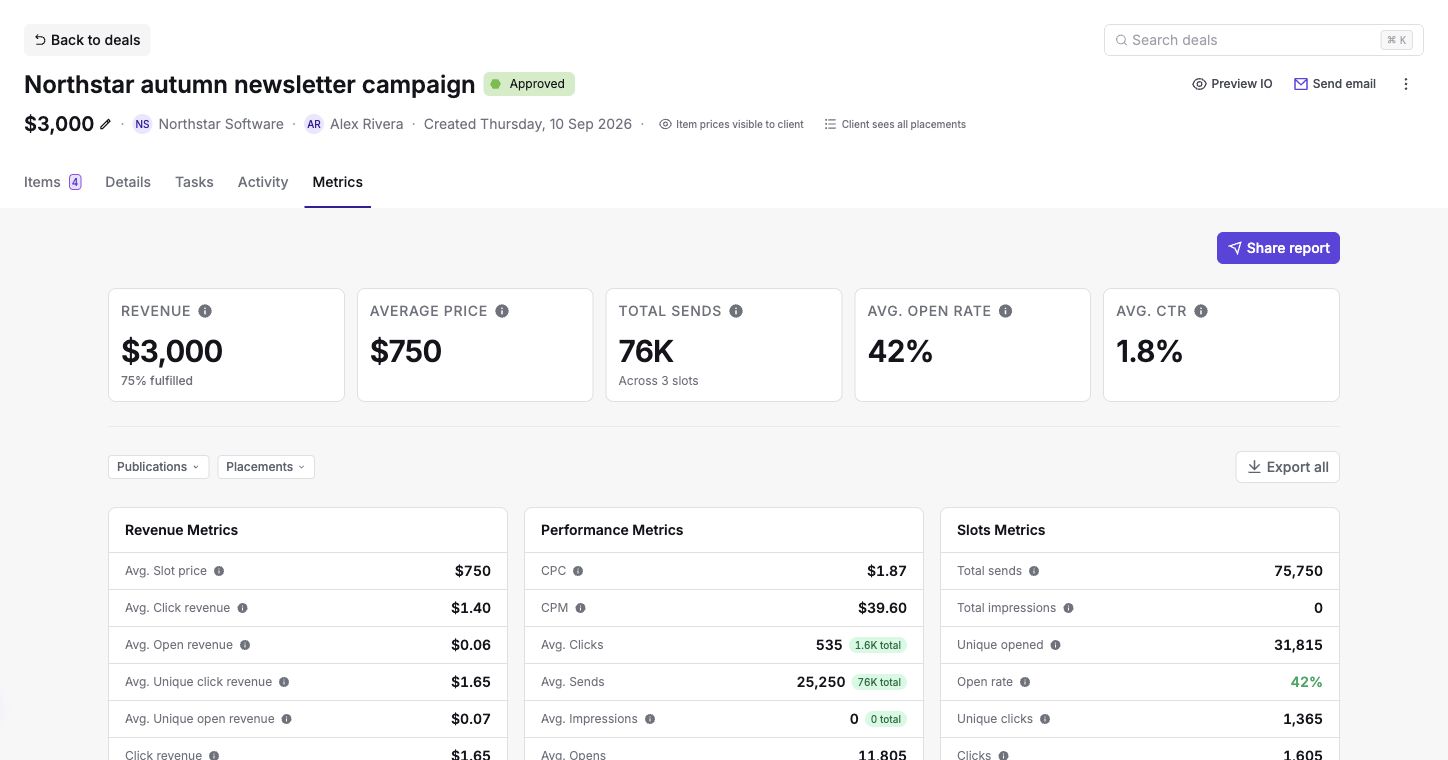
Open Metrics for the campaign's revenue, average price, sends, open rate, CTR, and available placement metrics. The page includes revenue, performance, and slot summaries, charts, publication breakdowns, and individual slot results. The metrics available depend on each placement's integration and imported data.
Use Export all or the table's CSV export for campaign data. Use Reports when you need a configurable deal or line-item export.
Deal-wide custom metrics, such as book sales, appear in a separate table below Per-Slot Breakdown. Custom metrics for an individual slot stay under that slot's row.
Your integration can give the deal-wide table a title. That title appears above the table and in its Export all CSV section. Without a title, the heading stays Custom Metrics. See API for the optional title field.
Sharing a campaign report
From Metrics, click Share report. Select Summary metrics, Performance chart, Publication breakdown, and Per-slot breakdown as needed. The performance chart can include clicks, opens, and sends. Choose whether to Show pricing and add an optional sponsor note.
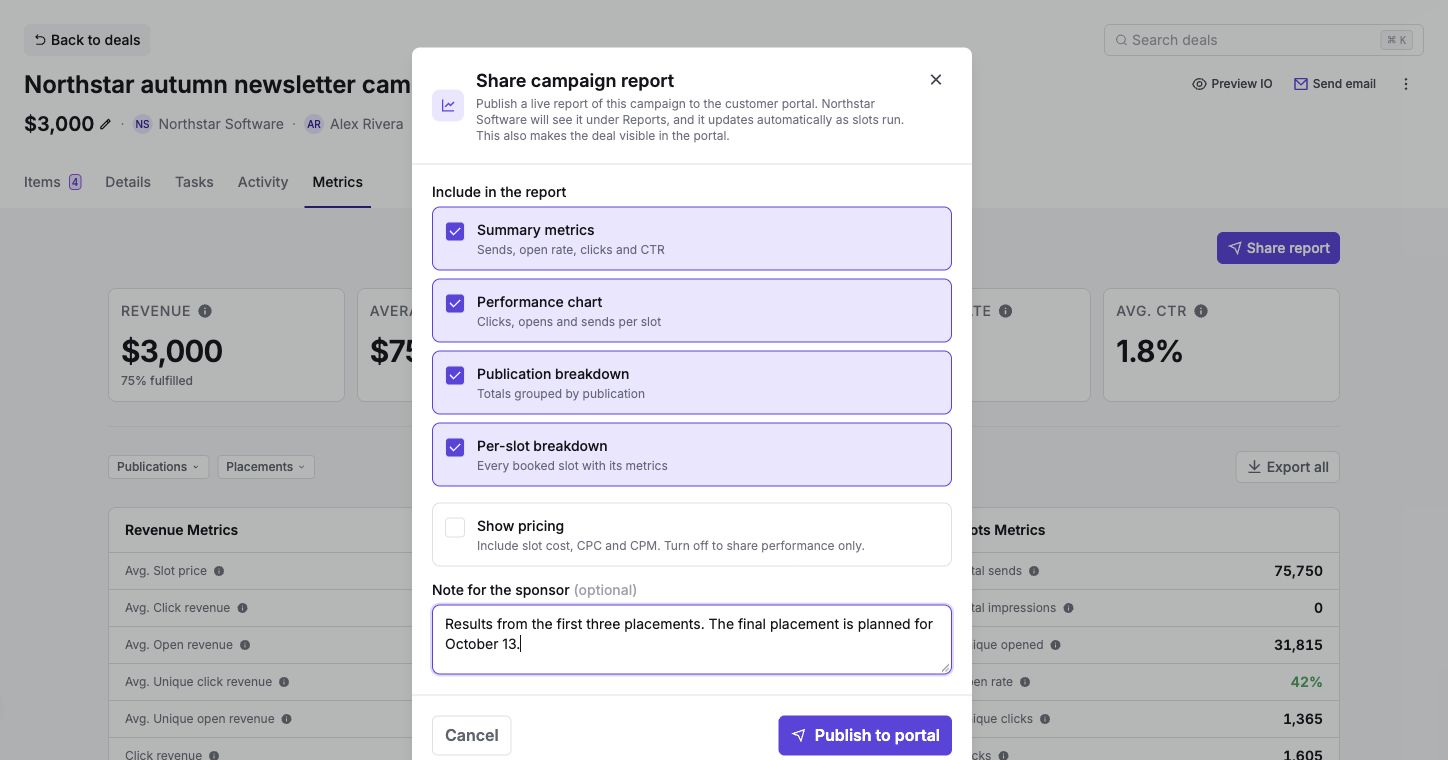
Click Publish to portal. This also makes the deal public. The report updates as booked slots run and metrics arrive. Once published, use the report strip to View in portal, Update, or Unpublish it.
The customer's portal settings and financial permissions still apply. Making the deal private hides it from the portal. Unpublishing the report removes the report; it does not delete the campaign.
Public vs Private Deals
Enable Make public in Details or use the deal's actions menu. Public deals appear in the customer's portal when its Deals section is enabled in Customer Portal settings. Private deals remain internal.
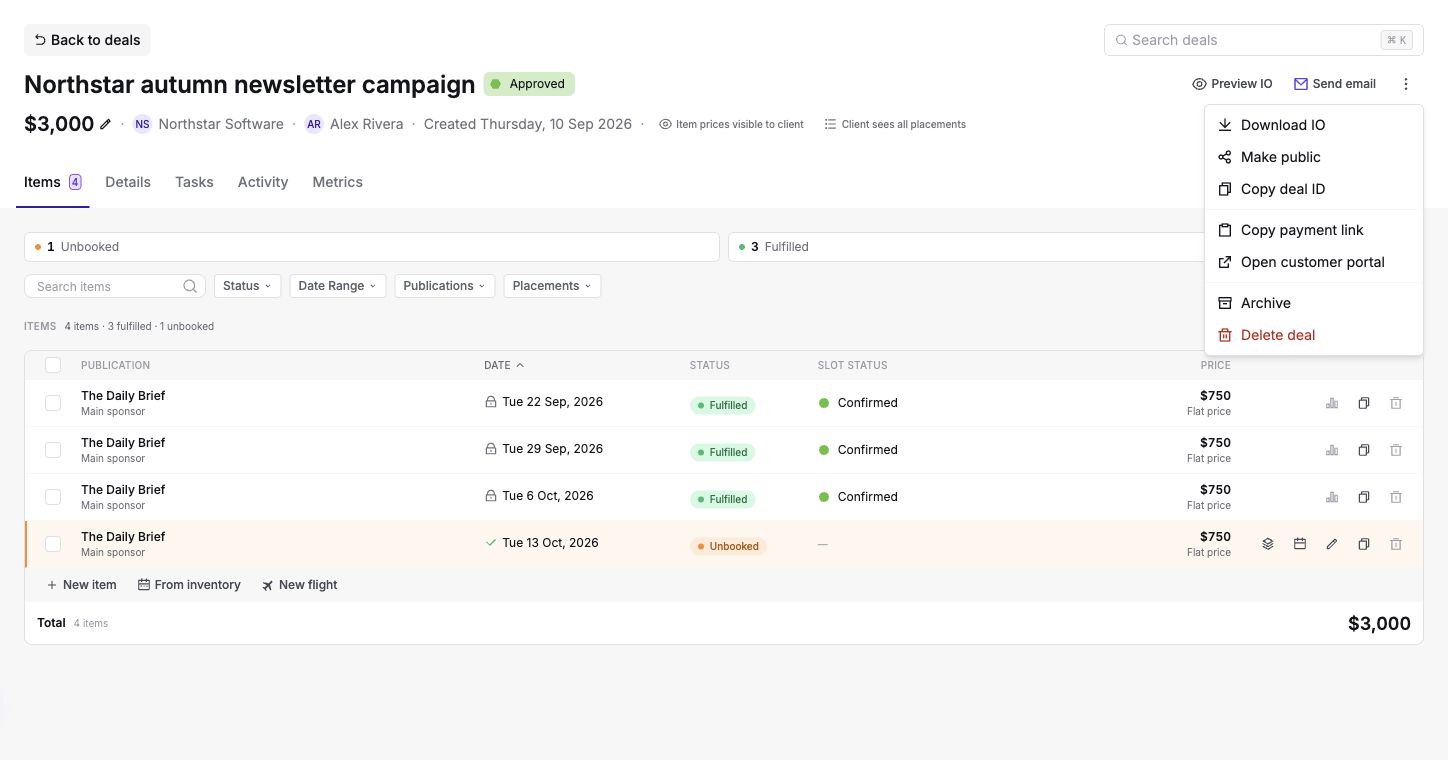
The header's client visibility controls let you choose all placements or booked only, and whether item prices are visible. These settings can override workspace defaults for this deal. Hiding item prices keeps the total visible; it does not remove pricing from your internal view.
For eligible deals, use Preview IO or Download IO to view or download the insertion order. The sponsor-facing document follows the item-price visibility setting. The document includes the deal name below its header. You can find the deal by entering its IO reference, such as IO-4AFDAB8E, in global search, the Deals pipeline search, or a Deals report search. Letter case does not matter.
Choosing insertion order columns and details
Open Settings → Customer portal → Deals → Configure columns and details. These settings apply to deal and proposal PDFs.
| Setting | What appears on the document |
|---|---|
| Platform | A separate column using the selected slot-detail or content field. A saved value takes priority. If a booking has no saved value, a valid dropdown default is used. A deliberately empty value stays empty. |
| Volume | The selected field's value, with the impression goal as the fallback. For example, choose a dedicated-email audience field while website bookings continue to use their impression goals. This changes the printed value, not pricing calculations. |
| Targeting | The selected customer-visible field, labeled Targeting under Details. Keep it separate from client notes or internal notes. |
| Collection details | The properties to print beneath each selected collection item, such as a discount's value, start date and end date. Only checked properties appear. |
Qty is hidden when every line has quantity one. It appears when at least one line has another quantity, so a proposal for several placements still shows its quantities.
Use Manage fields in the same settings section to choose which other fields print under Details. Enable a collection field here before selecting its properties. Hiding a field from the IO leaves its values on the booking.
Private fields stay out of Details, Platform and Targeting. Volume allows an explicit private-field selection; selecting it publishes that field's value in the Volume column. Other private values remain hidden. Check that the selected value is suitable for clients.
Use slot tags when Targeting is empty is off by default. Enable it only if all tags on booked slots are suitable for clients. A filled Targeting field takes priority. Unbooked proposal items use their field values because they do not yet have slot tags.
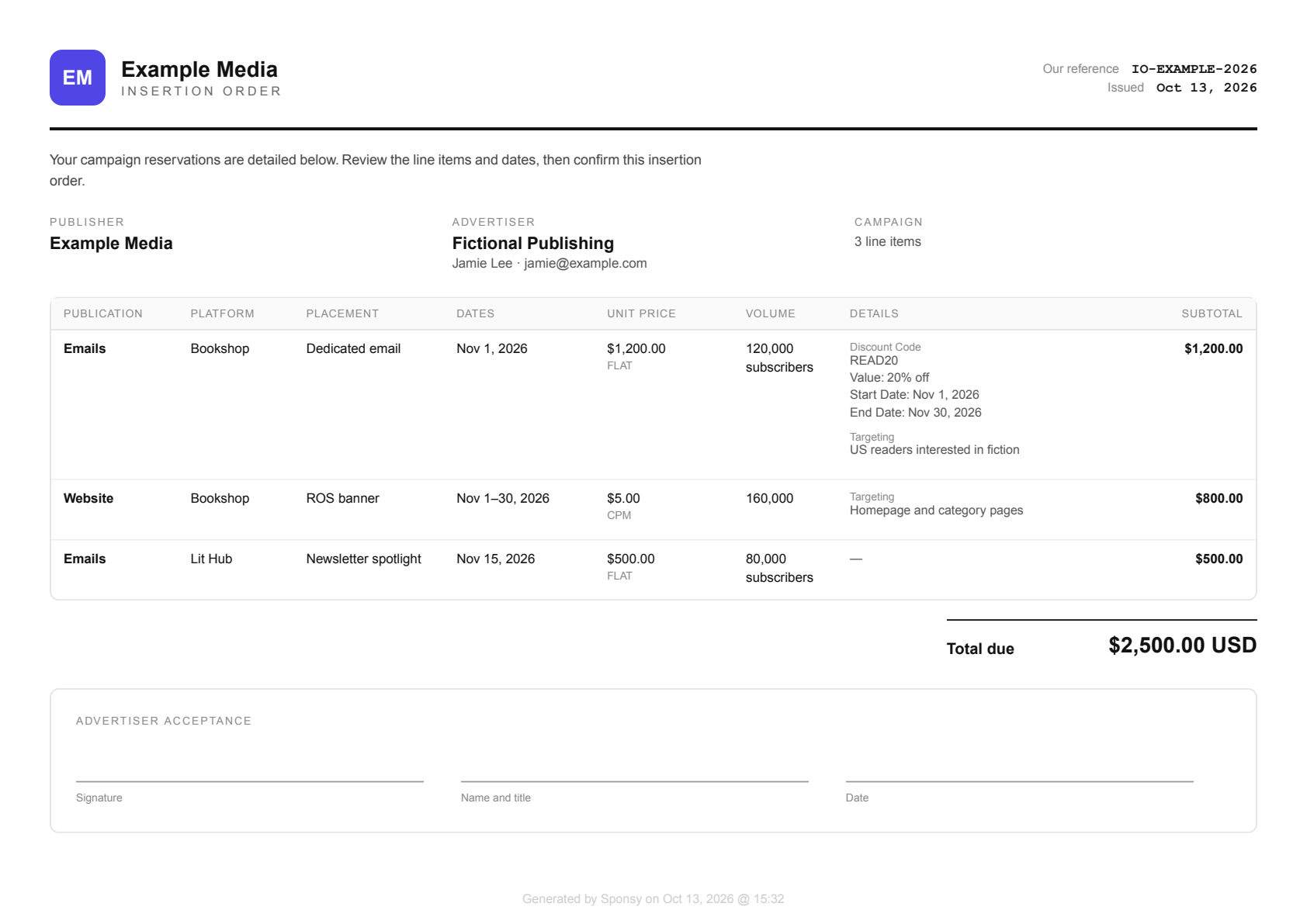
Download the IO again after changing a field, collection item or layout setting to get the current document. Long Details values appear on an additional-details page referenced from the line item.
Public deals help sponsors follow a campaign and leave comments. Use a proposal when you need the sponsor to choose dates, sign, or complete other acceptance steps.
Collecting Payments
With Stripe connected, use Copy payment link from the deal's actions menu and share it with the customer, or include it in an email composed from the deal. After a successful payment, Sponsy marks the deal as paid. You can also record Paid at manually in Details for payments collected elsewhere.
Automations can send payment links or reminders based on deal events. Proposal payment collection is configured separately in the proposal's Sponsor settings.
Tracking sponsor conversions
Conversion tracking is currently in private beta for Pro and Custom plans. Contact us to request access for your workspace.
Conversion tracking connects named actions on an advertiser's website to the sponsored slots a visitor clicked. The supported standard events are page_view, form_complete, download, event_registration, trial_signup, demo_scheduled, and sale. You can also send custom events when those standard names do not fit.
Open the deal's Details tab and turn on Conversion tracking. Sponsy prepares the existing slots and tracked links, and the Conversion pixel tab appears with the universal setup. The same pixel can be used for more than one deal or publisher. Opaque sp values on slot links decide attribution, so the installed script does not contain a deal or publisher ID.
Install the bootstrap once:
<script>
(function(w,d,u){if(w.spq)return;var q=w.spq=function(){q.callMethod?q.callMethod.apply(q,arguments):q.queue.push(arguments)};q.queue=[];q.loaded=false;q._sponsy=true;q.version="1.0";var s=d.createElement("script");s.async=true;s.src=u;(d.head||d.documentElement).appendChild(s)})(window,document,"https://in.getsponsy.com/sp.js");
spq("init");
</script>
Then send an event only after the action succeeds:
spq("track", "form_complete", { eventId: "FORM_SUBMISSION_ID" });
spq("trackCustom", "qualified_lead", { eventId: "LEAD_ID" });
Page views are explicit. Add spq("track", "page_view") where you want one recorded. Sponsy does not automatically count every page load.
The browser stores up to 20 distinct slot clicks in a secure first-party cookie for 30 days. Clicking the same slot again moves it to the newest position. When an event arrives, the newest valid slot gets last-touch credit and earlier distinct slots get assisted credit. This can span publishers without exposing one publisher's slot details to another. A report may show that an external publisher was the last touch, plus an anonymous path position such as “1 of 3.”
To change the workspace default, open Deals → Settings → Conversion tracking and change Enable on new deals. Choose Only new deals to keep existing deals unchanged, or Update all deals to apply the change to existing deals too. This setting appears when your workspace has conversion tracking access.
Turning conversion tracking off in a deal hides its setup and prevents its slots from receiving new attribution. Previously recorded tracked events remain available in reporting.
Cookie domain
The default cookie is host-only. This is the safest option and keeps attribution isolated to the hostname where the pixel runs.
If the landing page and event page use different subdomains, the setup may suggest a shared parent domain. Confirm that domain with the advertiser before enabling it in the generated snippet. Unrelated top-level domains cannot share browser attribution.
Testing the installation
Select Open test link from the deal's Conversion pixel tab. Sponsy opens a real tracked link from one selected slot and waits for any named event from that test browser. Keep the deal tab open while you finish the flow.
The result identifies the event received. A test sends only the selected test slot, never the browser's existing attribution history. Test sessions expire after 15 minutes and never change tracked-event totals. If the deal has no supported tracked link, add the sponsor URL to a slot before starting the test.
Preventing duplicate events
The pixel creates an event ID automatically. Refreshing a success page or retrying the same browser request does not increase the event count again.
For purchases or forms that can be completed more than once, pass a stable order or submission ID:
spq("track", "sale", { eventId: "ORDER_ID" });Deduplication is scoped to the confirmed site or hostname, event name, and event ID. The same ID can therefore be used for different event names or unrelated sites without collision. Sponsy hashes the value at the edge and never stores or queues the advertiser's raw ID.
Custom event names must use lowercase snake_case, be no longer than 50 characters, and cannot reuse a standard event name.
Reading tracked-event reports
Tracked deals keep the aggregate Conversions metric and add a Tracked events panel. Each event shows Conversions for last-touch credit and Assisted for credit earlier in the path. Use the breakdown icon beside a count to see which slots contributed. Slot labels include the publication, placement, and run date.
In Deal → Metrics → Per-Slot Breakdown, expand a slot to see its tracked events alongside any creative or custom metrics. The event counts belong to that specific slot, so two runs of the same placement stay separate. Use Expand all or Collapse all to show or hide the details together.
Tracked-event CSVs identify every slot with its Slot ID, Date, Publication, and Placement, followed by the attribution role and count. Undated slots have a blank date and retain their slot ID. Each row is an event total for one slot and attribution role.
The per-slot export and Export all include a Tracked events by slot section for slots matching the current table filters. The download inside a slot's event details exports only that slot. The separate deal-level Tracked events download covers the whole deal.
Shared campaign reports also show tracked events when Tracked events is enabled in the portal's Metrics & reports settings.
Advertiser setup requirements
- Allow
https://in.getsponsy.comin the site's Content Security Policy for scripts and connections. - Keep the
spquery parameter when the landing URL redirects. - Load the scripts according to the advertiser's cookie-consent policy.
- Do not place personal information in an event ID or custom event name.
If events are not appearing, open the sponsored landing URL and confirm that sp is still present after the page loads. Check that spq("init") runs before the named event, and that the browser can reach in.getsponsy.com.
Proposals
A proposal is an offer the sponsor can review and accept. You choose the inventory, quantities, pricing, date options, and acceptance requirements. Publishing creates a share link. Acceptance creates a deal, or updates the existing deal if the proposal was made from one.
Proposals on the pipeline board
The first lane groups outstanding proposals into Expiring soon, In negotiation, Viewed, Sent, Pre-approval, and Drafts, when those groups have proposals. Expiring soon means a published proposal expires within seven days.
Use Copy link on a published proposal to share it. Remind sends a reminder email; it is not just an internal flag. The lane's + creates a proposal, and its arrow collapses the lane. If Suggestions is enabled, expand the suggestions strip to review opportunities, dismiss them, or start a deal.
Open Deals → Proposals for the full proposal list, including accepted, rejected, and expired proposals. You can also create a proposal from a deal's card menu or from selected deal items. This keeps it linked to the existing campaign.
Creating a New Proposal
Choose New → New proposal or the + in the Proposals lane. The creation flow has four steps. You can return to earlier steps to make changes, and Save draft keeps your work without making the proposal available to the sponsor.
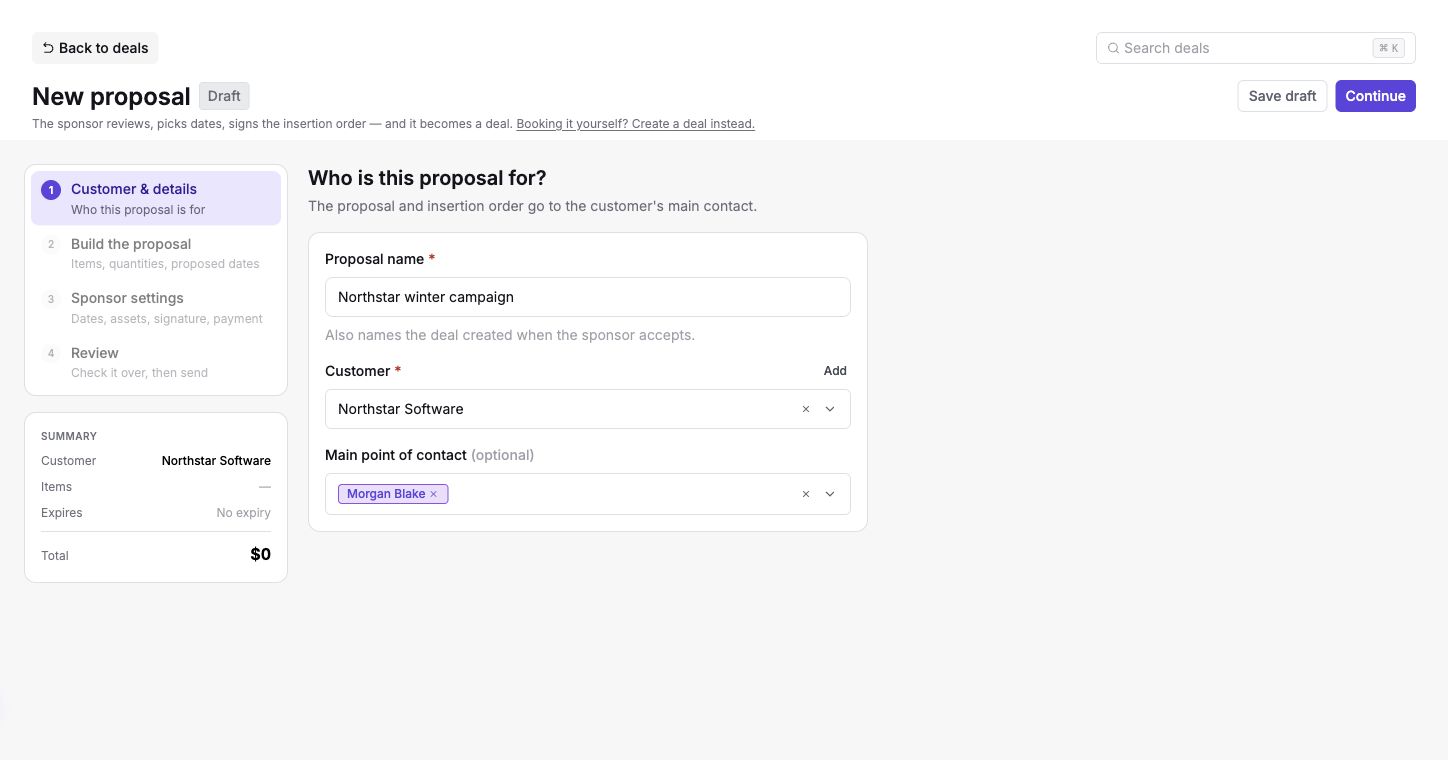
1. Customer & details
Enter a Proposal name and select the Customer. The proposal name becomes the new deal's name on acceptance. Use Add to create a customer if needed.
Choose the main point of contact and sales reps where available, and complete any deal custom fields. For an agency-managed campaign, select the advertiser or agency contacts responsible for the conversation.
2. Build the proposal
Add a publication and placement for each item, then enter its quantity and unit price. Use flat pricing, CPC, or CPM as appropriate. Item details let you include placement content and other information that should carry into the accepted campaign.
When creating a proposal from an existing deal, select unbooked items in its Items tab and choose Create proposal. The customer, quantities, and agreed prices carry over. Items with different prices stay separate, so the proposal keeps the agreed total. Signing starts off for this scheduling flow; you can enable it in Sponsor settings.
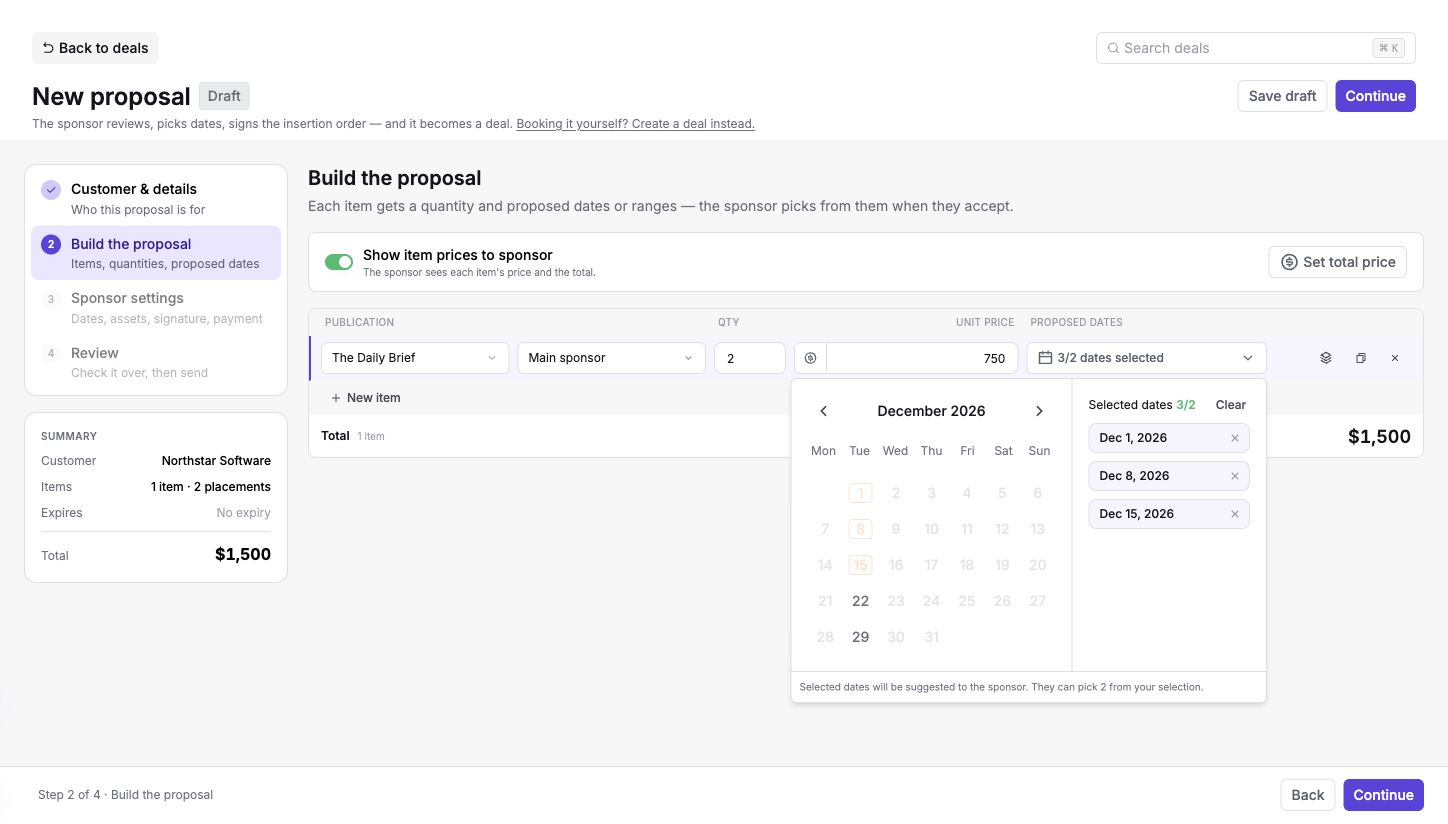
The quantity is how many placements the sponsor is buying. Proposed dates are the choices you offer, so you can suggest more dates than the quantity. For example, a quantity of 2 with 3 proposed dates asks the sponsor to choose two of those dates.
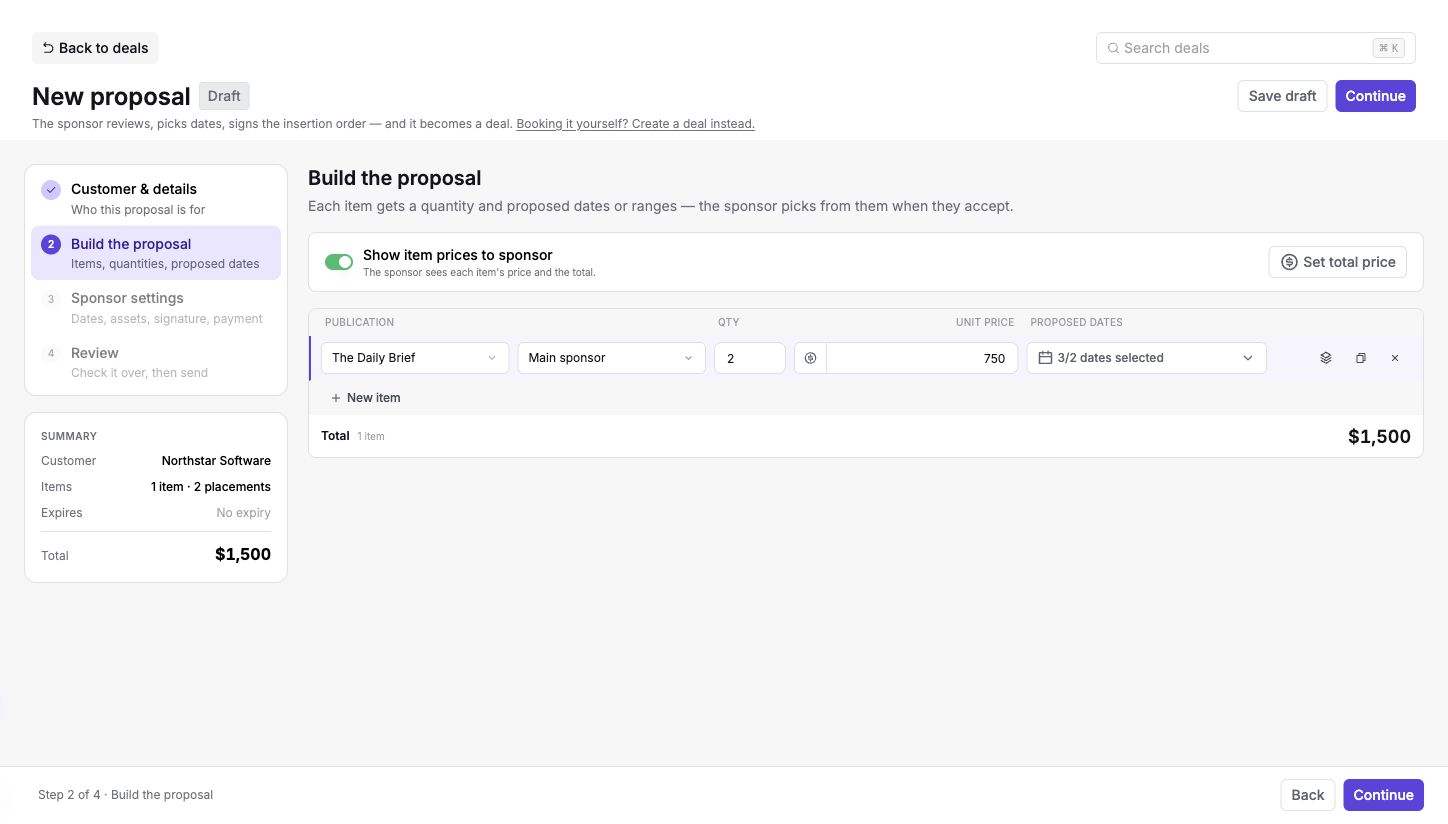
Open Proposed dates to choose dates from the calendar. You can also select the next available dates or use Pick range to add dates in bulk. If you offer dates, provide at least as many as the quantity. For website placements, offer start/end ranges for continuous runs instead of individual send dates.
Dates can be left open. In that case, you will schedule the accepted items yourself, and automatic slot booking and asset collection are unavailable.
Use Set total price to distribute a bundle total across flat-price quantities. CPC and CPM rates stay unchanged. Check the final total, since unit-price rounding can affect the exact amount.
Show item prices to sponsor controls item prices in the offer, insertion order, and accepted deal's client view. Turning it off leaves the total visible. This control may differ for agency proposals.
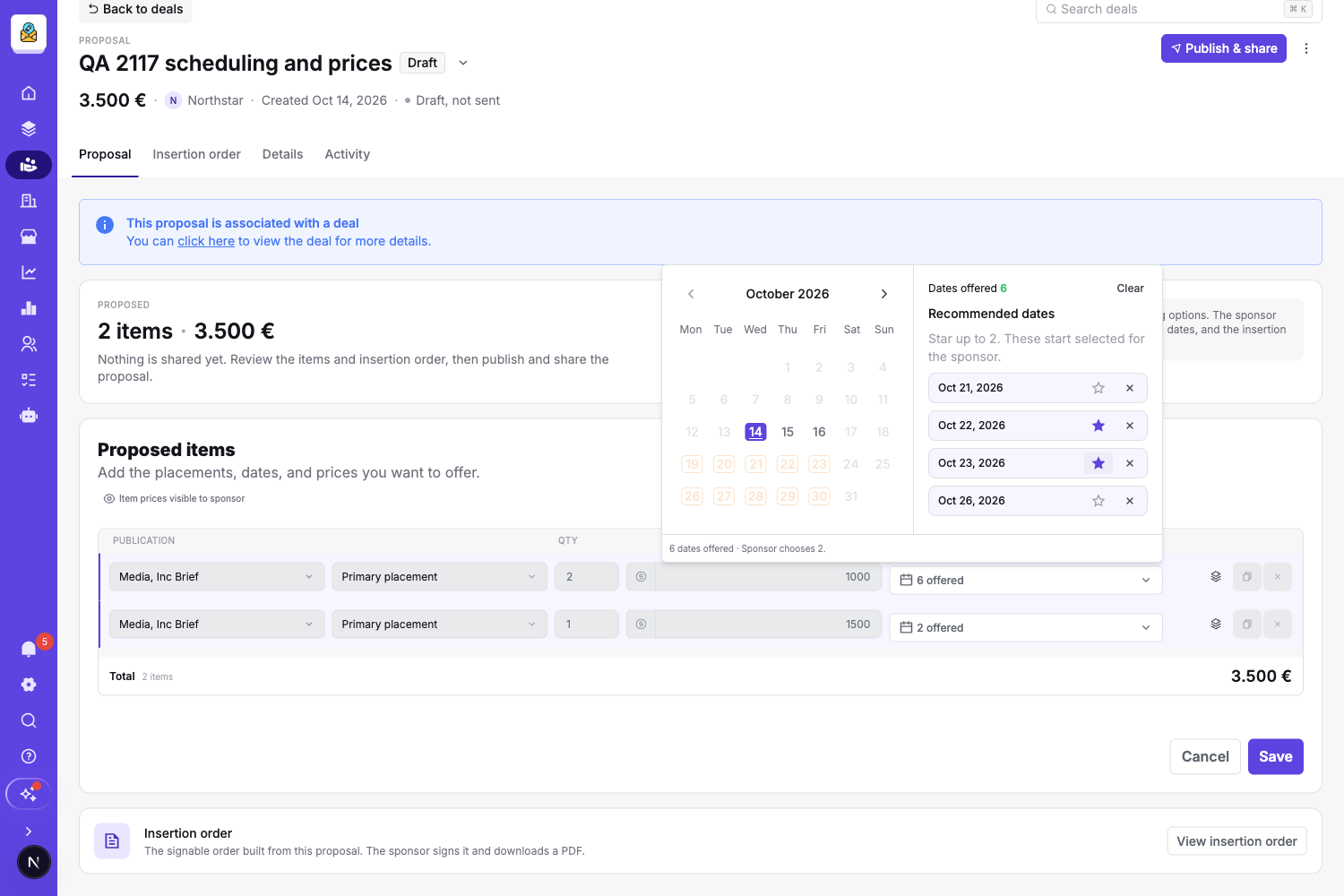
Star dates in the Recommended dates list to suggest them to the sponsor. You can star up to the item's quantity: two placements allow two recommendations, even if you offer six dates. The starred dates start selected on the sponsor's page, and the sponsor can replace them with other offered dates. Your team can change the recommendations by editing the proposal.
Stars do not reserve inventory. Unavailable dates are removed when the sponsor opens the link.
3. Sponsor settings
Choose what happens during acceptance. Options depend on your dates, workspace plan, connected services, and whether the proposal belongs to an existing deal.
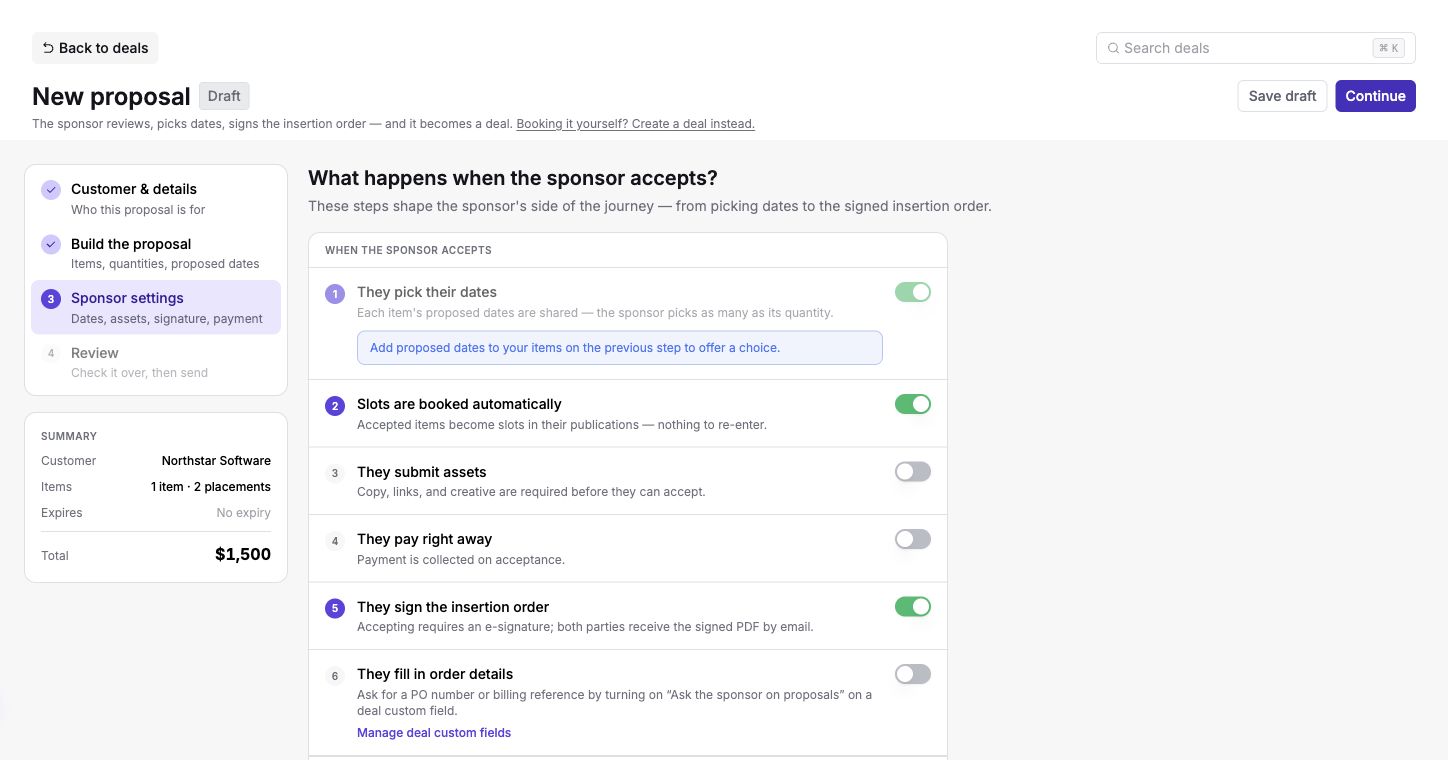
| Setting | What it does |
|---|---|
| They pick their dates | The sponsor chooses the item's quantity from its proposed dates or ranges. This follows the items you configured in the previous step. |
| Slots are booked automatically | Accepted items become inventory slots. Requires proposed dates. Items already booked on a linked deal stay associated with that deal. |
| They submit assets | Requires the sponsor to provide the placement's copy, links, and creative before accepting. Requires proposed dates and automatic booking. |
| They pay right away | Collects payment during acceptance. Requires Stripe to be connected. |
| They sign the insertion order | Requires an e-signature. Available for eligible publisher workspaces on Pro or Custom; both parties receive the signed PDF by email. |
| They fill in order details | Shows the fields configured with Ask the sponsor on proposals in Deals custom-field settings. Required fields must be completed before acceptance. |
Enable Expires on to set an expiry date. Add Include a message if you want to provide context or instructions for the sponsor.
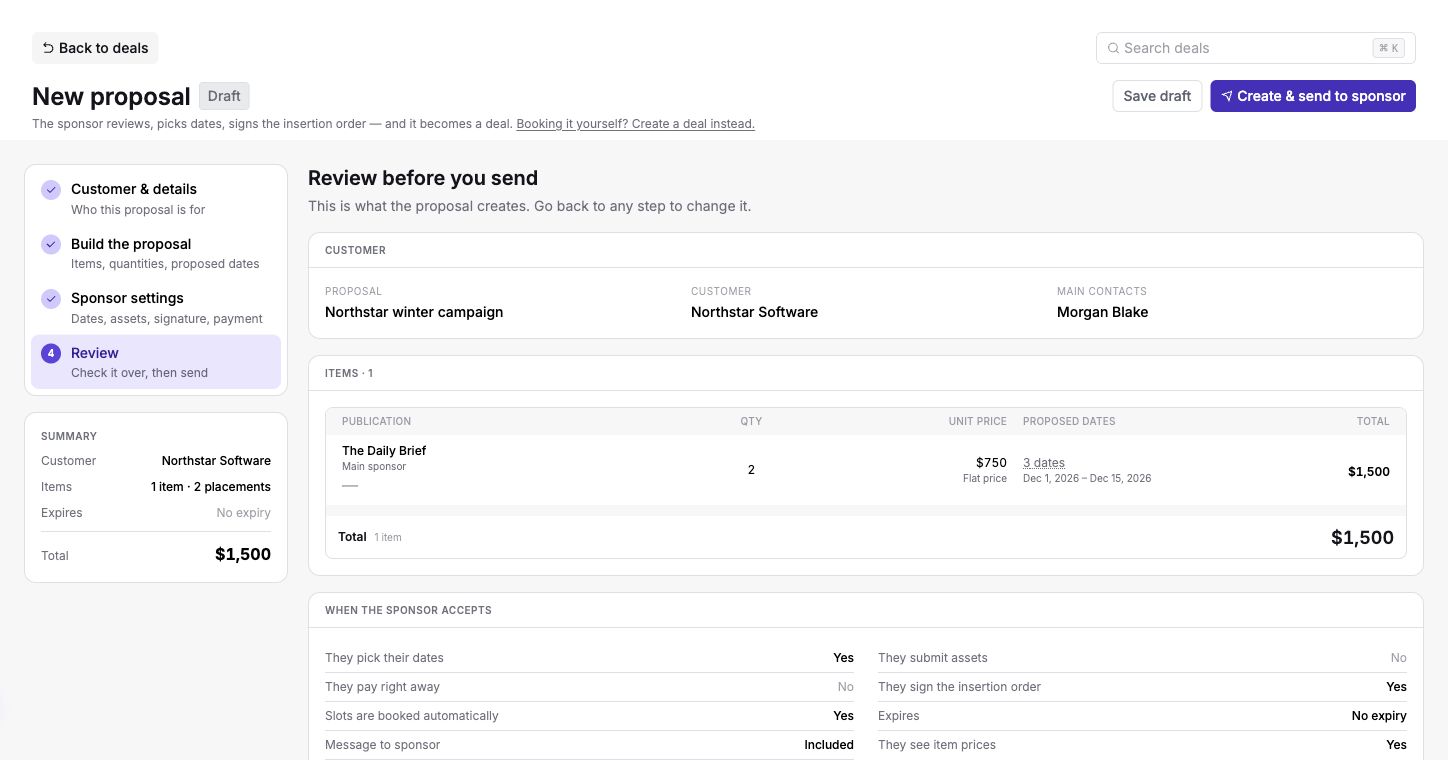
4. Review
Check the customer, quantities, dates, prices, and acceptance requirements. Go back to the relevant step if something needs changing.
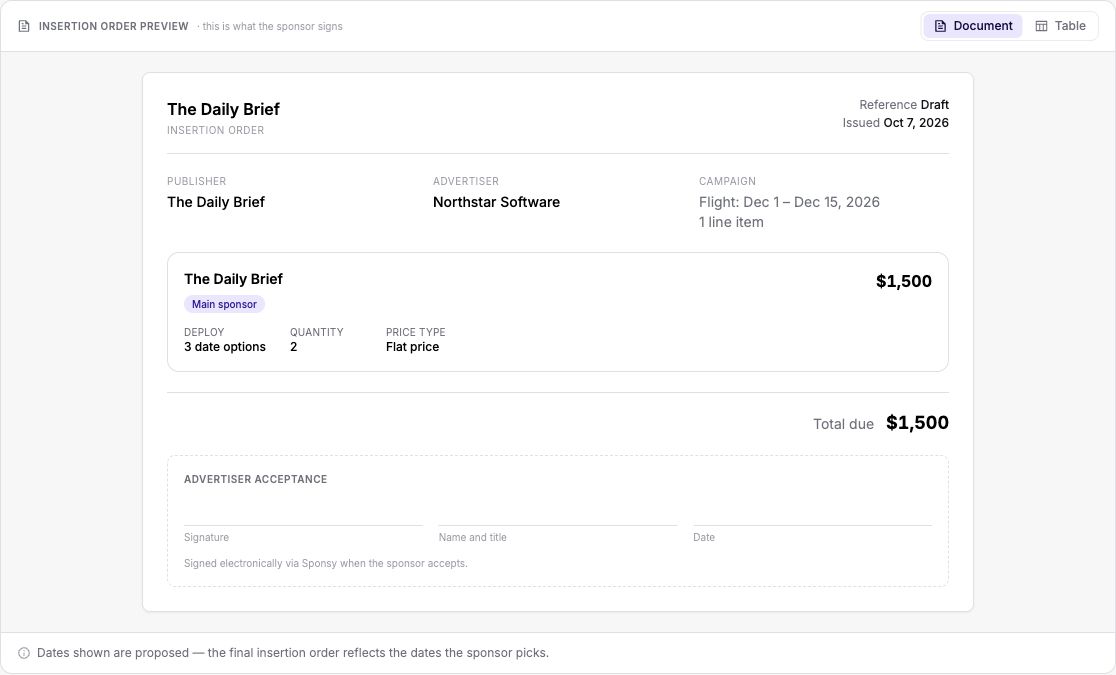
When signing is enabled, review the insertion order preview too.
Choose Save draft to finish later. Create & share publishes the proposal and opens a sharing popup. If you saved a draft first, Publish & share does the same from the proposal page.
Publishing makes the proposal link available. It does not automatically email the sponsor. Sharing the link or sending an email is a separate step.
Sharing a Published Proposal
The sharing popup opens after publishing. You can reopen it later with Share. Copy the proposal URL to share it manually, use Open link to preview the sponsor's page, or choose Compose email to select recipients and write a message. Sending the email is a separate action in the composer.
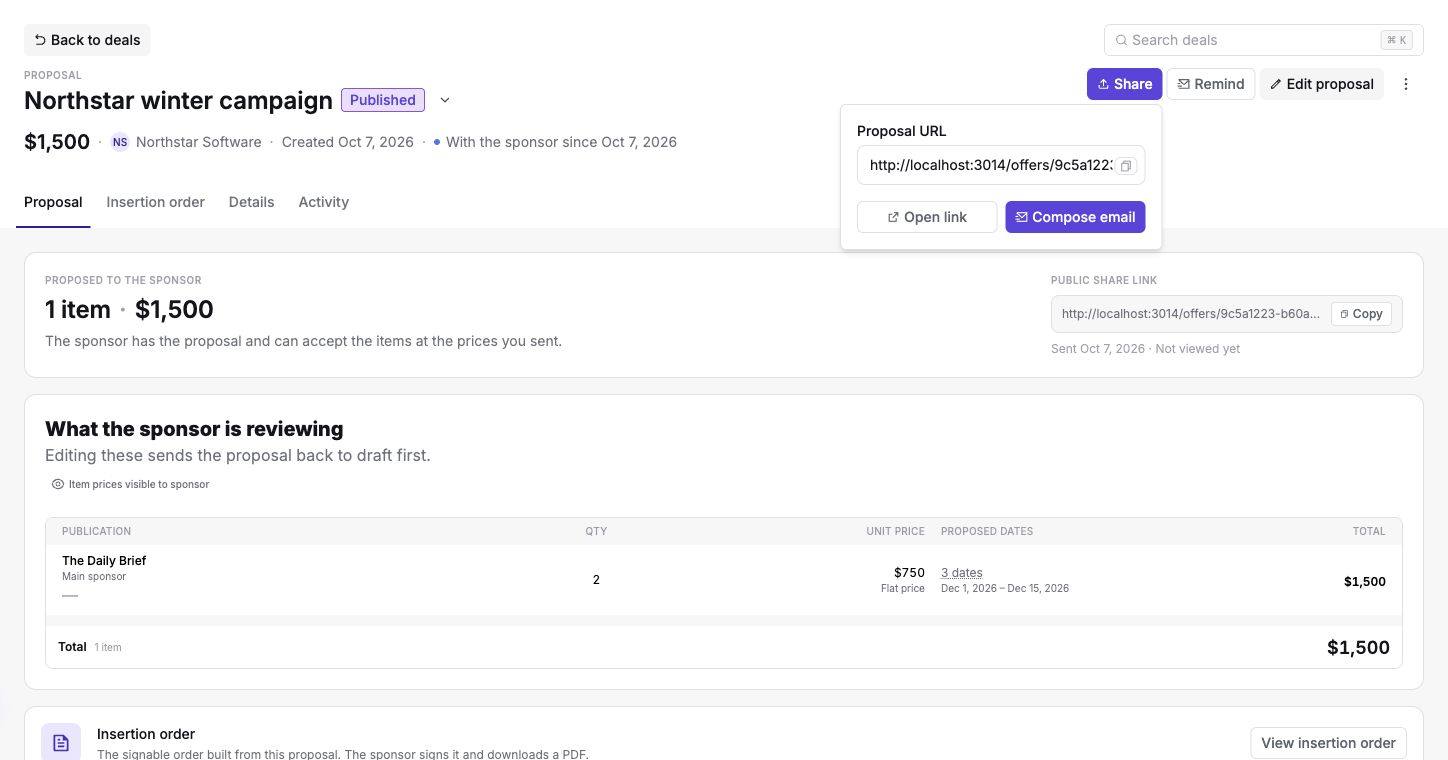
A proposal can have several main contacts. Check the intended recipients before sending. Remind sends a reminder to the proposal's contacts or the customer's contact details when applicable.
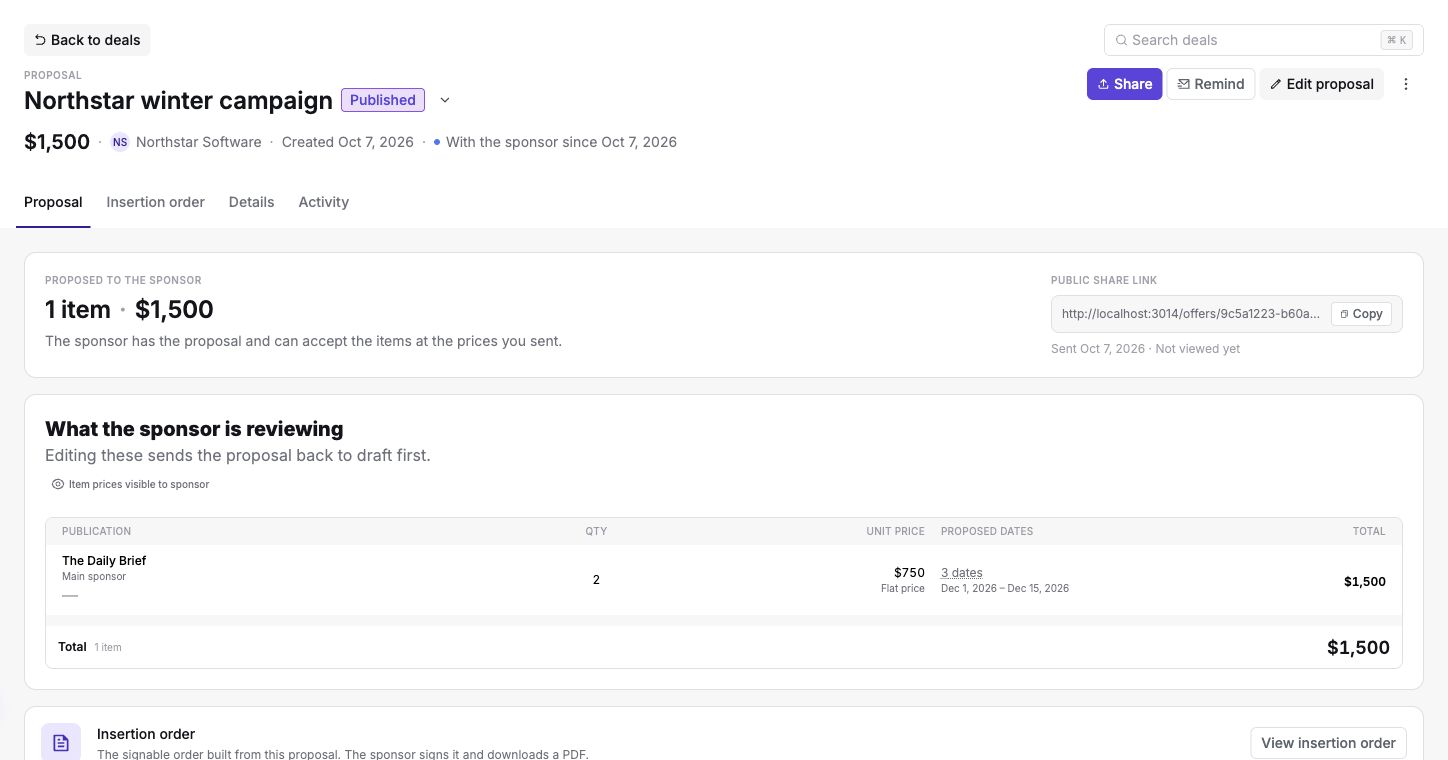
The proposal page shows its public link, sending date, views, and activity. Sponsor comments move it into negotiation. Your own preview from the owning workspace does not count as a sponsor view.
Sponsor Experience (Public Page)
The sponsor opens the shared link and reviews the offer, prices, terms, and message. When an insertion order is included, they can switch between Document and Table views. They can leave a comment to discuss changes or reject the offer with a reason.
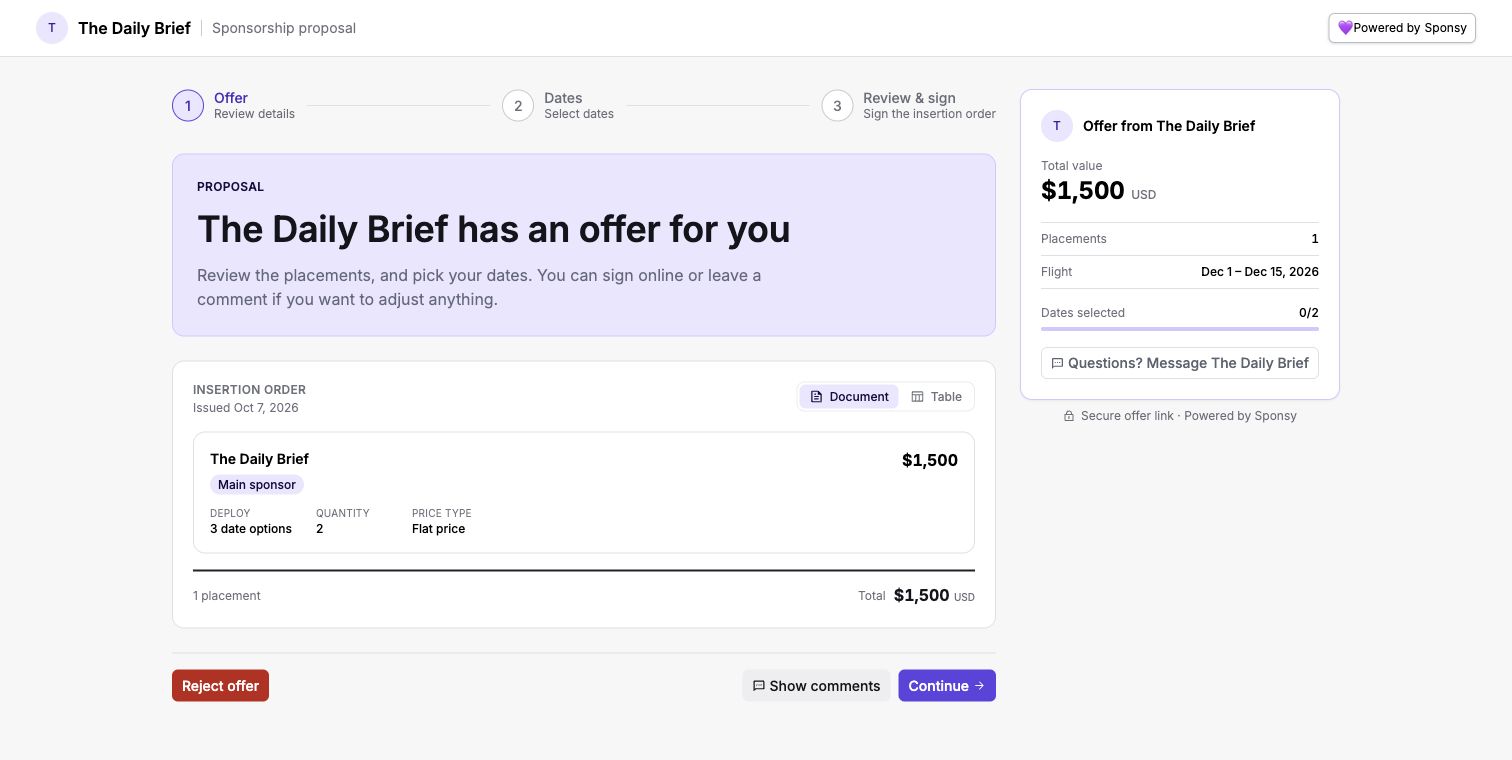
Continuing takes them through the steps you enabled: selecting dates, submitting assets, filling order details, reviewing and signing the insertion order, and payment where required. The progress bar shows the steps for that proposal.
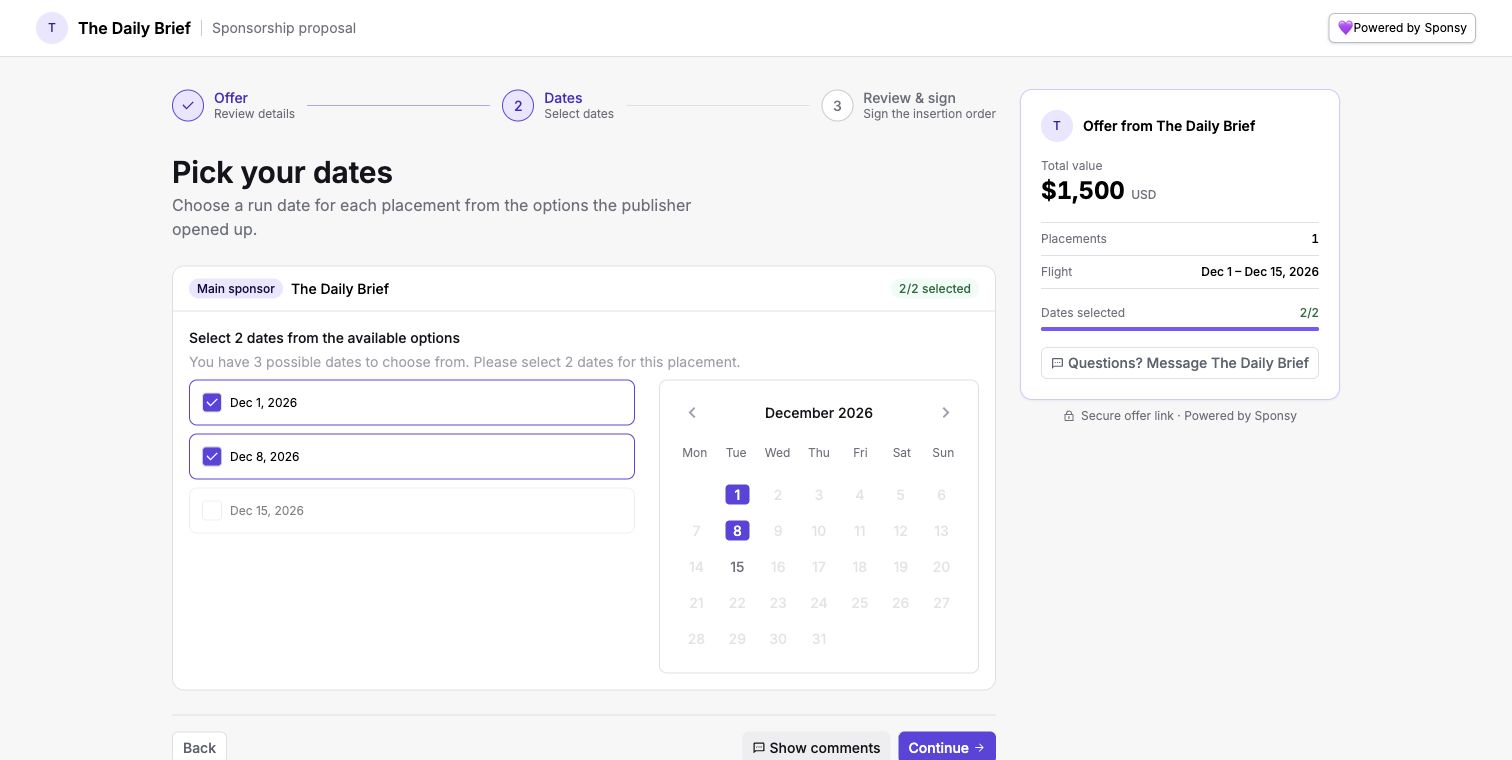
Recommended dates are marked with a star and start selected. The sponsor can deselect them and choose other offered dates, up to the item quantity. Going back to the Dates step keeps their choices.
Dates must still be available when the sponsor accepts. If inventory has changed, adjust the proposal or offer other dates before asking them to finish.
Managing Comments and Rejections
Use the proposal's Activity tab to follow the discussion and reply. Rejected proposals show the sponsor's reason. Reopen or edit the existing proposal to agree a revised offer, then publish and share it again.
What Happens on Acceptance?
For a new proposal, Sponsy creates a deal with the agreed items, chosen dates, customer, contacts, and order details. The deal starts in the first pipeline status, so acceptance does not automatically move it to your Approved status. Set its sales status to match your process.
If the proposal came from an existing deal, acceptance updates that deal instead of creating a duplicate. Items already booked there are not booked twice.
With automatic booking enabled, accepted dates become inventory slots. Collected assets carry into those slots. Without automatic booking, the accepted items remain in the deal for your team to schedule and book. Required payment and signing are part of the acceptance flow when enabled.
Once acceptance finishes, reopening the public proposal link shows a booking confirmation with the accepted dates. It does not start date selection again.
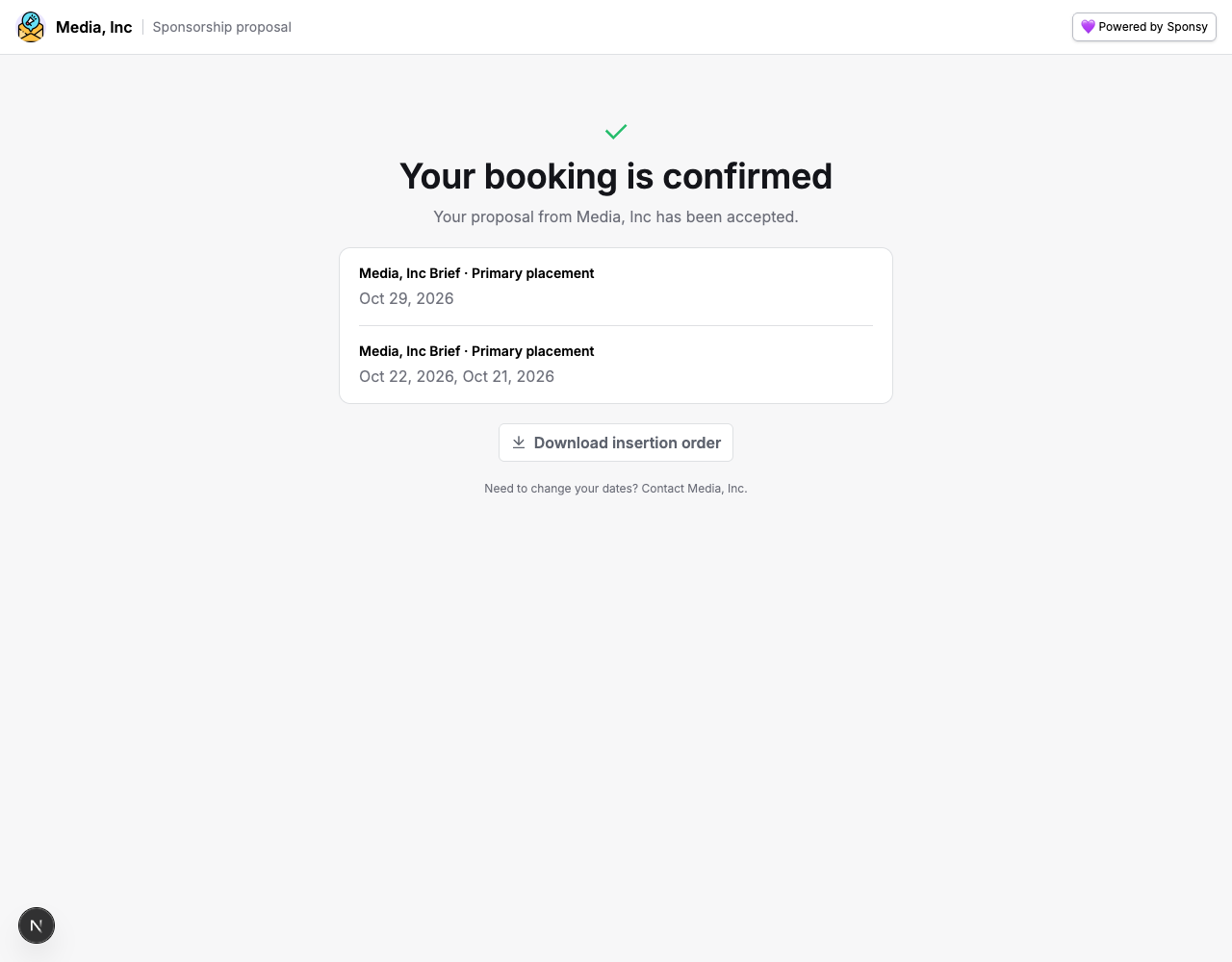
For your team, the accepted proposal opens the deal's Items tab. The deal's Proposal tab keeps the original accepted offer, and its insertion order is available when one was signed. The accepted agreement is a record of what the sponsor approved, even if campaign items are later changed.
Proposals FAQs
Can I edit a published proposal?
Use Edit proposal and confirm the return to Draft. While it is a draft, the sponsor cannot accept it from the public link. Make your changes and publish again. The same link shows the revised offer. Changing item-price visibility is a separate control that can update a published proposal without rebuilding its items.
What happens when the expiration date passes?
The public page shows that the proposal expired. The sponsor cannot accept, reject, or comment until you reopen it and remove or move the expiry date, then resend it.
How do I resend a proposal?
For a live proposal, share the existing link, compose another email, or use Remind. For an expired or rejected proposal, use its reopen/resend controls and resolve the expiry date if prompted before sharing again.
What happens if I archive a proposal?
An archived proposal is unavailable from its public link. Unarchive it before making it available to the sponsor again.