Custom domains
With the **Domains** feature, you can send emails from your own business domain instead of using a generic Sponsy email address.
With the Domains feature, you can send emails from your own business domain instead of using a generic Sponsy email address.
In this guide, we'll walk you through how to set up and verify your domain in Sponsy.
Understanding Domains in Sponsy
When you integrate a custom domain, Sponsy sends emails using your business email address rather than a Sponsy-generated one.
This is particularly beneficial for agencies and media companies managing multiple brands, as it enables customization for different communication streams.
For example, if your media brand "Sports News" wants to send emails from “steve@sportsnews.com” rather than a Sponsy email, you can add "sportsnews.com" as a domain and configure it accordingly.
Which emails use your domain?
Your verified primary domain is used for storefront booking confirmations, accepted and rejected orders, refunds, storefront replies to sponsors, and customer report downloads. These emails use the domain's From Email and From Name settings.
Proposal reminders and signed insertion orders use the verified domain selected in your deal settings, or your verified primary domain if no verified deal domain is selected. Publication automations keep using the verified domain assigned to that publication, with your verified primary domain as the fallback.
If you set a Reply-To Email, customer replies go there. Otherwise, they go to your From Email address. Use an inbox your team checks.
If the applicable domain is missing or unverified, Sponsy uses its usual sender address. Account sign-in, billing, and internal system notifications continue to come from Sponsy. Emails sent through a connected email account use that account's settings.
Adding a New Domain
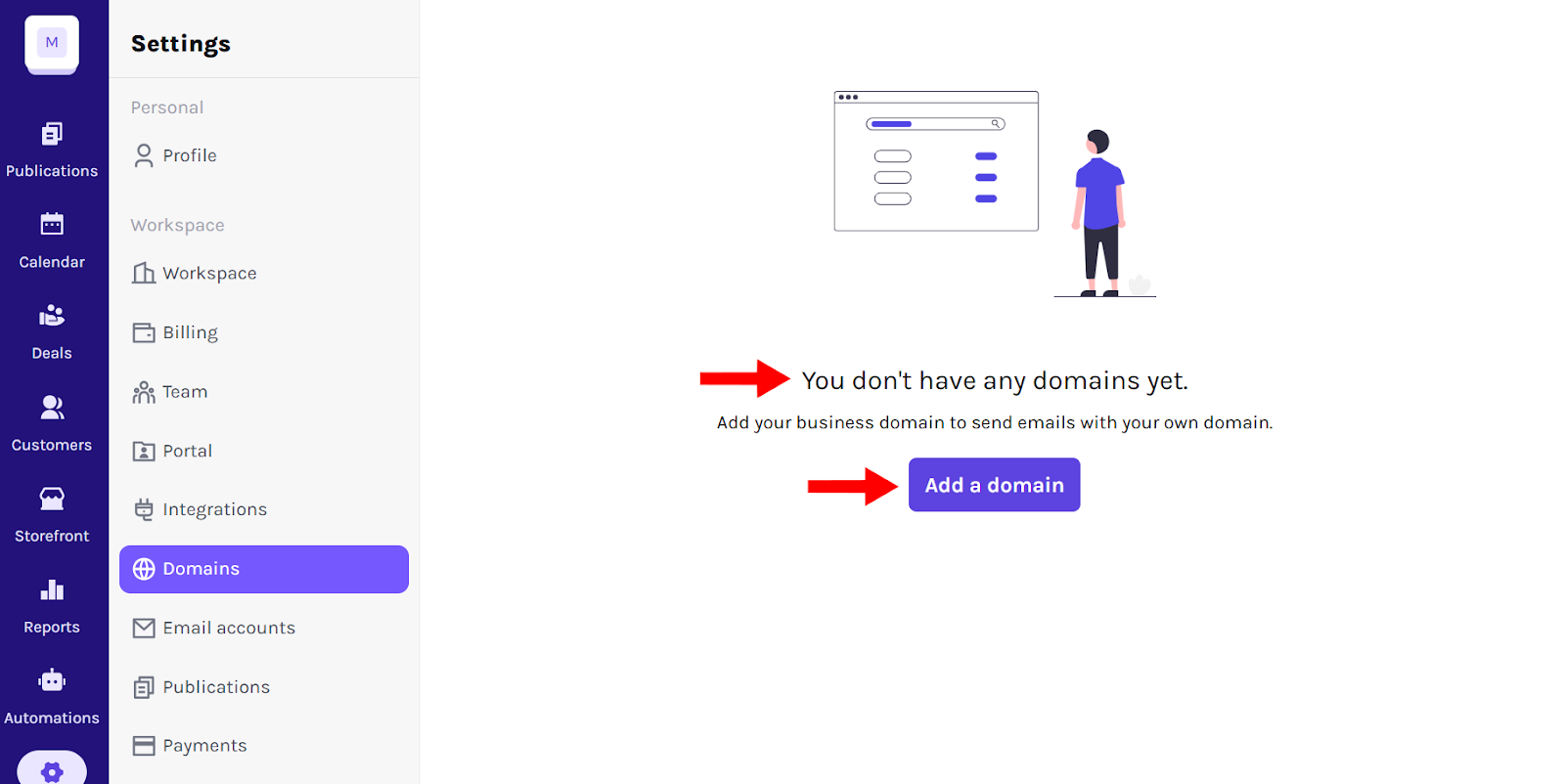
To add a new domain to Sponsy, click the Settings icon in the left sidebar and select Domains from the menu.
On the Domains screen, you'll see a message indicating that no domains are currently set up. Click the Add a Domain button.
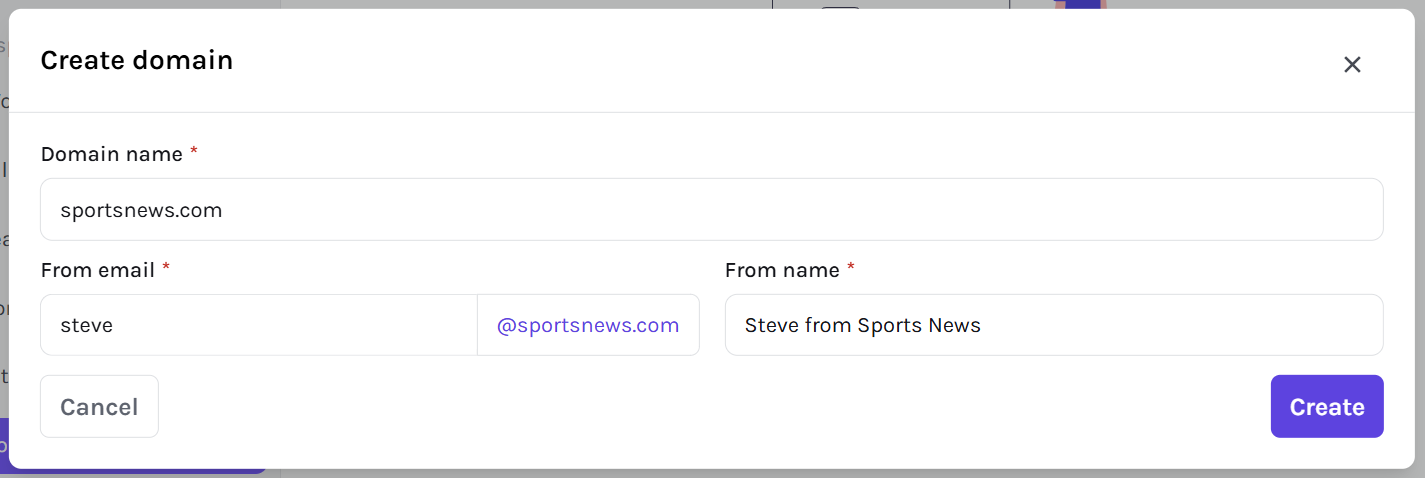
Enter the following details:
- Domain Name: The domain or subdomain you want to use (e.g., sportsnews.com or mail.sportsnews.com).
- From Email: Enter only the part before
@(e.g., steve). Sponsy adds your selected domain and previews the full address below the field. - From Name: The sender's name displayed in outgoing emails (e.g., Steve from Sports News).
Then, click Create to proceed.
Once you create the domain, Sponsy will generate DNS records that you need to configure in your domain provider's settings.
Using a subdomain
Add a sending subdomain as a separate domain. For example, to send as steve@mail.sportsnews.com, choose New domain, enter mail.sportsnews.com, and set From Email to steve.
Each subdomain needs its own DKIM and Return Path records. Verifying sportsnews.com does not verify mail.sportsnews.com. You can keep your existing domain while you verify the subdomain, then choose the subdomain as primary or assign it to a publication or your deal settings.
Domain names cannot be changed after creation. Edit changes the sender name and email prefix. To switch to a subdomain, add it with New domain rather than editing the existing domain.
Verifying Your Domain
To verify your domain, you must update your DNS settings with the required records. Here's how:
After adding the domain, you'll see a Domain Verification section with a table displaying the following records:
- Return Path (CNAME record)
- DKIM (TXT record)
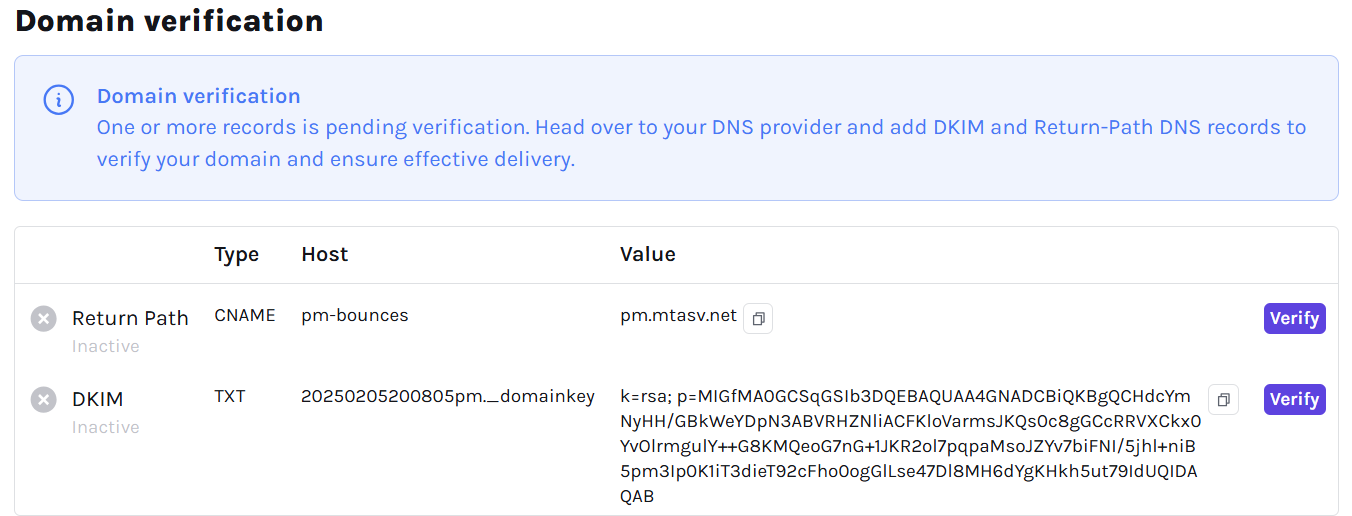
Copy the Type, Hostname, and Value fields for both records. Then, open your domain provider's DNS management settings.
Sponsy shows the complete hostname, including the subdomain. If your DNS provider automatically appends your root domain, remove that part before saving. For example, pm-bounces.mail.sportsnews.com becomes pm-bounces.mail in the sportsnews.com DNS zone. If you manage a separate mail.sportsnews.com zone, use the host format your provider expects for that zone.
Add the records exactly as shown in Sponsy. Once added, return to Sponsy and click Verify next to each record.

Once verified, your domain is ready to send emails from your chosen email address.
Important: DNS changes can take up to 24-48 hours to propagate. If verification fails, wait and try again later.
Managing Your Domains
After adding a domain, you can view and manage all registered domains. The screen displays:
- Status: Indicates whether the domain is verified.
- Domain: The registered domain name.
For each domain, you can:
- Click Edit to update the sender name or email prefix, or reattempt verification. The domain name stays fixed.
- Click Delete to remove the domain if it's no longer needed.
You can also use the New Domain button at the top right to add additional domains.

Next Steps
Once your domain is verified, you can configure publication notifications in Sponsy. This allows you to assign specific domains to different types of communications. To do this:
- Open a publication in the Inventory Hub, then go to Settings → Notifications.
- Select the appropriate domain for that publication.
Now that you know how to set up custom domains, try adding your own!