CRM Integrations
Managing advertiser relationships often means juggling multiple tools, manual data entry, and constant context switching between your sales CRM and your ad operations workflow. Sponsy’s CRM Integrations module bridges that gap by connecting directly with your preferred CRM so you can automatically sync advertiser data, deals, and contacts into Sponsy. This eliminates manual updates, keeps your campaigns aligned with your sales pipeline, and saves your team valuable time.
CRM integrations are available on every plan, with no limit on integration connections.
Managing advertiser relationships often means juggling multiple tools, manual data entry, and constant context switching between your sales CRM and your ad operations workflow. Sponsy’s CRM Integrations module bridges that gap by connecting directly with your preferred CRM so you can automatically sync advertiser data, deals, and contacts into Sponsy. This eliminates manual updates, keeps your campaigns aligned with your sales pipeline, and saves your team valuable time.
How does it work?
Sponsy CRM integrations flow one way—from your CRM into Sponsy. This includes syncing companies, contacts, and deals. Here’s what gets synced:
- Companies & Contacts Sync: All companies in your CRM are imported into Sponsy as customers in Sponsy’s CRM, along with their associated contacts. Sponsy will continue to sync updates and newly added companies and contacts.
- Useful when you want to avoid duplicate data entry between your CRM and Sponsy.
- Deals Sync: Automatically import deals from your CRM to Sponsy’s Deals once they reach a specific stage in your pipeline.
- Useful when you prefer to close deals in your CRM but schedule the corresponding order in Sponsy’s Inventory Hub.
Connect your CRM
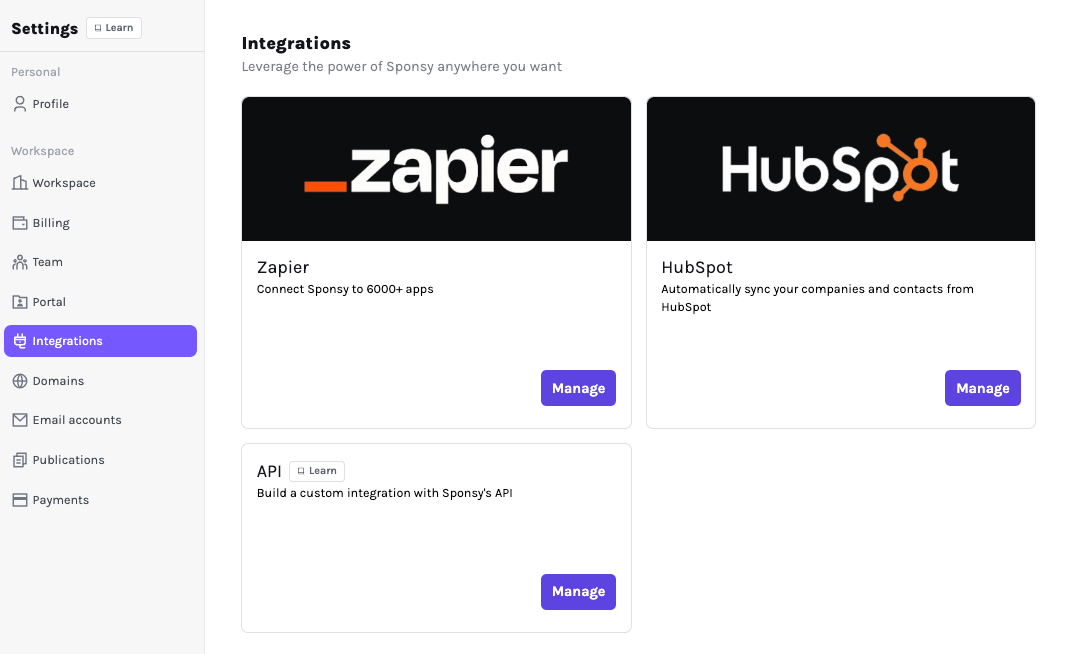
To link your CRM with Sponsy, navigate to the Workspace Settings > Integrations page. Select your CRM and follow the connection steps to supply your credentials and set up the sync.
HubSpot Integration
How to connect
Connecting your HubSpot account to Sponsy is simple:
- Navigate to
Settings→Integrations - Click on the HubSpot tile
- Connect Your Account and approve access to your data
Configure your integration
There are two main sync options:
- Companies & Contacts
- Deals & Products
You can enable either or both.
You can also configure how CRM stages map into Sponsy deal statuses. Use this when a CRM pipeline stage should create or update Sponsy deals into a specific Sponsy status instead of always relying on the first status in your Sponsy pipeline.
Companies & Contacts
Don’t enable this option if you want only companies you've closed a deal with to appear in Sponsy.
When this option is enabled, Sponsy syncs all companies and their associated contacts from HubSpot and keeps them updated over time. New records added in HubSpot will be automatically created in Sponsy as well.
A full sync starts as soon as you enable this option. You can also trigger manual syncs at any time.
Sponsy can sync HubSpot company type, parent company, and agency relationships into Sponsy customer and deal records. Use the company mapping settings to decide how HubSpot fields should populate Sponsy customer type, parent company, and agency data.
Parent company sync keeps company hierarchies aligned when HubSpot is your source of truth. Sponsy logs parent-company sync activity so you can audit what changed during the integration sync.
Deals & Products
This option syncs deals from HubSpot to Sponsy when they reach a selected pipeline stage. If the company or contacts don’t exist in Sponsy yet, they will be created automatically.
When a company is created automatically, Sponsy will look for a primary contact in HubSpot.
- If one exists, Sponsy will set that contact as the primary in Sponsy.
- If multiple primary contacts exist, Sponsy will still only keep one as the primary but will make the others contactable.
- If no primary contact exists in HubSpot, Sponsy will assign the first available contact as the primary.
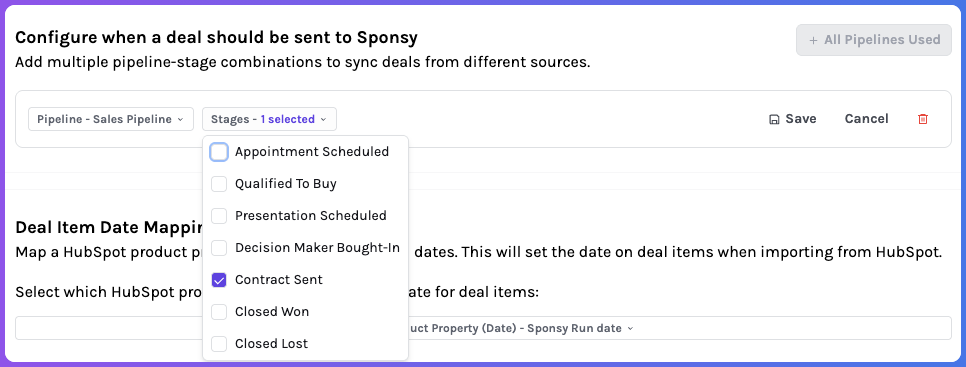
Choose when a deal should be sent to Sponsy
Not all deals are synced—only those that reach a stage you specify (e.g. “Closed Won”). You can select multiple pipelines and also multiple stages.
Map your HubSpot products to Sponsy placements
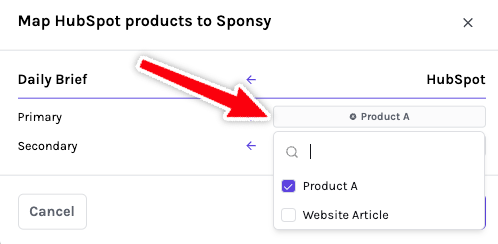
HubSpot products represent what the advertiser is buying. In Sponsy, these are called placements. To sync a deal correctly, you need to map products to placements.
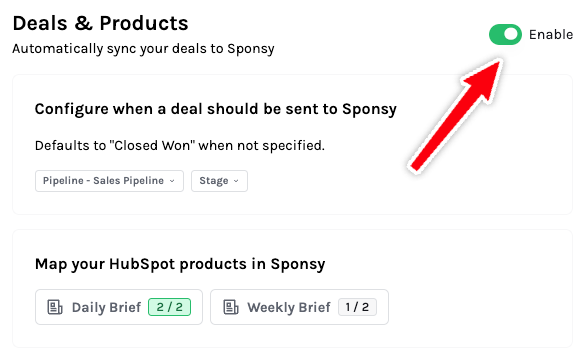
Each publication in Sponsy shows a counter of how many placements have been mapped.

- Select a publication
- You’ll see its list of placements
- For each placement, choose one or more corresponding HubSpot products from the dropdown
Once you're done configuring everything, don’t forget to toggle the switch to activate deal syncing.
From now on, whenever a deal in HubSpot reaches the specified stage, it will automatically appear in Sponsy Deals with all corresponding placements pre-selected. All you need to do is assign dates and schedule the slots in the Inventory Hub.
Synced HubSpot deal names stay aligned with Sponsy deal names, and synced HubSpot products become Sponsy deal items based on your product-to-placement mapping.
Sync Deals to Sponsy and Automatically Create Calendar Slots
Sponsy now supports automatic slot creation directly from HubSpot deals. Once configured, any synced deal can create slots in the Inventory Hub automatically, saving time and reducing manual work.
This functionality is enabled through HubSpot’s Product properties, which allow you to attach a date to each deal line item. Sponsy then uses this date to schedule the slot automatically.
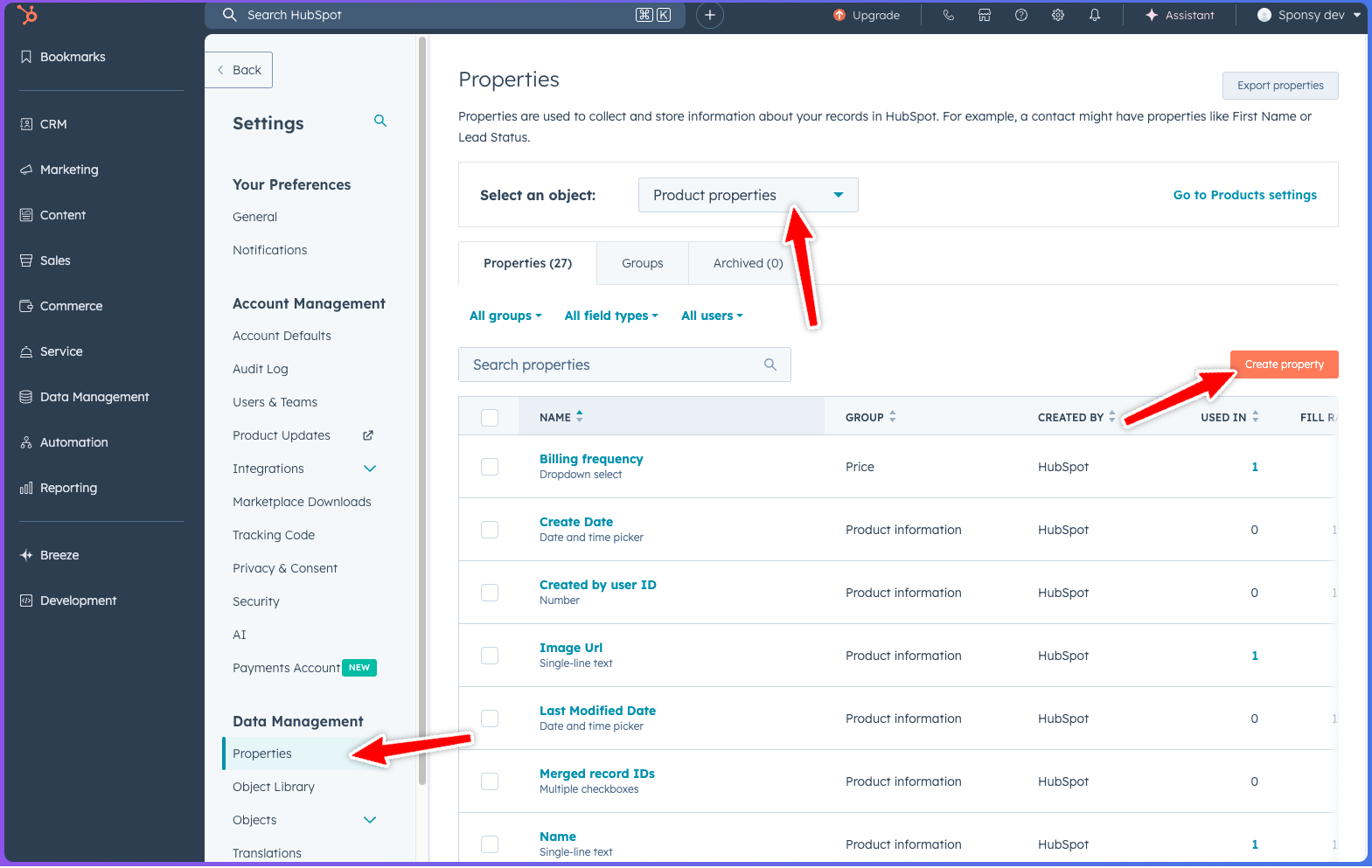
Step 1 — Access Product Properties in HubSpot
Go to Settings → Data Management → Properties.
Then, in the dropdown menu at the top, select Product properties.
Step 2 — Create a New Date Property
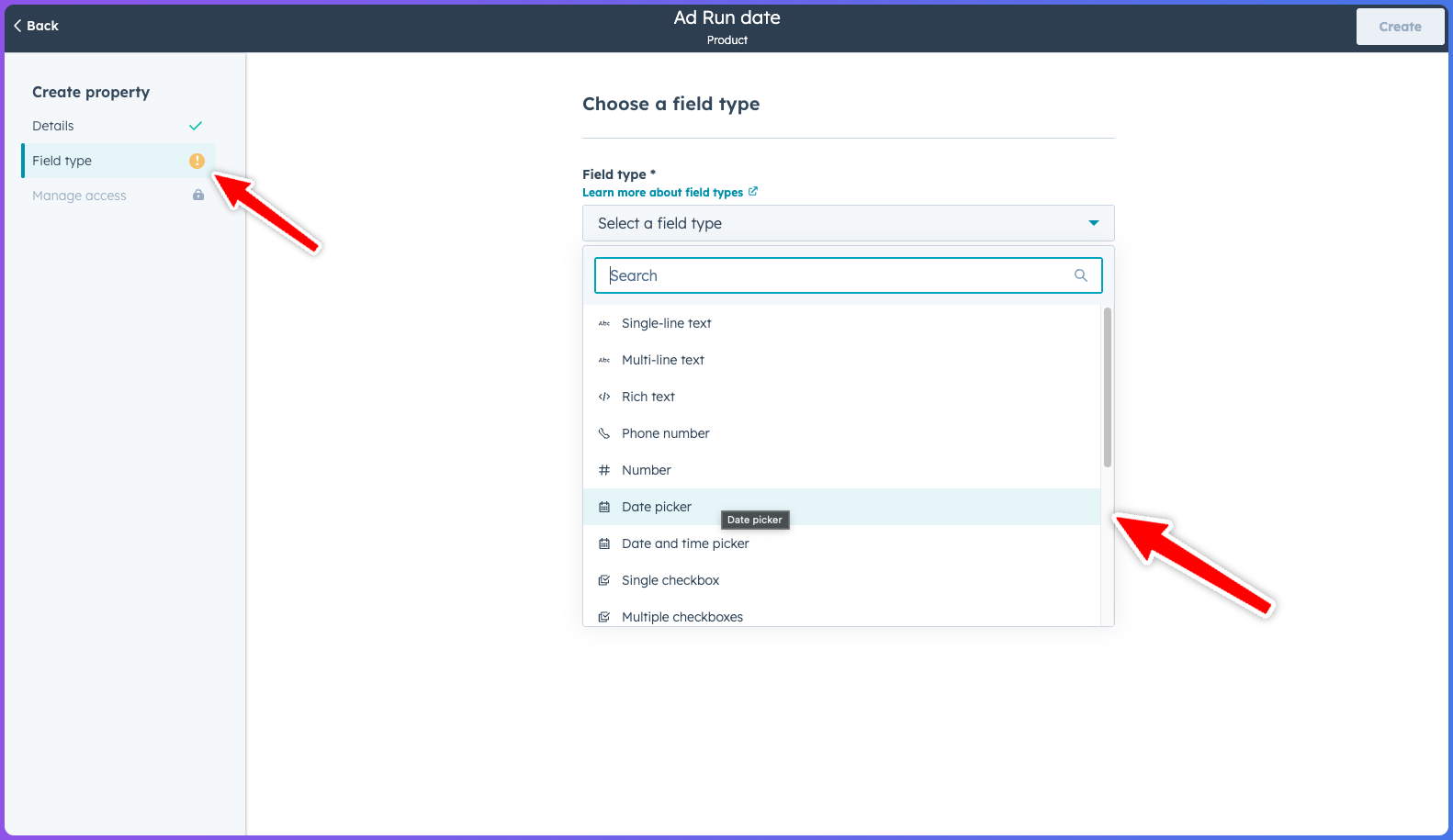
Click Create property, choose Product as the object, and set the field type to Date picker.
You can name it anything you prefer (for example, “Sponsy Run Date” or “Publication Date”).
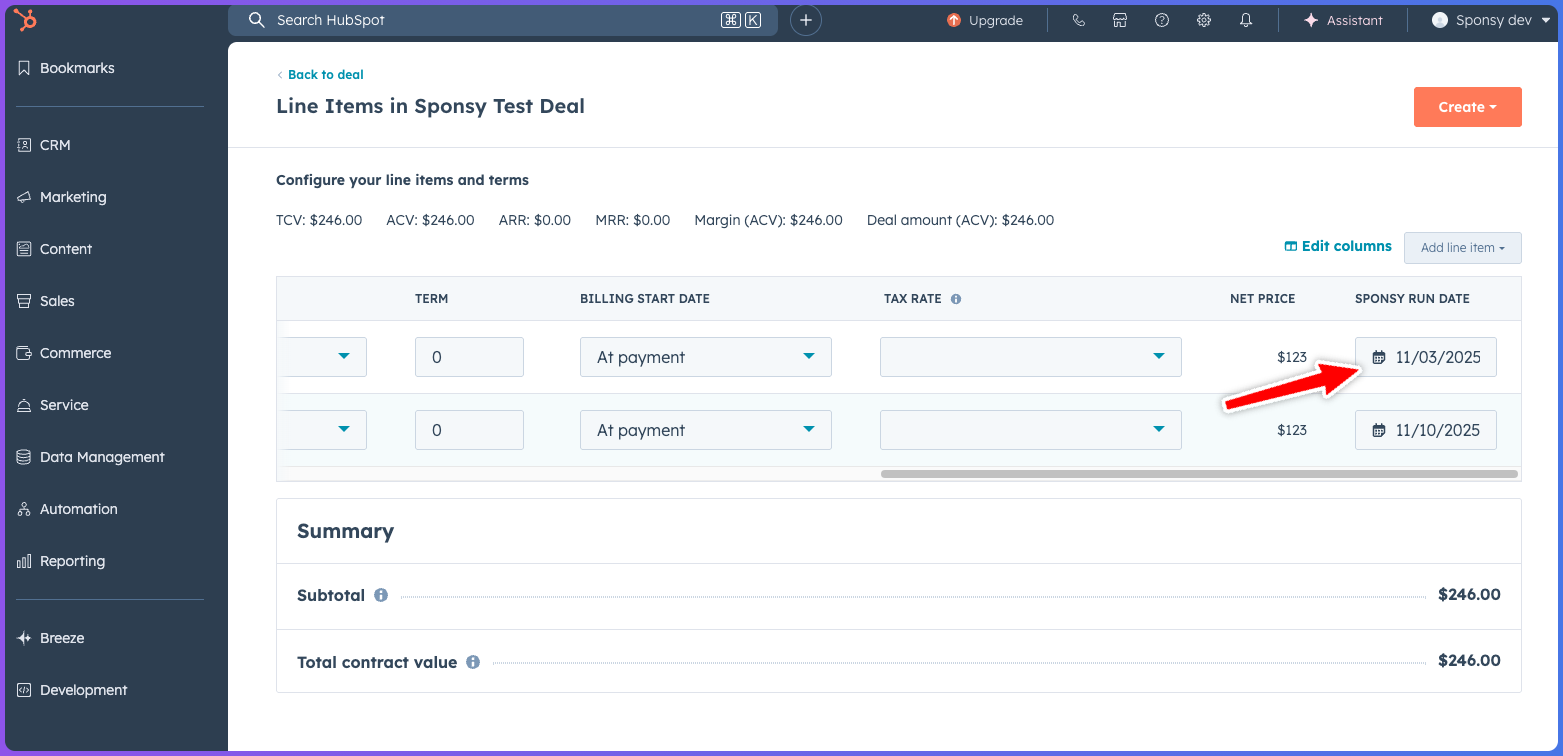
Step 3 — Add the Property to Deal Line Items
When viewing a deal in HubSpot:
- Go to the Line Items section.
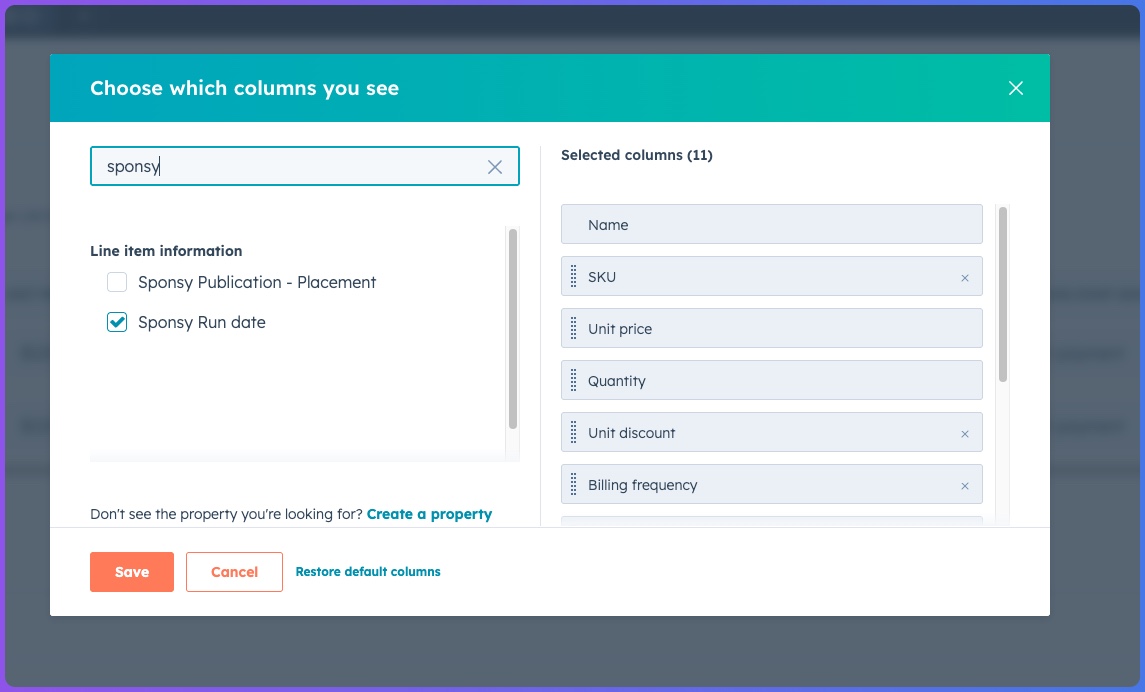
- Click Edit columns to customize which columns are displayed.
- Search for and select the date field you just created.
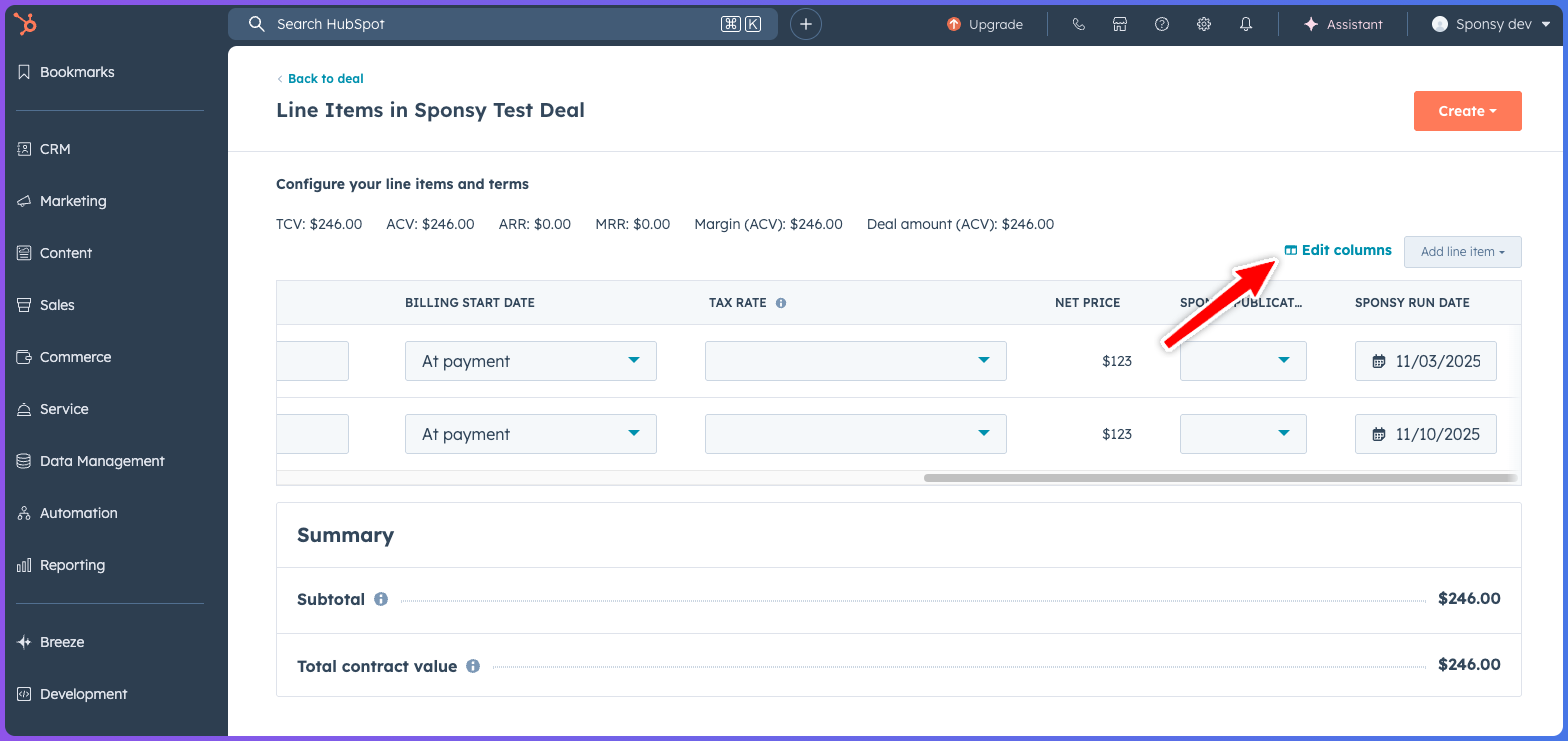
Once selected, you’ll see the new date column appear for each product line item. Your sales team can now select a specific date for each line item — this will be used to create the slot in Sponsy.
Step 4 — Configure Slot Creation in Sponsy
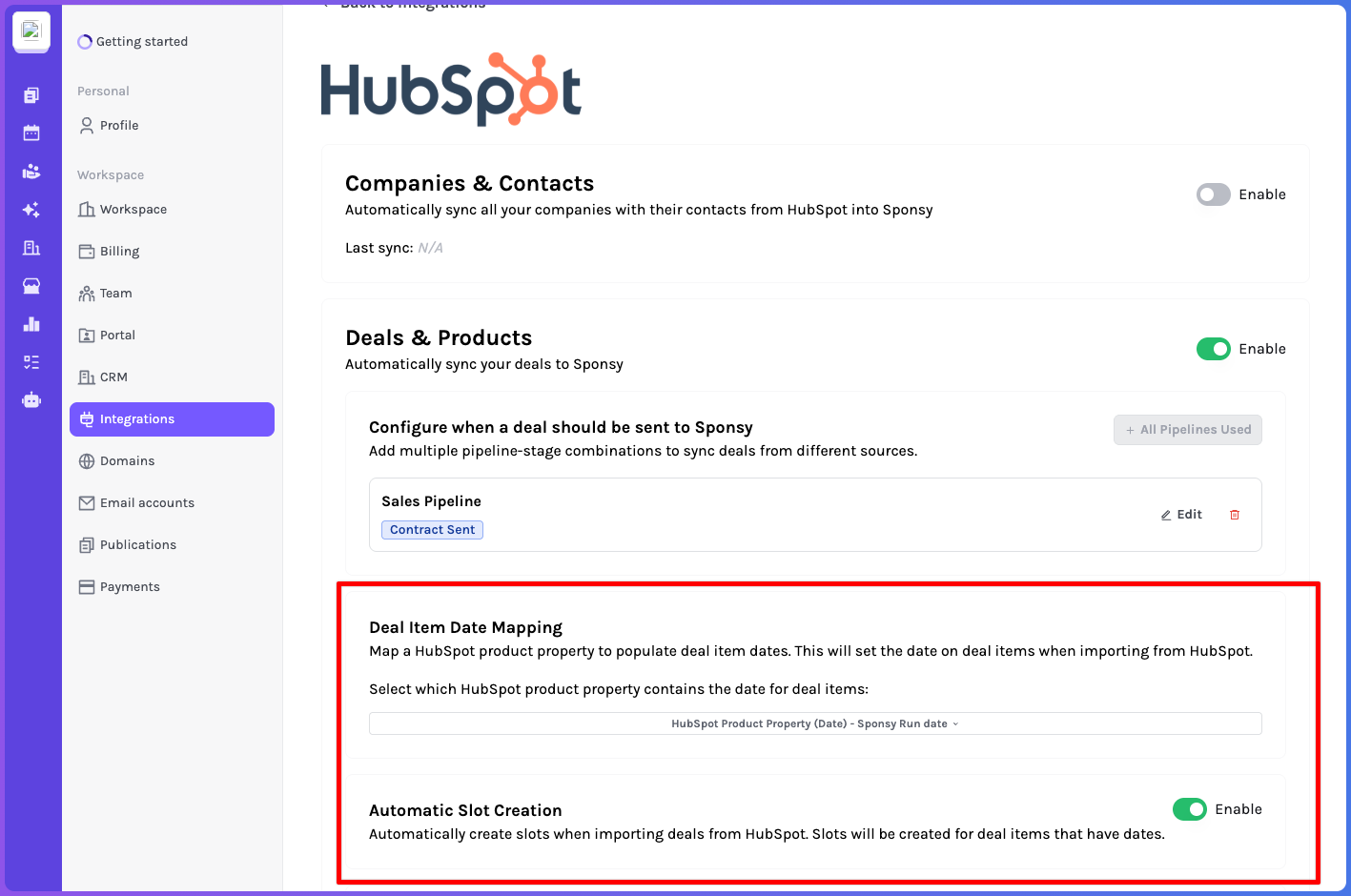
In Sponsy, you’ll need to complete two final setup steps:
- Select the date field that Sponsy should use as the “run date.”
- Enable the Slot Creation toggle.
Once enabled, any new deal synced from HubSpot that includes a date on its line items will automatically create the corresponding slots in Sponsy’s Inventory Hub.
⚠️ Conflict Handling
If a conflict occurs (for example, when a slot on a selected date is already booked), Sponsy will only create slots for the available dates.
In the example below, one line item was created successfully, while the second one couldn’t be scheduled due to a date conflict.
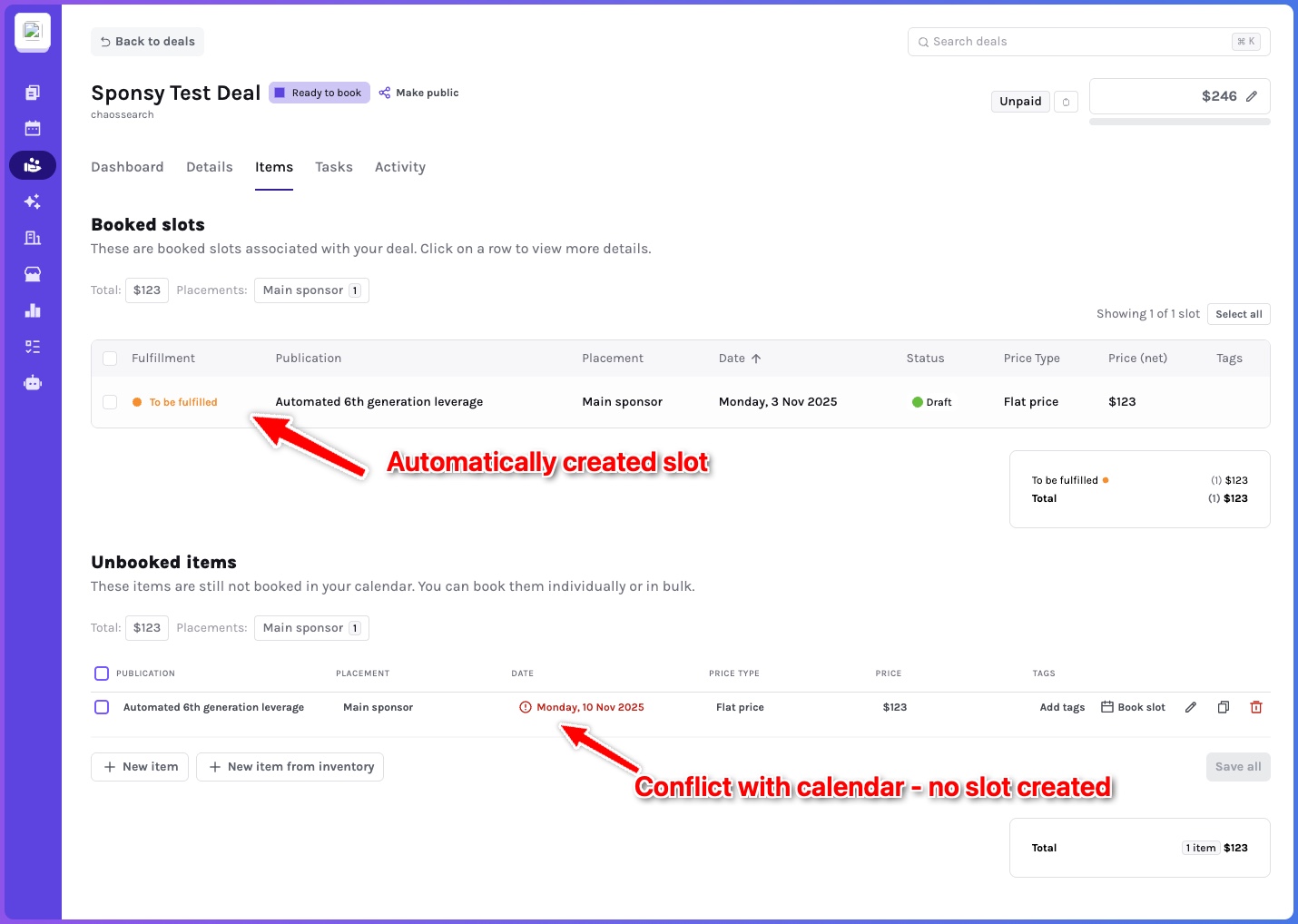
You can view and resolve conflicts directly in the Deal Items tab within Sponsy by updating the dates.
Future updates will include automatic notifications and alerts for easier conflict management.
How to disconnect
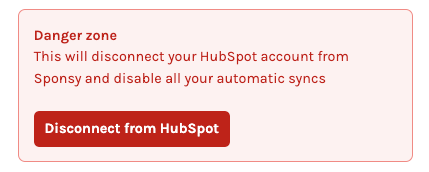
To disconnect HubSpot from Sponsy:
- Scroll to the bottom of the HubSpot integration page
- Find the Danger Zone
- Click Disconnect
Pipedrive Integration
Sponsy can also sync deals from Pipedrive into Sponsy. Use this when your sales team works in Pipedrive and your ad ops team schedules campaigns in Sponsy.
How to connect
- Select Pipedrive.
- Connect your Pipedrive account and approve access.
- Return to the integration settings to configure stages, products, and placement mappings.
Configure deal sync
Choose a Pipedrive pipeline and the stages that should send deals into Sponsy. You can also select Won (deal status) for that pipeline. Pipedrive marks a deal as won by changing its status, not by moving it to a new stage. This trigger sends the deal into Sponsy when it is marked won, even if it stays in the same stage.
Map each trigger to a Sponsy deal status. For Won (deal status), the initial mapping is a Sponsy won status. Check that it matches the status your team uses for approved deals. Stage triggers continue to work alongside the won trigger.
Map Pipedrive products to Sponsy placements before turning on deal sync. This tells Sponsy which publication and placement each Pipedrive product represents.
What syncs from Pipedrive
Pipedrive deal sync can bring in:
- Deal name and stage context.
- Customer/company details.
- Contacts connected to the deal.
- Pipedrive products mapped to Sponsy placements.
- Custom field values when they are configured for the integration.
After the deal appears in Sponsy, use the Deals items table to assign dates, add content, resolve conflicts, and book slots into the Inventory Hub.
Disconnect Pipedrive
To disconnect Pipedrive, open the Pipedrive integration settings, scroll to the disconnect or danger area, and confirm the disconnect action. Existing Sponsy customers, contacts, deals, and slots remain in Sponsy unless you remove them separately.