Ad Inventory & Calendar
It is essential to manage publication slots efficiently to organize campaigns. The **Ad Inventory & Calendar** module streamlines the process of reserving, editing, and tracking advertisement slots, making it easy to handle inventory with precision.
It is essential to manage publication slots efficiently to organize campaigns. The Ad Inventory & Calendar module streamlines the process of reserving, editing, and tracking advertisement slots, making it easy to handle inventory with precision.
Whether you're setting up a new campaign, assigning slots to your team, or analyzing slot performance, this module ensures clarity and simplicity in managing your publication's ad inventory.
Publications
Each publication in Sponsy has its own calendar with its own settings. This allows you to deeply customize how each one behaves.
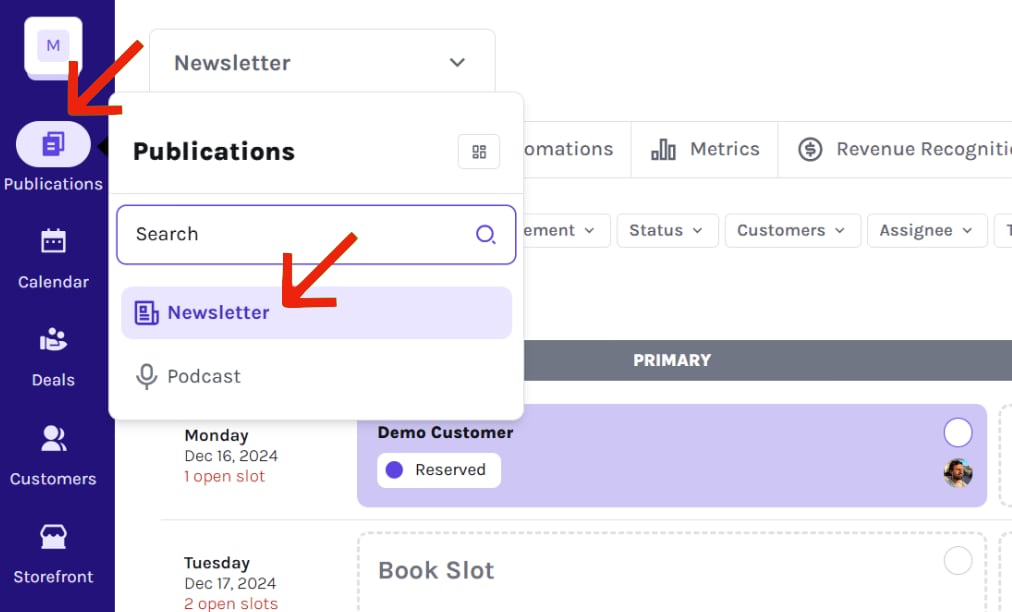
You can navigate to any publication by clicking on Publications on the side bar and then selecting one publication from the menu.
Add more publications
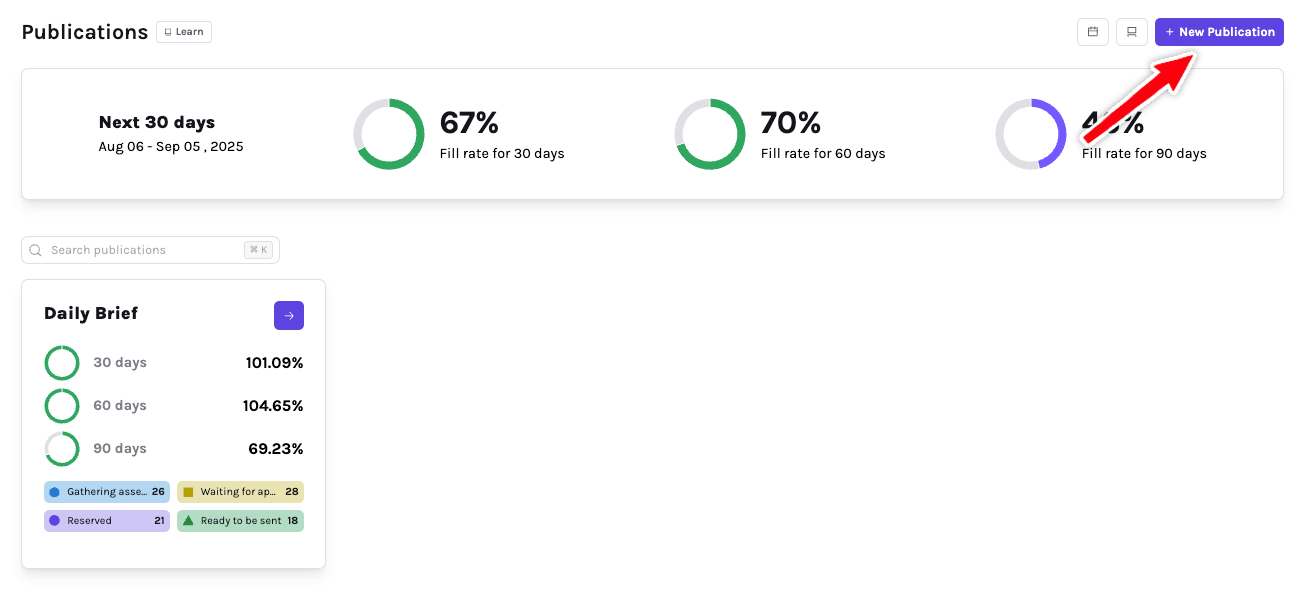
To create a new publication, click + New Publication in the top-right corner of the screen.
Each publication can have its own schedule, ad slots, and performance metrics, perfect for managing multiple newsletters or podcasts under one account.
Archive or restore a publication
You can archive publications you no longer use or restore archived ones at any time.
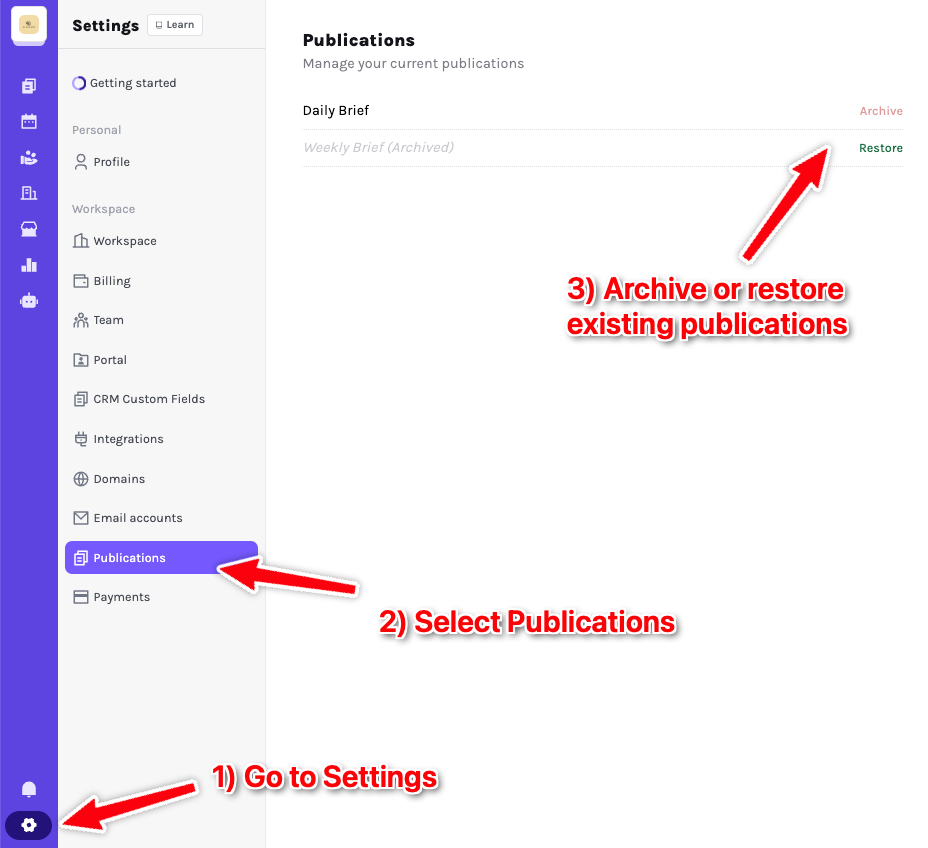
To archive or restore a publication:
- Go to
Settings - Click the gear icon in the lower-left corner of the navigation bar
- Select
Publicationsfrom the sidebar. - Archive or Restore
- To archive an active publication, click
Archivenext to its name. - To restore an archived publication, click
Restorenext to it.
Archiving a publication removes it from the main view but doesn’t delete any data. You can restore it anytime from the same screen.
Ad Inventory
When you access a publication, you'll see a table-like interface with:
- Dates: Displayed in the first column.
- Placements: Displayed across the following columns.
- Filters: Use these at the top to filter your slots by dates, placement, status, customer, etc.
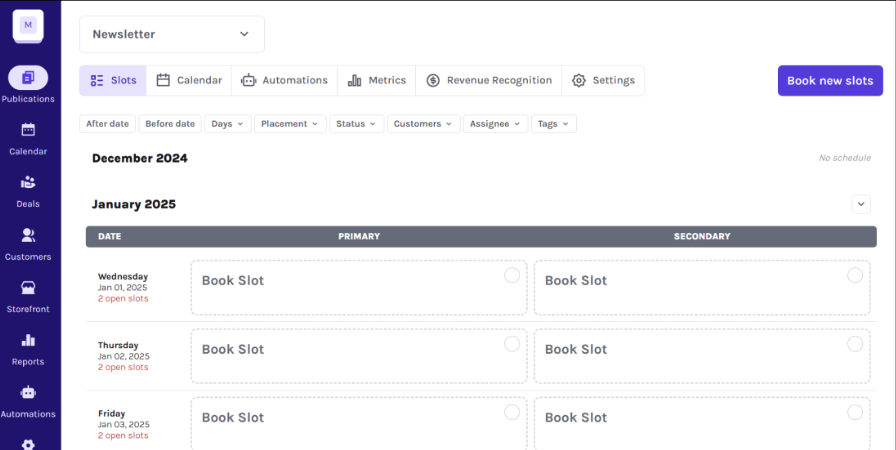
Here, you can view your complete inventory: see what’s still available, what’s on hold, what’s been booked, and the status of each slot.
The inventory uses an infinite scroll based on your publication’s schedule. To make things easier, you can apply filters. Narrow down results using date filters, display past inventory, filter by specific days, or find slots for a particular customer.
How to Book a Slot?
There are two ways to book slots in your calendar:
- Click the
Book new slotsbutton in the top-right corner of the page. - Click on any free slot labeled
Book Slot.
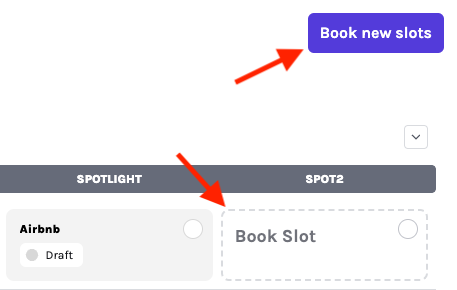
A side panel will open, where you can fill in all the details about the ad. Let’s break down the fields:
Dates
The first field is Dates, where you select the date and placement for the ad. This is the only mandatory field required to book a slot in your inventory.
You can add more dates and book multiple ad slots at once by pressing the + button next to the field.
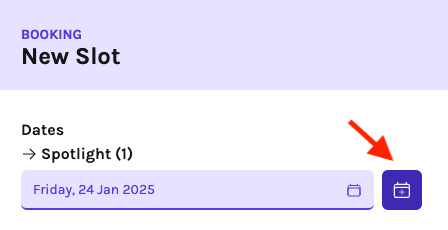
When you press the + button, a modal with a calendar view of your inventory will appear. You can:
- Click on any date in the calendar to view available placements for that day.
- Select a placement from the list, and it will be added to the dates you want to book.
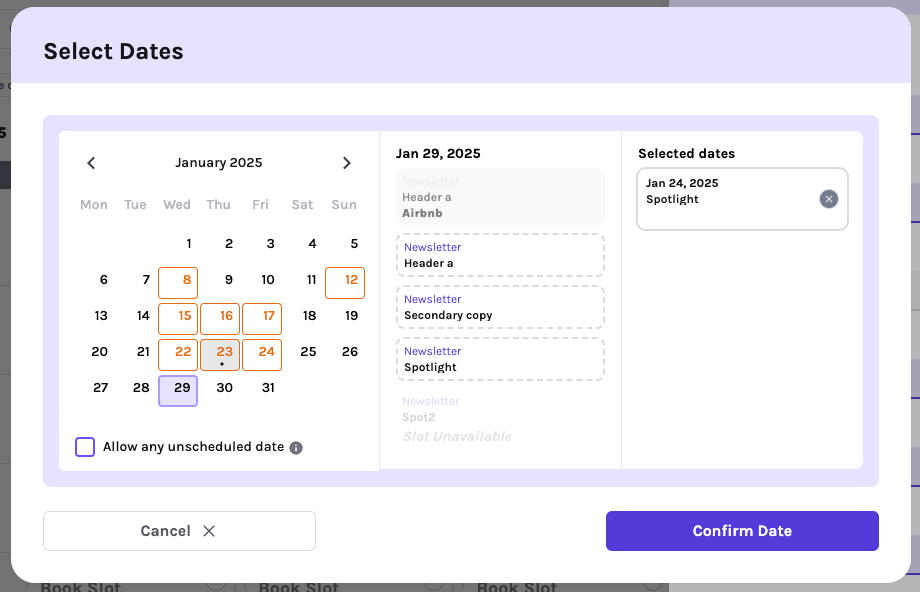
A few notes about the calendar:
- Orange Days: Some placements are booked, but not all.
- Red Days: Fully booked.
- Checkbox Option: To book on a day outside of your publication schedule, check the box under the calendar labeled
Allow any unscheduled date.
Customer
You can associate this slot with any customer in your Sponsy system.
If the customer isn’t in the system yet, click the Add button in the top-right corner of the input field to create a new one.
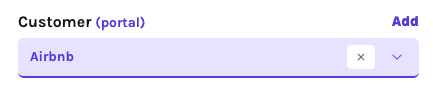
Once a customer is selected, you'll have a quick link to their Customer Portal.
Status
You can assign any status from your publication to this ad. This helps you track the ad’s progress by clearly indicating its current stage in the process with a specific status, color, and name.
You can customize your publication statuses by following the instructions here.
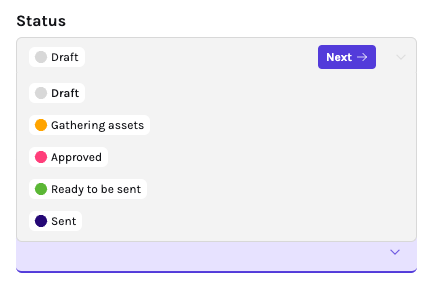
Press theNextbutton to quickly move to the next status in the list
Deal
You can assign this slot to an existing deal you’ve created. This helps keep everything tied together and ensures your orders stay organized. If you’re not sure how deals work, you can explore the Deals module for a full explanation.
Tags
Tags are a great way to organize and highlight specific slots. You can use them to add badges like Freebie for promotional offers or tag the agency that booked the slot. Adding tags makes it easier to categorize and track your inventory.
These tags become especially useful in Analytics and Reports, where you can filter and gain insights based on the tags you’ve applied. Whether it’s tracking campaign performance or identifying trends, tags help you dig deeper into your data with ease.
Assignee
Every slot can be assigned to a team member so it’s clear who’s in charge. For example, you might assign it to a sales rep first, then to a campaign manager for asset collection, and finally to a copywriter. As the process moves forward, you can reassign the slot as needed. This makes it easy for everyone to track their responsibilities. You can also filter your inventory by assignee to see what each person is working on.
Price
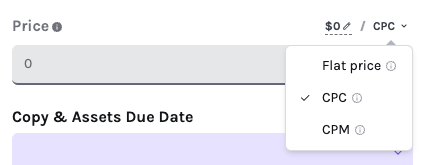
Set a price for the slot to match your pricing model. You can keep it simple with a flat price or choose a dynamic option like CPM or CPC. When using dynamic pricing, just add a base rate, and Sponsy will calculate the final price based on clicks or impressions.
Copy & Assets Due Date
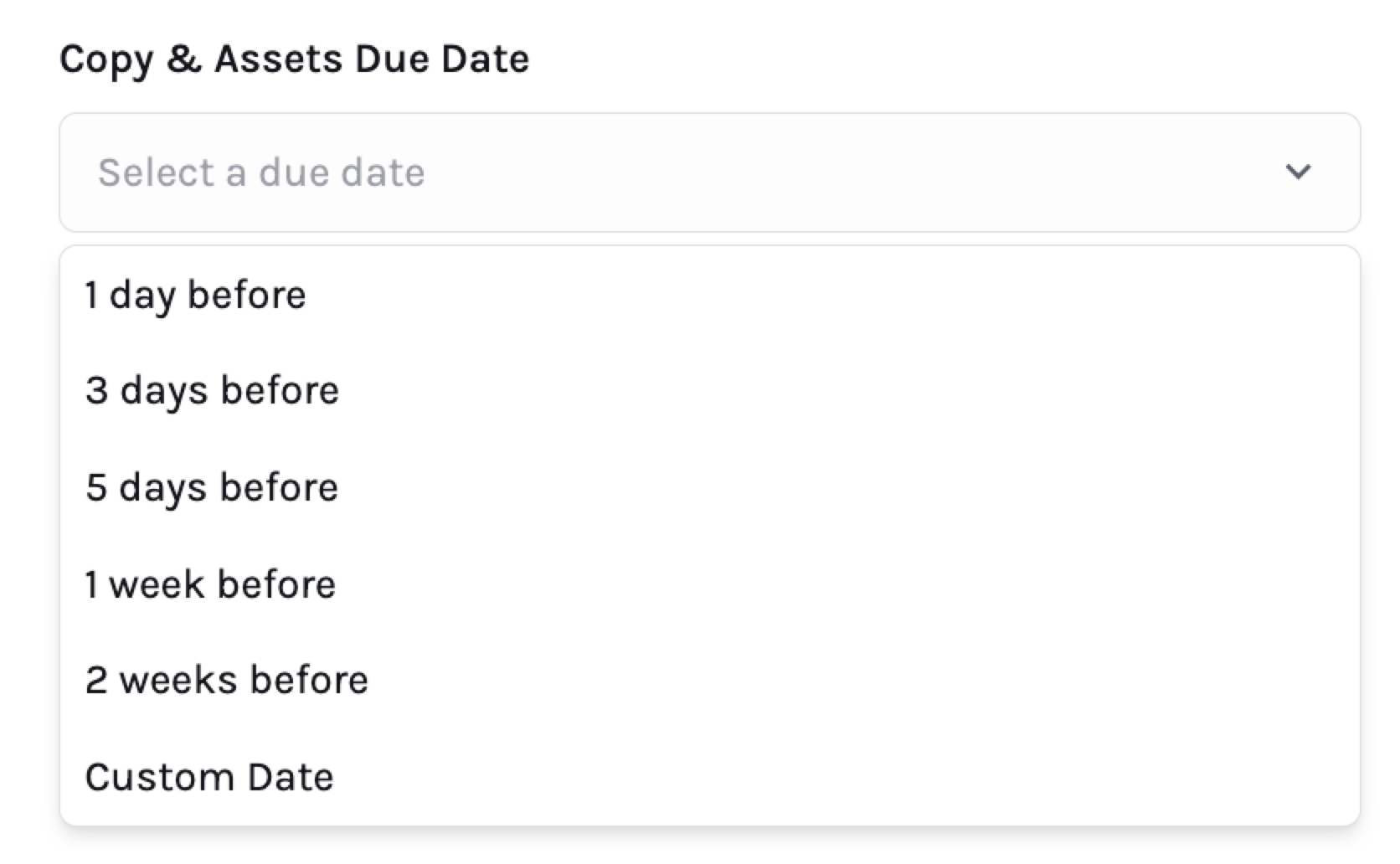
This is the deadline for your customers to provide all the necessary materials. The due date will appear in their Customer Portal and can be used to send reminders with Automations. You can set it as a fixed date or relative to the slot, such as one week before the ad goes live.
Always setting the same due date? Set it as default in your Publication Settings.
Custom fields
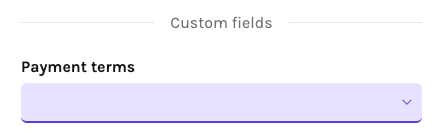
If you need to track something specific, like payment terms or whether an ad is paid, custom fields are your go-to. These fields let you add any extra details you want. Learn how to create and manage them here.
How to Edit a Slot?
Once a slot is booked, you’ll see a few new tabs in the side panel. Each tab serves a specific purpose, so let’s break them down:
Content
This is where you’ll find all the fields you need to fill in to run your ad. The fields are fully customizable in your Placements settings, allowing you to adapt them to your publication’s specific needs.
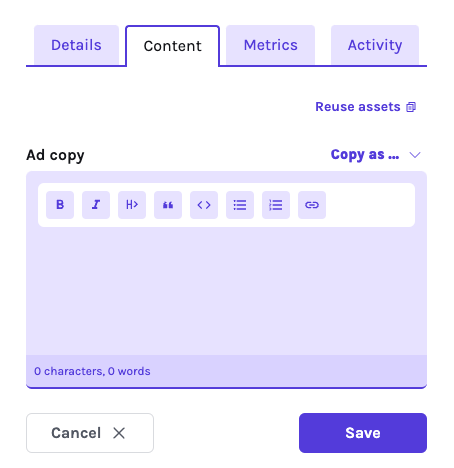
Pro Tip: Click onReuse assetsto easily pull assets from previous ads for the same customer. This saves time and keeps things consistent.
Metrics
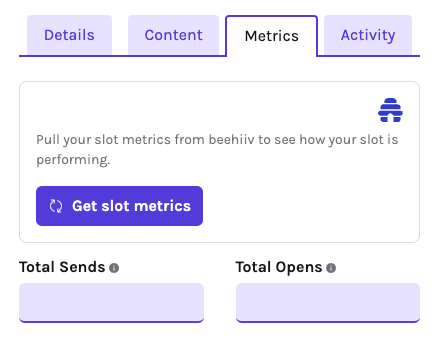
This tab gives you an overview of the performance metrics associated with your ad. You can either enter these metrics manually or fetch them automatically if you’ve connected an ESP.
To automate this process, consider setting up an automation that fetches metrics for your publication after the slot date. With the ESP integration, a single click can import all relevant data.
For podcast publications, you can store the live episode URL on the slot. Sponsy can use that URL to fetch Apple Podcasts and Spotify links and show the episode preview in the Customer Portal.
Activity
Here, you’ll find a detailed log of all the changes made to the slot, including who made them and when. This provides complete transparency about the slot’s history.
You can also add comments to the slot:
- Internal Comments: Private notes visible only to you and your team.
- Public Comments: These are shared in the Customer Portal and allow you to communicate directly with your customers.
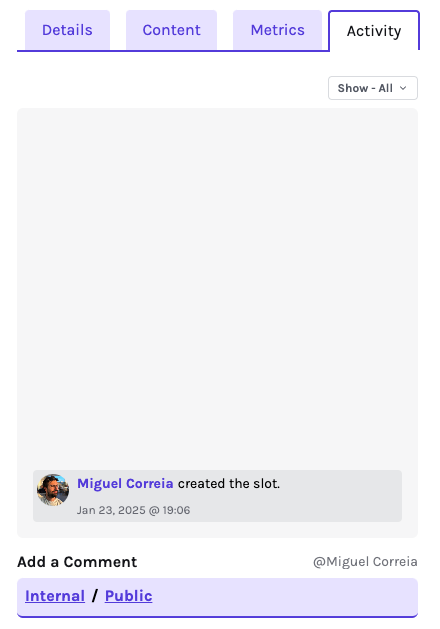
Whether tracking updates or collaborating with your team, the Activity tab keeps everything organized and documented.
Publication Settings
Basics
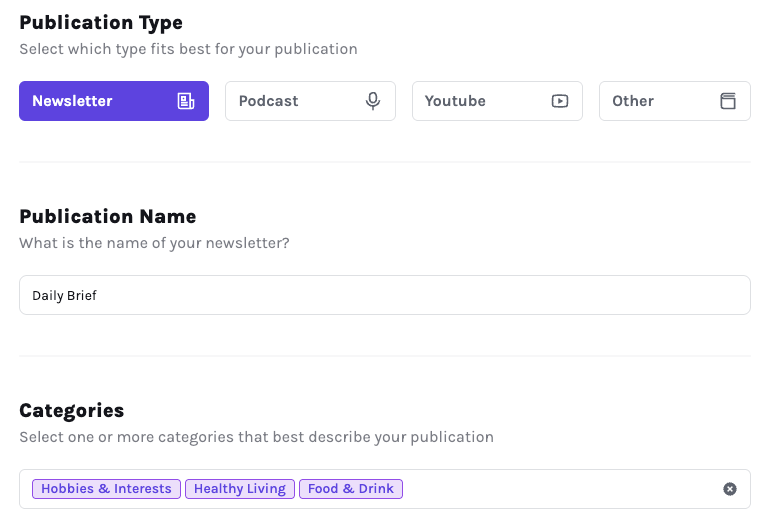
Here you can update the publication type, name and categories.
Schedule
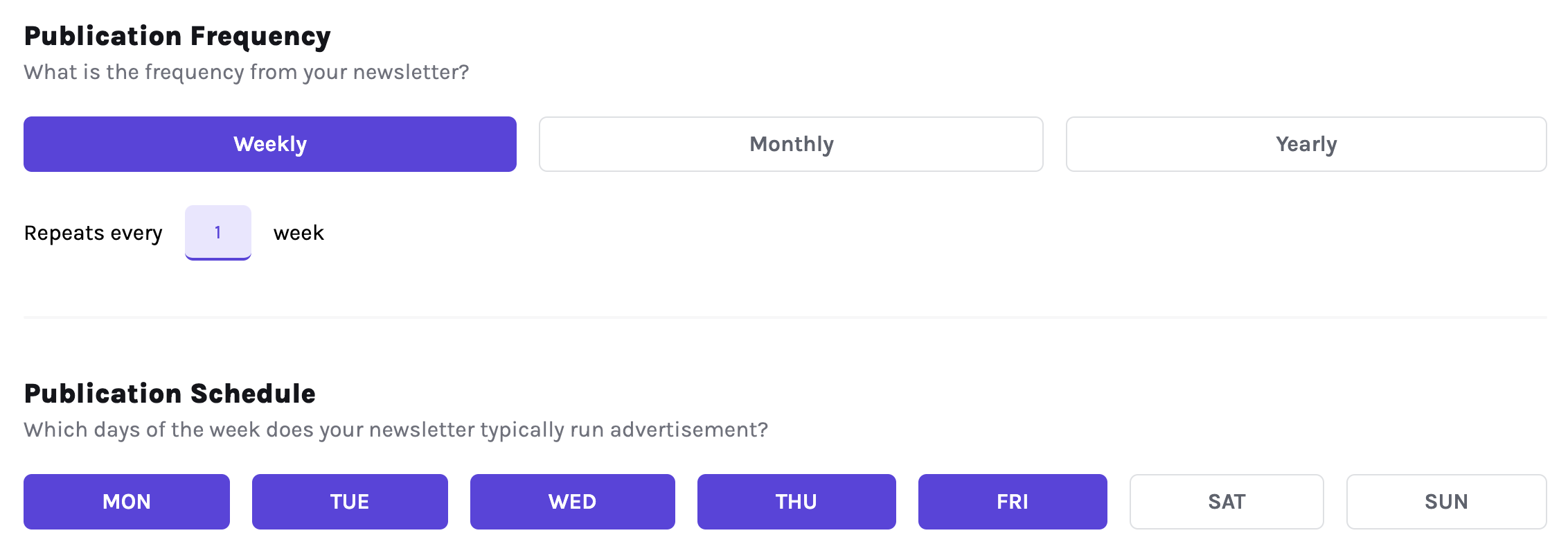
Every publication operates on a specific schedule, and Sponsy lets you customize this to match your needs. You can choose between three main frequency options: Weekly, Monthly, or Yearly.
Weekly Schedule
For weekly schedules, you can specify the exact days your publication runs. Additionally, you can adjust the frequency:
- Every Week: The publication runs on the selected days without interruption.
- Every X Weeks: If your publication follows a less frequent schedule (e.g. every 2 weeks), you can set a reference date to establish the starting point. Sponsy will use this date as the "base week" to calculate subsequent schedules.
Monthly Schedule
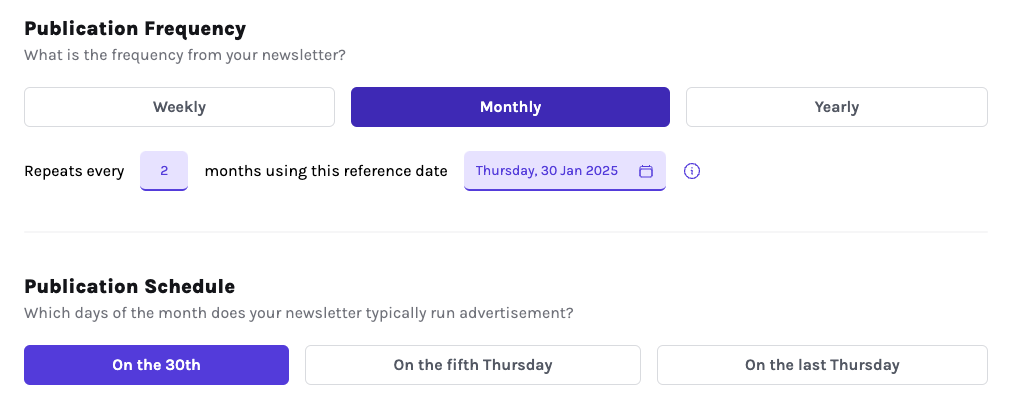
For publications that run monthly, the reference date determines the pattern. Once you select a date (e.g. Thursday, January 30, 2025), you can choose how the schedule repeats:
- On the 30th of every month.
- On the fifth Thursday of the month.
- On the last Thursday of the month.
This flexibility ensures your schedule aligns perfectly with your content calendar.
Yearly Schedule
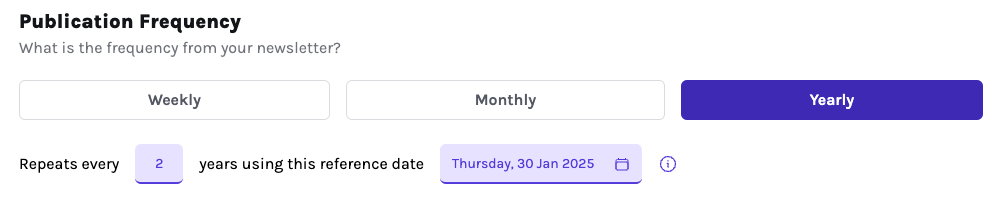
If your publication runs just once a year, you can select the exact date it occurs by choosing a reference date.
By tailoring these settings, you’ll ensure your publication schedule matches your audience’s expectations while keeping everything organized and efficient.
Block dates
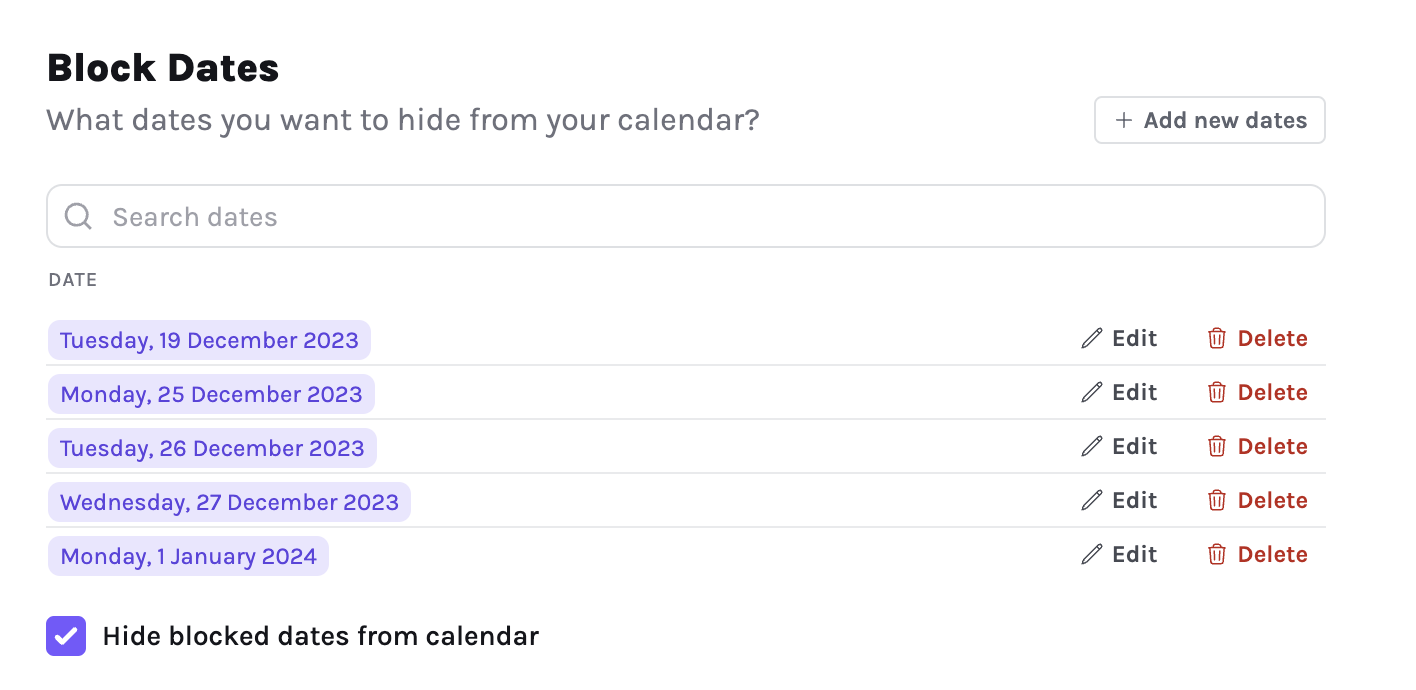
Sometimes you know in advance that you are not going to run your publication on a specific day, maybe because it’s Christmas or New Years Eve. For this case you can add specific dates in the section below. This will hide the blocked dates from your calendars and make them disabled for booking.
Default Due Date
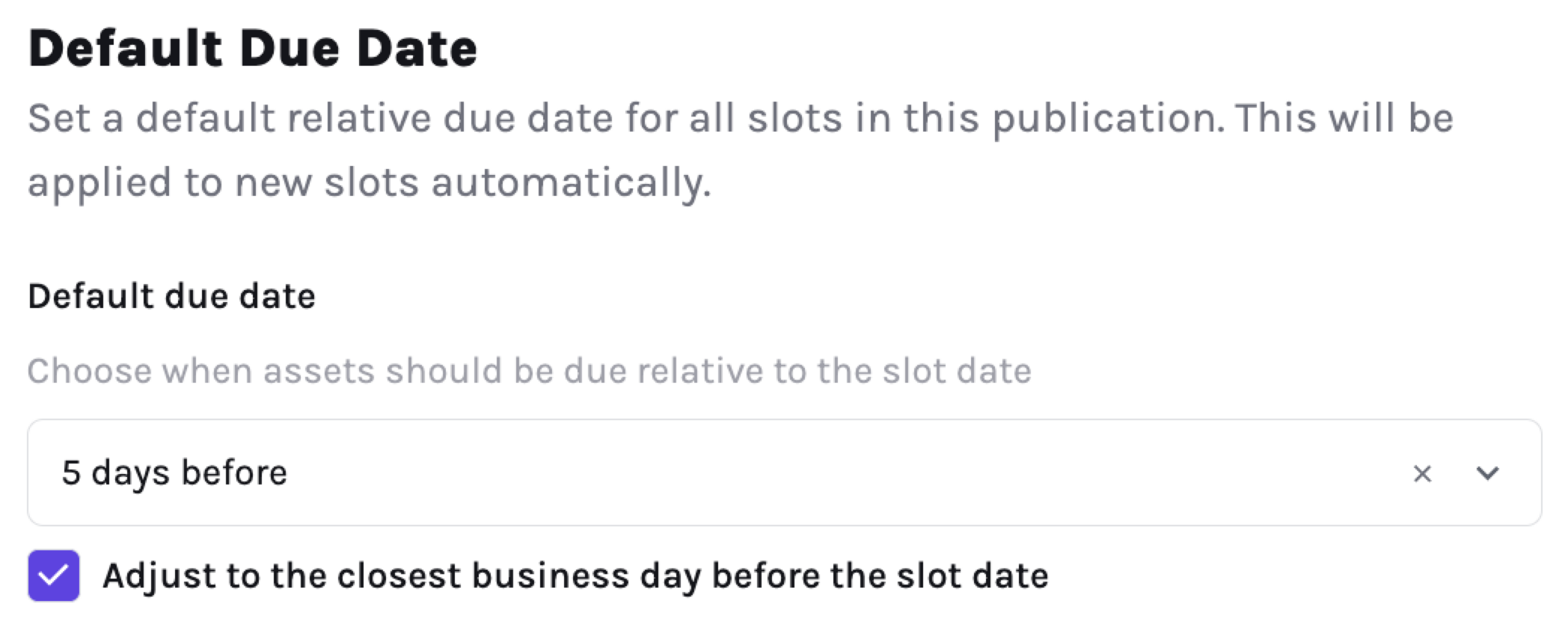
Save time by setting a default Due Date for all new slots in your publication. No more manually picking a due date each time.
Placements
A placement in Sponsy is a designated ad slot within a publication. It’s where advertisements or sponsored content are displayed. Placements help you organize and manage the availability, performance, and revenue of each ad space effectively.
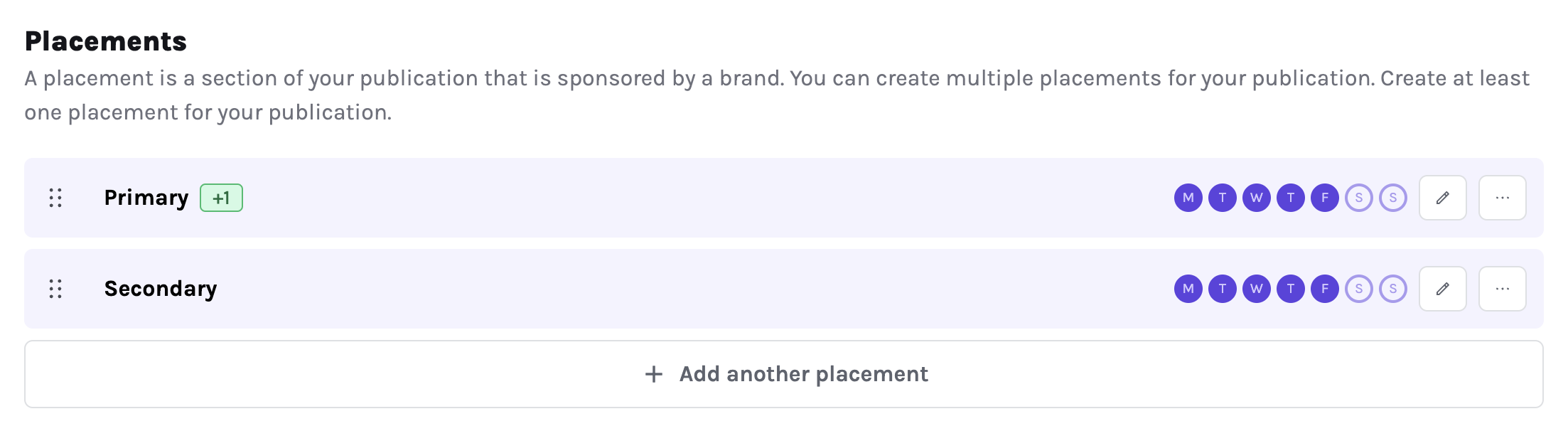
When creating a placement, here’s what you can define:
- Name: Every placement needs a name to identify it.
- Color: Assign a color to make it visually distinct in your weekly calendar.
- Base Price: Enable the
Use base pricetoggle if you want all slots in this placement to default to a specific price when no custom price is set. - Scheduling: For publications running on a weekly schedule, you can specify which days of the week this placement is available. This is especially useful for placements that are tied to specific publication days.
- Placement Groups: If you have multiple identical placements, toggle the
Create a placement groupoption. This allows you to create several identical placements at once. For example, if you have a "Bottom Quick Links" section with multiple ad slots, you can define how many identical placements should be created. - Customer Portal Description: You can add a short description for the Customer Portal. This text will appear on slots from this placement, helping advertisers understand its purpose or requirements.
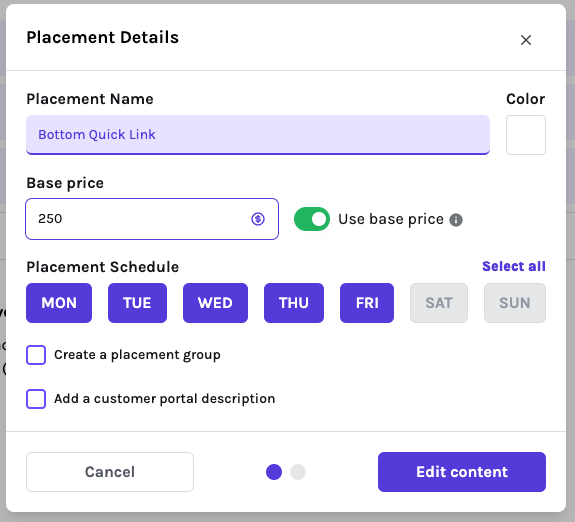
By carefully setting up your placements, you can streamline your ad management process, ensure clarity for your customers, and maximize revenue potential.
Setting up Content Fields
The next step is to configure the Content Fields. These fields determine what information or assets are required for ads in that placement. Sponsy provides several field types to choose from:
- Rich Text: Ideal for long-form content, allowing formatting options like bold, italics, and hyperlinks.
- Short Text: A single-line input, perfect for concise entries like CTAs or headlines.
- File: For uploading assets such as images or other media files.
- URL: Specifically designed to capture links.
- Single select: A dropdown where the customer chooses one option from a predefined list.
- Multi-select: A structured list where the customer can choose multiple options.
- Collection: A repeatable group of fields, useful when customers need to submit several related items, such as multiple products, links, or creative variations.
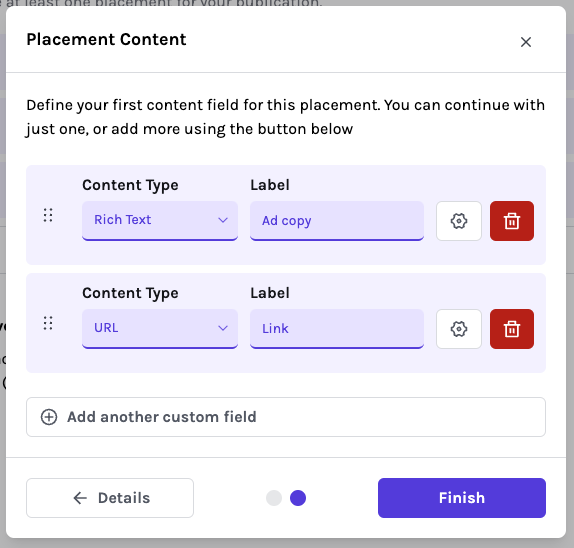
You can also organize related content fields into groups. Field groups keep larger placement forms easier to scan in Sponsy, the Customer Portal, and Storefront.
Content Fields Options
Use these additional options to customize which fields are available to your customers and set their requirements.
Clicking the ⚙️ (cog wheel) next to a field reveals more options which are very useful for customer facing pages such as Storefront and Customer Portal:
- Helper Text: Add a brief description or guidelines for the field (e.g., "Provide a link to your landing page"). This appears beneath the label for better clarity.
- Character or Word Limits: In
Rich TextandShort Textfields, you can set maximum character or word limits to ensure concise input. Leave it blank for no limit. - File Size: For
Filefields, specify the maximum allowed file size in MB. - Required: Makes the field mandatory for completion for customers.
- Locked: Prevents customers from editing the field.
- Private: Hides the field to customers, making it visible only to your internal team.
- Public visibility: Choose whether a field should appear in customer-facing flows such as the Customer Portal or Storefront.
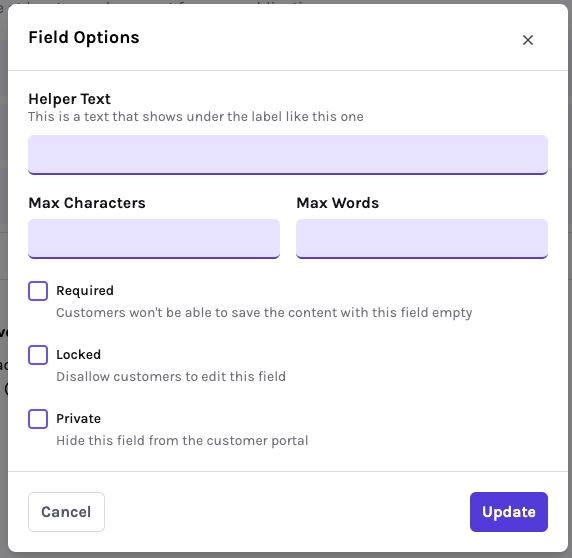
By customizing these fields, you can ensure each placement captures exactly the information needed, streamlining the process for both your team and advertisers.
Statuses
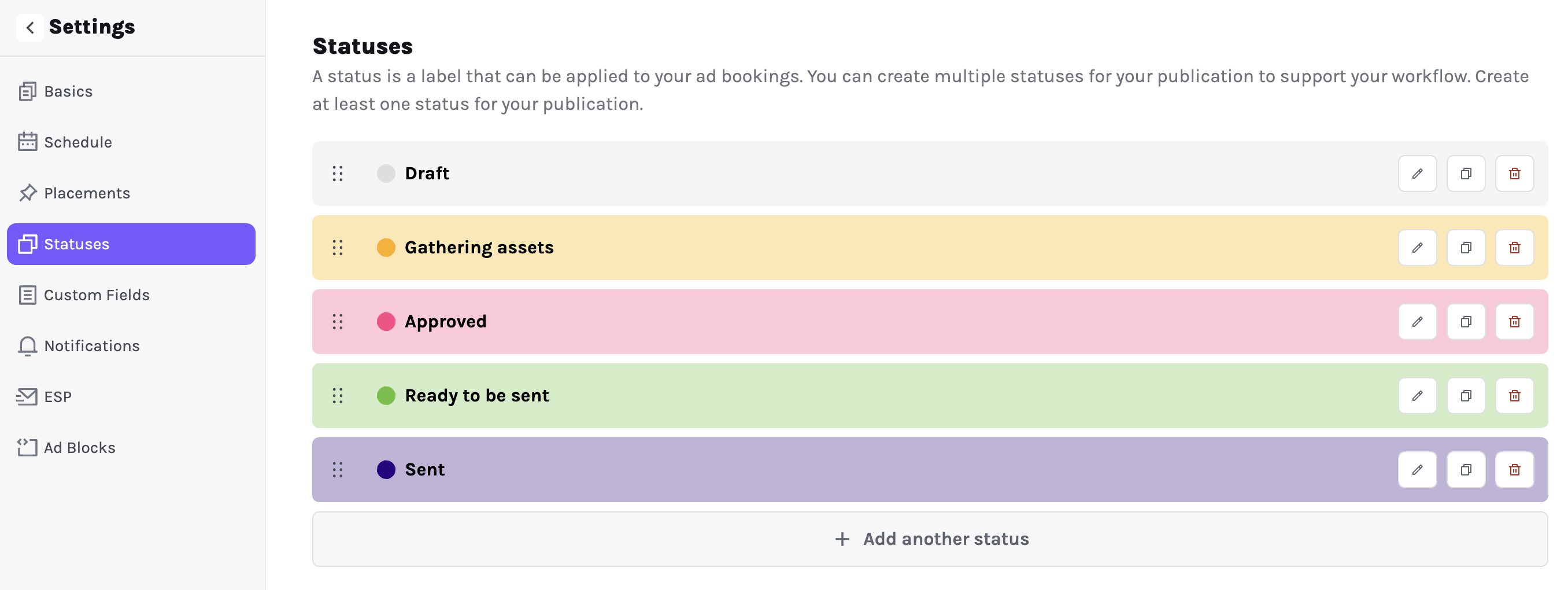
This defined the stages that each goes through. They are fully customizable to adapt to your flow and it will help give you and your team a clear indication on which state each slot is. These are the default ones from Sponsy, but you can adapt it to your flow, adding more or less status and changing the colors.
Custom Fields
Custom fields provide flexibility by allowing you to add specific attributes to your slots. These can be tailored to meet the unique needs of your publication or workflow.
- Field Types:
Text: A freeform field where you can input any information. Perfect for notes, descriptions, or custom labels.Dropdown: A predefined list of options to choose from. You can customize the options and set a default selection for consistency.
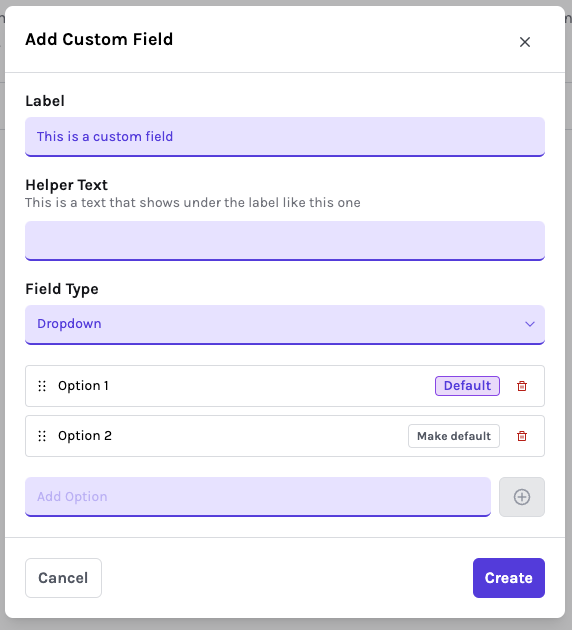
Custom fields appear on every slot, giving you the ability to track additional details such as payment terms, campaign status, or any other relevant information.
Deal custom fields and publication custom fields can also be used as variables in automation emails and Slack messages. See Automations for details.
Notifications
Notifications help you stay on top of your publication's workflow and ensure seamless communication with your team and customers.
You can toggle default notification settings for each publication. If you’ve connected a domain to Sponsy, you can also configure all communications to be sent from your domain and default workspace email. This makes your messages more reliable and personal, enhancing your brand's professionalism.
Here’s an example of the available notification options:
- Send email to the slot assignee when a slot gets approved:When a slot is approved in the Customer Portal, this option triggers an email to either the slot's assigned team member or, if no assignee is set, the user who created the slot.
ESP
If you’ve connected an ESP in your workspace integrations, you can link it to this specific publication.
By doing this, you can:
- Fetch Metrics Easily: Use the sync button on the metrics tab to pull in performance data with just one click.
- Automate Fetching: Leverage automations to schedule automatic metric updates, ensuring your data stays up-to-date effortlessly.
Link Tracking
Link tracking lets Sponsy add consistent query parameters to sponsor links when slot content is saved. This helps your team avoid manual UTM cleanup and keeps each click tied back to the right publication, placement, deal, slot, and sponsor.
To set it up, open the publication settings and go to Link Tracking. From there you can:
- Turn link tracking on for the publication.
- Define the parameters Sponsy should add to sponsor links.
- Use dynamic values such as publication slug, placement slug, parent placement ID, deal ID, slot ID, and sponsor name.
- Choose what happens when a link already contains query parameters: append new values, overwrite existing values, or leave the link unchanged.
When link tracking is enabled, Sponsy applies the configured parameters when slot content is saved. The preview shows how the final URL will look before you apply changes.
If you update the publication settings after many slots already exist, use the bulk link update flow to update matching slot links and tracking links in one job. Bulk updates are recorded in the slot activity history so your team can see which links changed and when.
Ad Blocks
This is an advanced feature which requires some technical knowledge. If you feel stuck, please contact us!
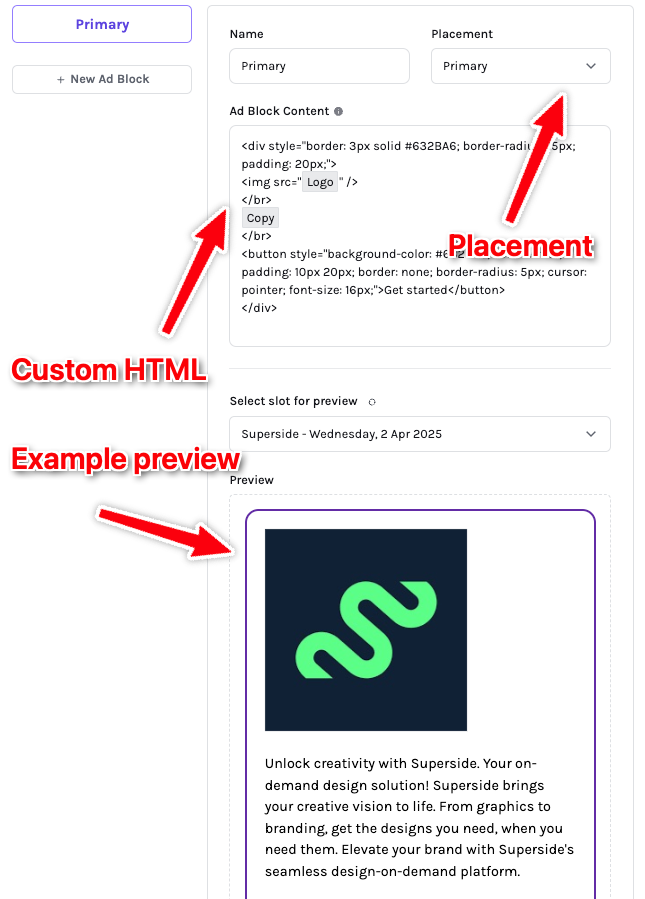
Ad Blocks are text or HTML templates used to preview your ads within Sponsy.
You can create multiple Ad Blocks for each placement, customize the HTML content to match the template you're using for ads, and select an existing slot to see a live preview.
You can also import an ad block from an existing source. Upload HTML, paste a newsletter URL, or provide a screenshot so Sponsy can draft the block from the real example instead of requiring you to rebuild it by hand.
HTML variables suggestions
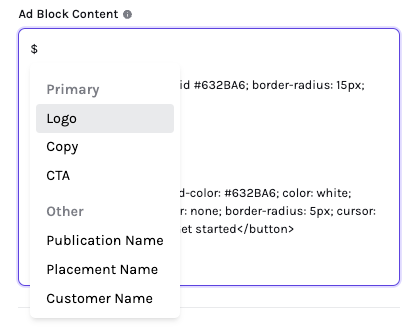
When editing the Ad Block Content field, type $ to view the available variables you can use. The list includes the selected placement fields and additional options to customize your final ad.
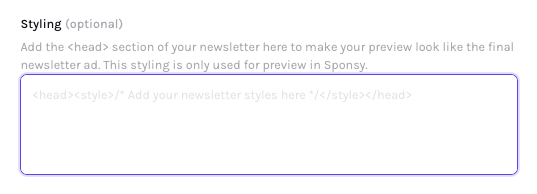
Styling
To generate a more accurate preview, you can add the HTML <head> tag from your newsletter. This helps Sponsy render a more realistic preview by applying your newsletter’s styles. Don’t worry—this data is only used for preview purposes and won’t be included in the final ad HTML when used outside of Sponsy.
Chrome extension workflow
The Chrome extension can help you work with Sponsy ad blocks from external tools. Use it to find inventory, copy ad block HTML, and keep placement content aligned with the slot in Sponsy.
If your team uses beehiiv, the extension also includes a beehiiv-specific workflow for copying ad blocks directly into the beehiiv editor.
Task Templates
Here you can configure the tasks that you’d like to have created in every slot. This is ideal for setting up internal SOPs with predefined steps, due dates, and assignments that repeat consistently.
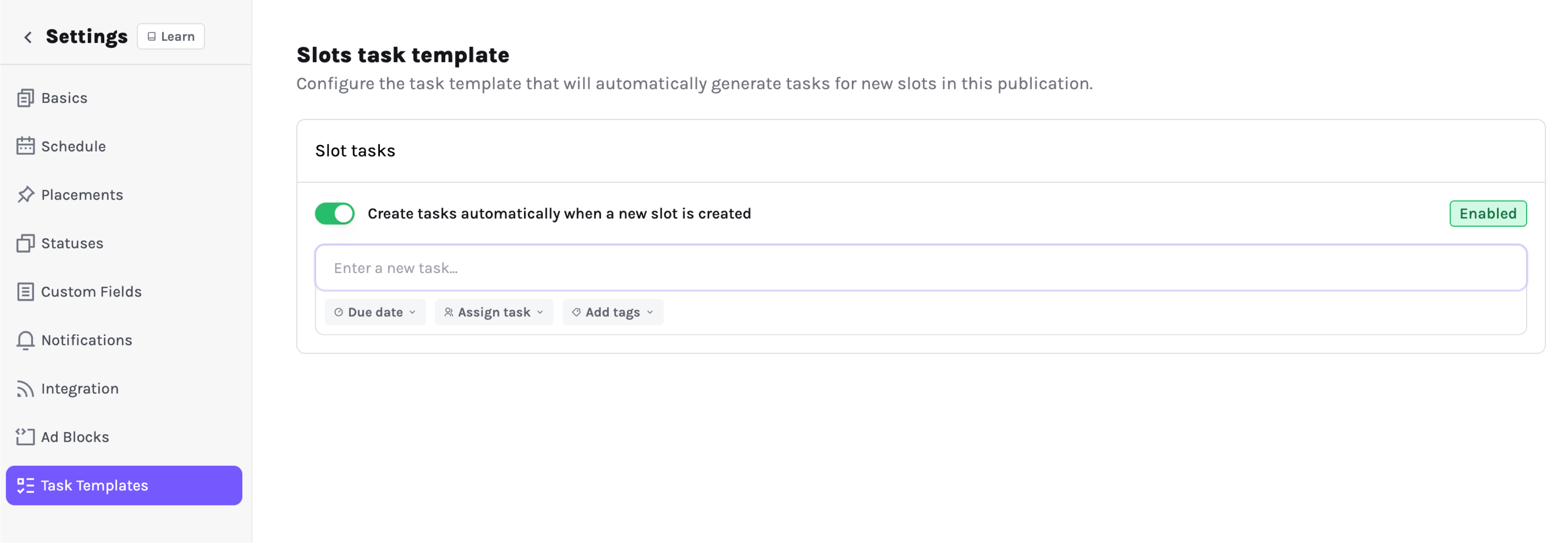
For each task you can already assign one or more team members, add a due date relative to the slot and add some tags.
Once a new slot is created in this publication, this list of tasks will be automatically created too.