Storefront
Create a branded sponsorship shop, sell placements and bundles, take bookings, manage orders and messages, and track results.
Storefront is available on every plan. Starter includes one storefront; Pro and Custom include unlimited storefronts.
If you already had a Storefront
Your Storefront was upgraded automatically. Your products, prices, booking limits, coupons, orders, and checkout settings are still there. You do not need to rebuild or move anything.
Open Storefronts from the left sidebar to find and manage your existing storefronts. The old Storefront page has been replaced, so use this guide for all Storefront setup and management.
How a Storefront booking works
Here is what happens from start to finish:
- You create a storefront or open an existing one.
- You add placements, bundles, audience details, testimonials, partner logos, images, and links.
- You choose your design and checkout settings.
- A sponsor opens your storefront and adds products to their cart.
- The sponsor chooses available dates, adds their details and creative, and pays if you have enabled payments.
- The order appears in Sponsy for your team to review.
- You accept the order into a new or existing deal, or reject it.
- Sponsy books the selected inventory and sends the emails you have set up.
The dates shown to sponsors come from your Inventory Hub. A date is only available when the placement has an open slot, which helps prevent double bookings.
Find your way around
Open Storefronts from the main sidebar. You will see:
- Dashboard: a summary of visits, orders, revenue, and orders waiting for review.
- Orders: all storefront orders in one place. Search by sponsor or email, filter by storefront, or choose a status.
- Messages: questions and replies from sponsors.
- Your storefronts: a list of every storefront in your workspace.
Open a storefront to see its Overview, Orders, and Analytics pages. You can also copy its link, add it to your website, view it, edit it, duplicate it, or take it offline.
Create a storefront
Choose New storefront from the dashboard or from the bottom of the Storefront sidebar.
Enter a name and URL. The URL is added after /my/ in your public storefront link. It can contain letters, numbers, and hyphens, and it must be unique.
Choose Generate private if you want a long link that is difficult to guess. This is useful for a private offer or a page that you only want to share with selected sponsors.
Sponsy opens the editor after you create the storefront. Keep Storefront is live turned off while you set it up. Turn it on when the page is ready to share.
If you change the URL of a live storefront, the old link will stop working. Remember to update links on your website, in emails, and in the Customer Portal.
Build your page
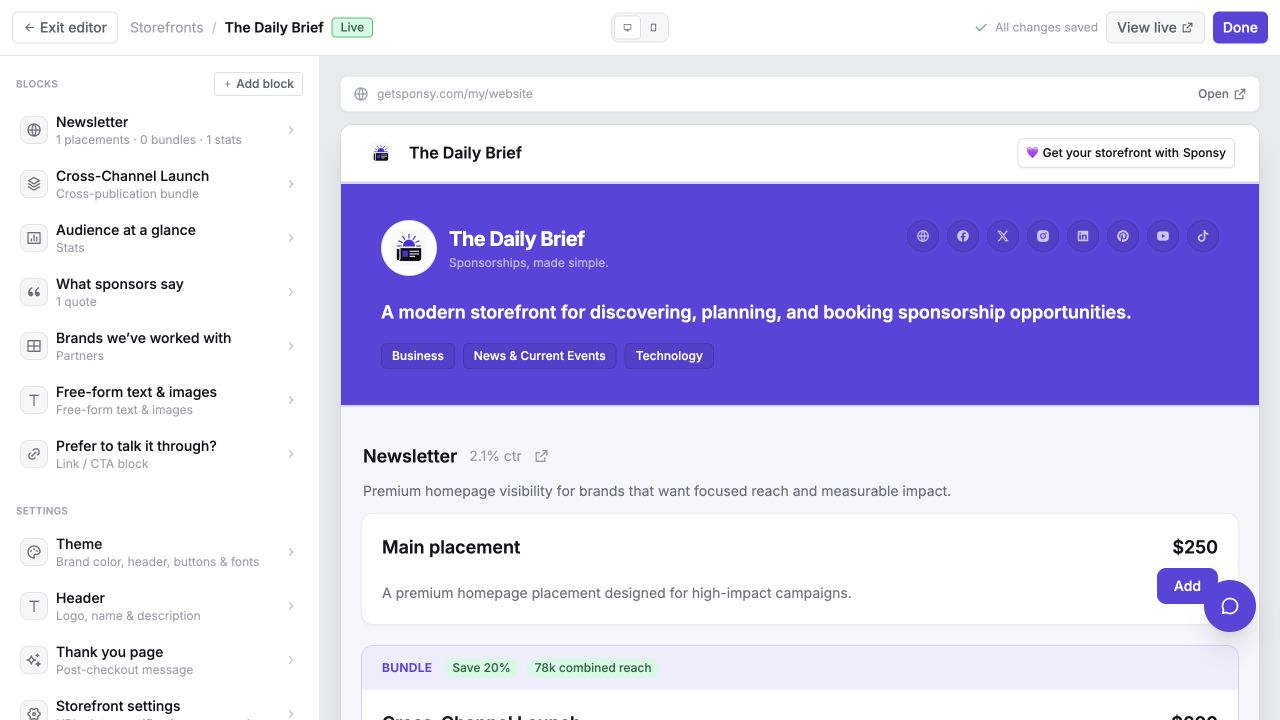
The editor has your controls on the left and a preview on the right. The preview updates as you work.
Use the desktop and mobile buttons at the top to check both layouts. View live opens the page sponsors will see. Sponsy also shows when your latest changes have been saved.
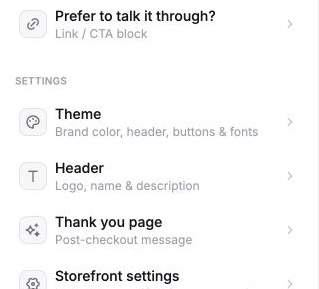
The settings menu is below your content blocks. Use it to change the theme, header, thank-you page, general settings, checkout, emails, and integrations.
Add and arrange blocks
Blocks are the sections on your public page. Drag a block to move it. Select a block to edit it, or choose Add block to add another section.
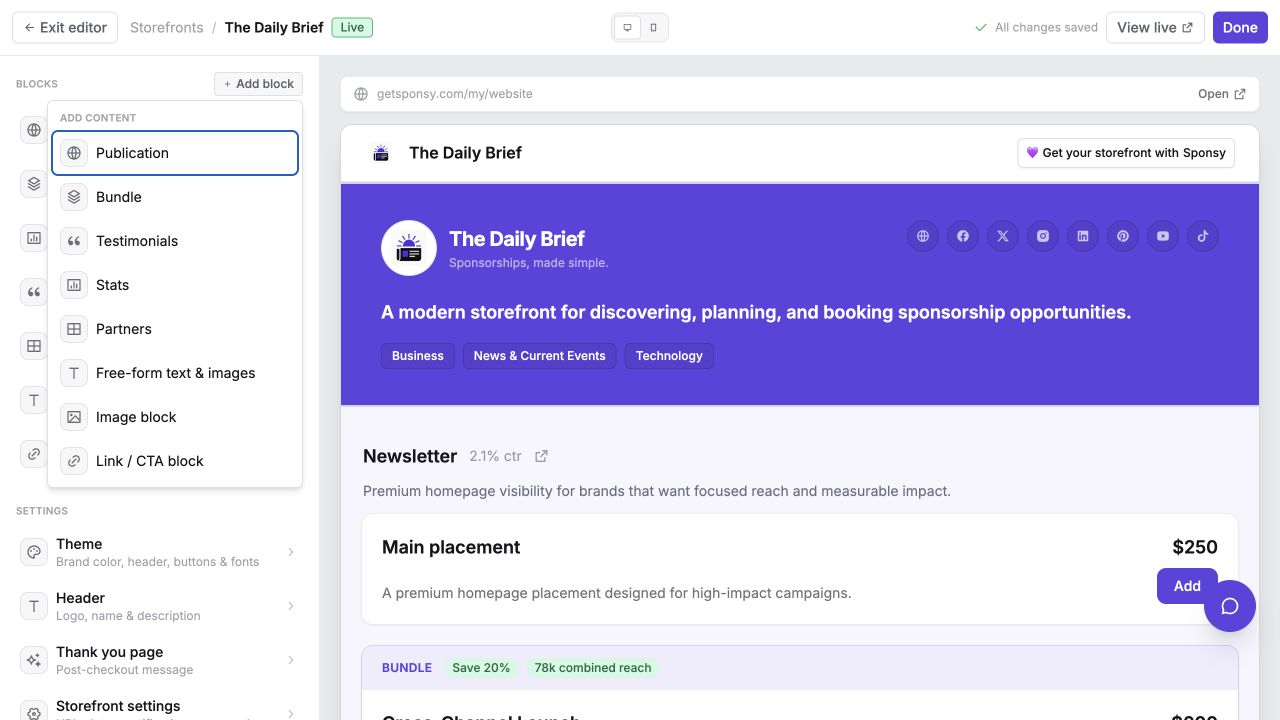
You can add these blocks:
- Publication: show one publication, its audience, placements, and bundles.
- Bundle: sell one package made from placements in one or more publications.
- Testimonials: add quotes from sponsors.
- Stats: show numbers such as total reach, open rate, or renewal rate.
- Partners: show the brands you work with.
- Free-form text & images: add headings, text, lists, links, and images.
- Image: add an image with an optional caption and link.
- Link / CTA: add text and buttons that send visitors to another page.
A simple page might include a publication, a bundle, audience stats, sponsor quotes, partner logos, and a final button to contact your team.
Add a publication and its products
Add a Publication block, then choose the Sponsy publication you want to show. You can also add its public website and a short description.
The block starts with the publication's storefront defaults: the placements and audience stats you set once, under the publication's settings, for every storefront that shows it. A new block is ready to sell the moment you add it. See Keep several storefronts in sync for how defaults work.
Under Audience stats, sponsors see numbers that help them understand your audience. You can enter a number yourself, show a category or country, or use a live value from a connected publication.
Use clear labels such as Subscribers, Average open rate, or Click-through rate. Live values update when the publication data in Sponsy changes.
Under Products, sponsors see the placements you sell. Choose a list or two-column layout, and drag products into the order you want.
Each placement has:
- the Sponsy placement it uses;
- the name sponsors will see;
- the price;
- a short description.
Placements and stats that come from the publication show Default under their name. Open the menu beside one to:
- Customize for this storefront — change its name, price, or description here only. Fields you leave untouched keep following the publication. The row then shows Custom.
- Reset to publication default — drop the customization and follow the publication again.
- Hide on this storefront — keep it off this page without touching the publication. Hidden rows stay in the list, dimmed, so you can show them again.
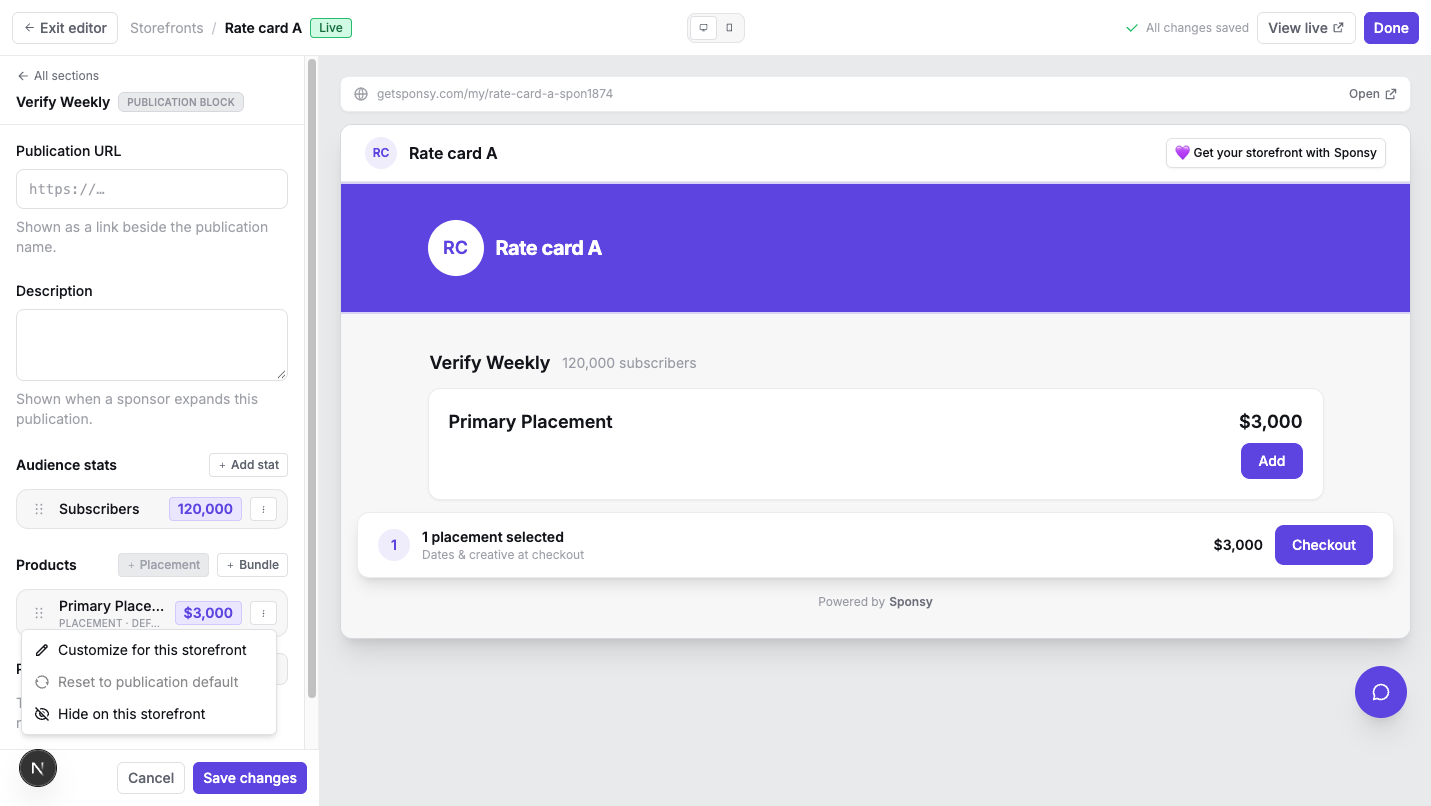
When you customize, each field tells you whether it follows the publication or is customized here, and what the publication's value is.
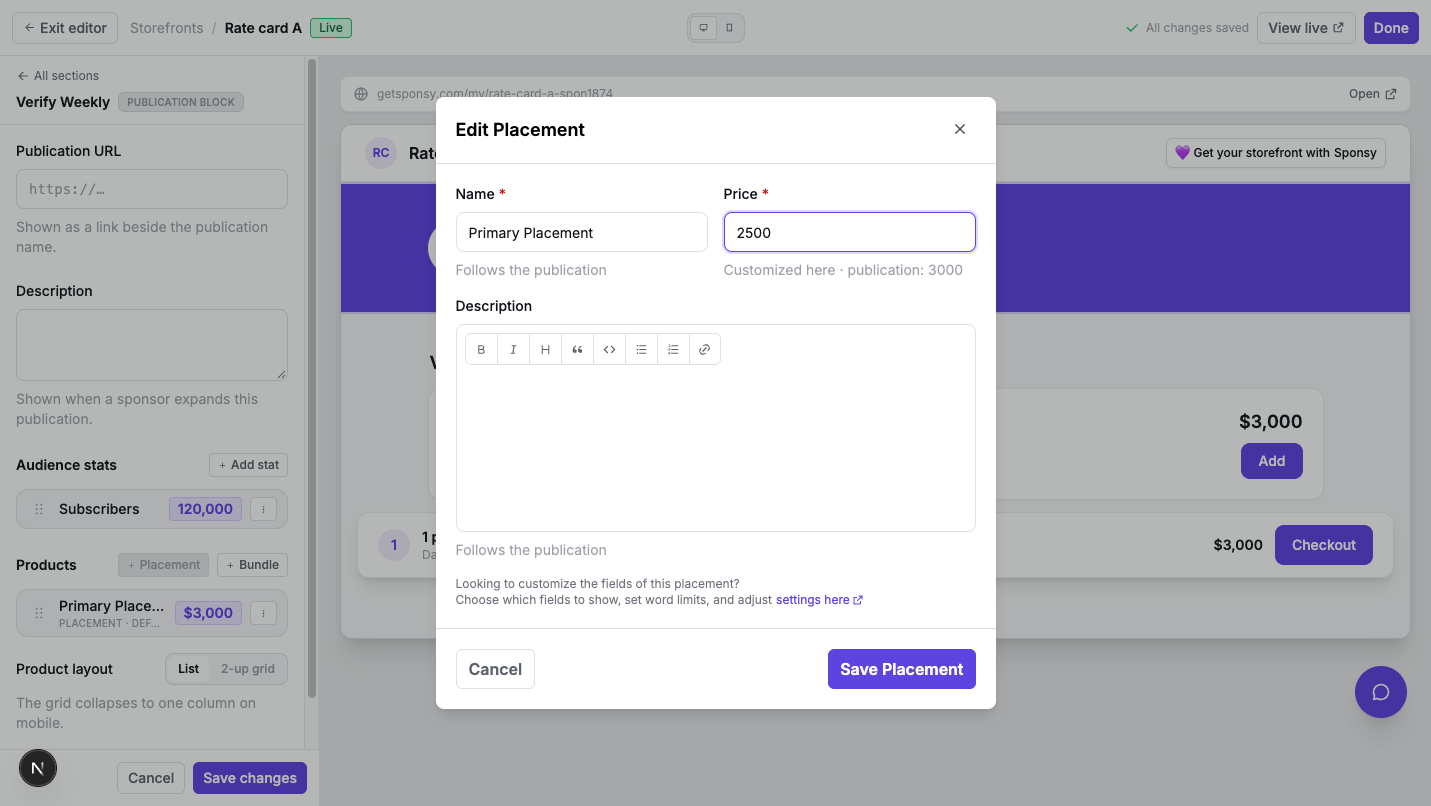
A customized price only applies to this storefront. You can offer a special price here without changing the placement's normal price elsewhere in Sponsy.
Use + Placement or + Add stat to add something that only this storefront should have. These extras belong to the storefront and are not shared with others.
If a placement has no available dates, sponsors will see that it is unavailable and cannot add it to checkout.
Create a bundle
A bundle lets a sponsor buy several placements as one package.
Add a name, price, description, and at least one placement. Change the quantity when the package includes more than one booking of the same placement.
You can also add short highlights, separated by commas, such as Save 20% or 78k combined reach. These appear as labels on the bundle.
Add the bundle inside a Publication block when it only uses that publication. Use a separate Bundle block when it includes several publications or when you want it to have its own section.
During checkout, the sponsor chooses a date and provides creative for every placement included in the bundle. Sponsy uses the bundle price and applies any valid discount code to the total.
Keep several storefronts in sync
If you run more than one storefront — one per sales rep, per season, per customer — set each publication's placements and stats once, and every storefront follows.
Open the publication in Inventory → Publication settings → Storefront. Add the placements you sell with their name, price, and description, and the audience stats you want to show. Every storefront block for that publication picks them up, so a rate change here reaches all of your storefronts at once.
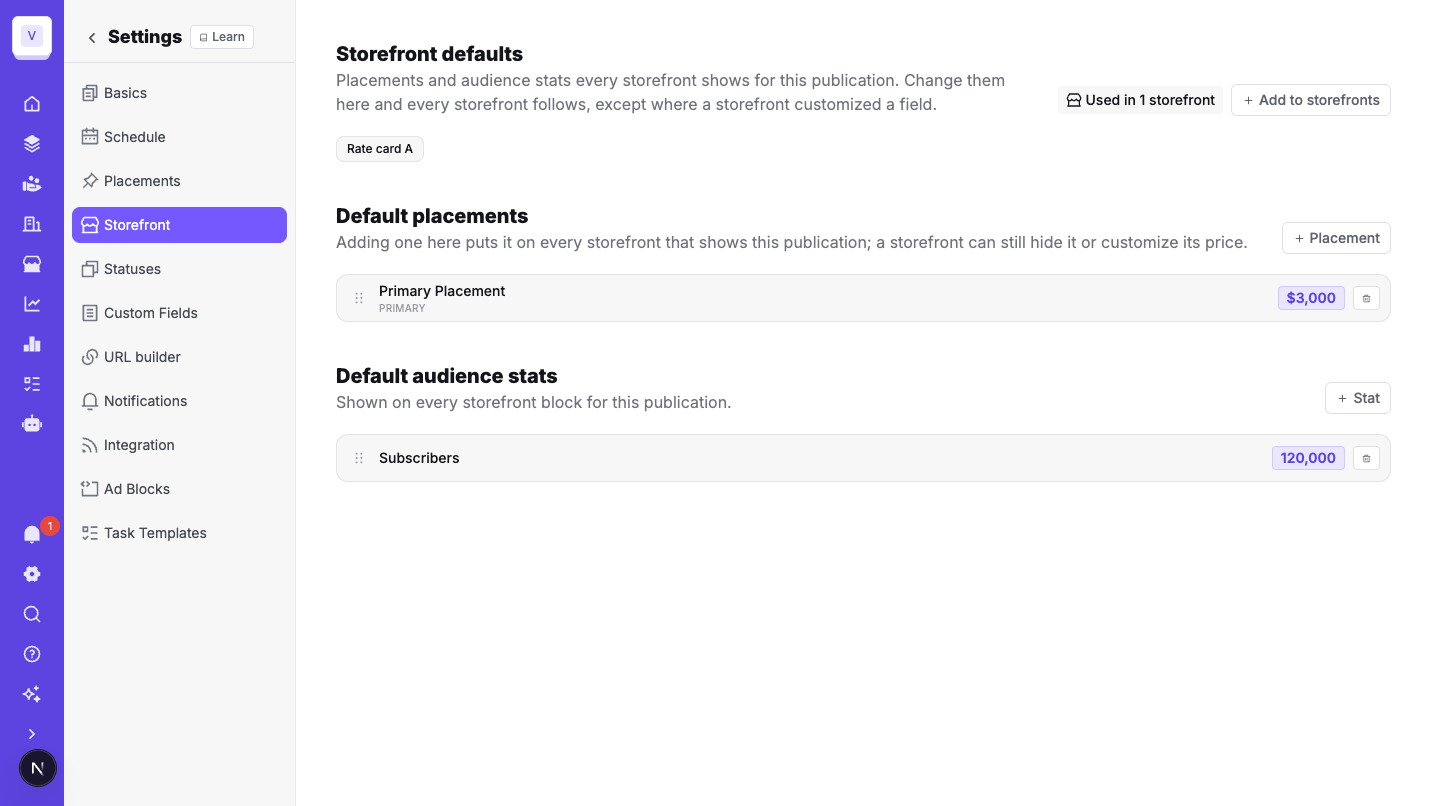
A few rules to know:
- Adding a default placement or stat puts it on every storefront that shows the publication. A storefront can still hide it or customize it.
- Removing a default removes it from every storefront, including any customizations made to it.
- Changing a default reaches every storefront, except on storefronts where that specific field was customized.
- Placements and stats added directly on a storefront block stay on that storefront only.
Use Add to storefronts on the same page to put the publication on several storefronts in one go. Each one gets a new Publication block with the defaults already in place. See Publication settings › Storefront for details.
Before deleting or archiving a placement
When you delete or archive a placement in Publication settings, Sponsy checks whether it is used by any storefront. The confirmation lists the affected storefronts, including bundles and placements within a group. Open a storefront from the list to review its offerings.
You cannot delete a placement while a storefront uses it. Remove it from the affected storefront offerings and bundles first. If it is part of the publication's storefront defaults, remove it there too.
Archiving hides the placement from your active inventory, but it stays available on storefronts. If you want to stop selling it, remove it from those storefront offerings and bundles as well. You can restore an archived placement later, and existing bookings are kept.
Add proof and helpful information
Use Testimonials to add a quote, person, role, company, portrait, and company logo. Choose a list or grid layout that fits your quotes.
Use Partners to show a brand name, logo, and optional website link. You can show a brand name even when you do not have its logo.
Use a Stats block for numbers that describe your whole audience or business. Keep each label short and explain the time period nearby when needed.
Use text, image, and CTA blocks for sponsorship guidelines, case studies, media kits, contact details, or anything else that helps a sponsor decide.
Choose the design
Open Theme to choose the look of your public page and checkout.
- Brand color changes buttons, links, and other highlights.
- Header background can use your brand color, another color, or a cover image.
- Page background can be neutral, white, or a light version of your brand color.
- Button style can be rounded or square, and filled or outlined.
- Font pairing changes the fonts used in headings and the header description.
Open Header to add your logo, storefront name, tagline, introduction, categories, stats, recent sponsors, website, and social links.
Stats can be text that you enter yourself or live values from a connected publication. Turn on recent sponsors if you want to show brands that have booked with you.
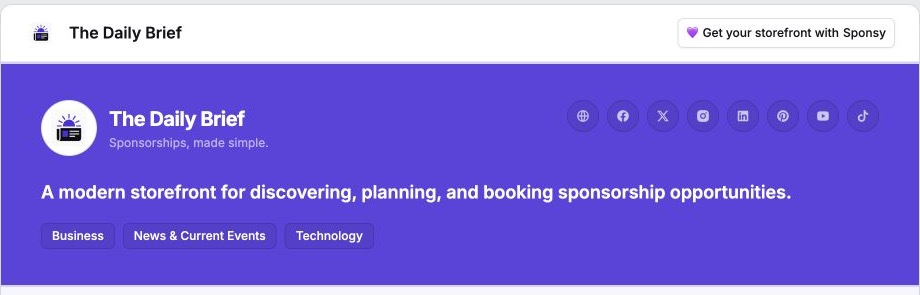
Choose your Storefront settings
Open Storefront settings to control how the storefront works.
Public link and live status
Change the public URL, create a private URL, or turn the storefront on and off.
When a storefront is offline, sponsors cannot view it or place an order. This is useful while you are making changes or when an offer is no longer available.
Sponsor messages
Turn on Allow storefront messages to add a message button to the public page.
When a sponsor sends their first message, they enter their email and can also add their name, role, company, and website. You can read and reply under Storefronts → Messages. Replies are also sent by email, so nobody needs to keep the page open.
Available booking dates
Turn on Limit calendar dates when sponsors should only book within a certain period.
You can set the earliest date, latest date, minimum lead time, or a list of specific dates. Sponsy still checks your inventory and only shows dates that are actually available.
Use these limits for seasonal offers, launch weeks, quarterly pricing, or when your team needs extra time before a booking runs.
Placement introductions
Turn on Show placement introduction to show extra information before a sponsor chooses a date. Add or edit that introduction in the placement settings in the Inventory Hub.
Order notifications
Choose the owners or team members who should be notified when a new order arrives.
You can also send new-order notifications to Slack. First connect Slack in Workspace Settings, then turn on Slack notifications and choose a channel.
A storefront for one customer
Choose a customer when the storefront has special products or prices for them. Sponsy marks it as private and shows it to that customer in their portal instead of your general storefront.
Defaults for accepted orders
Choose the deal status, slot status for each publication, and sales representative that Sponsy should suggest when you accept an order.
These are only defaults. You can review and change them before you accept each order.
Set up checkout
Open Checkout to choose what a sponsor must do before placing an order.
Collect payment
Turn on payments to charge the sponsor through your connected Stripe account. The sponsor sees the final total before continuing to payment.
If payments are off, the sponsor can still place an order, but they are not charged during checkout. You can review the order and arrange payment separately.
If you reject a paid order, Sponsy starts the refund and shows the result on the order.
Collect creative
Turn on Collect assets at checkout when the sponsor should submit copy, links, images, or files while booking.
The questions come from the content fields on each placement. Required fields, instructions, word limits, groups, and file fields are shown during checkout.
When products ask for the same information, the sponsor can reuse their answer. A bundle asks for the information needed by every placement inside it.
Leave this off if your team collects creative later through the Customer Portal or another process.
Add a notes field
Turn on Extra notes field when sponsors may need to explain timing, tracking, approvals, or another request.
Add your terms
Turn on Terms & Conditions when sponsors should read or accept your booking terms.
Choose Disclaimer to show the terms as information. Choose Checkbox when the sponsor must actively accept them before placing the order.
You can add links to your cancellation, payment, privacy, or creative policies inside the checkbox text.
Create discount codes
Create a percentage or fixed-amount discount code in Checkout settings.
You can turn a code on or off, add an expiry date, and limit how many times it can be used. Sponsors can enter the code during checkout, or you can share a link that fills it in for them.
Sponsy shows the original price, discount, and final total on the order.
Edit the thank-you page
Open Thank you page to choose what sponsors see after a successful booking.
You can change the heading, add a formatted message, include links or images, show a celebration, and show or hide the order summary.
Use this page to tell sponsors what happens next. For example, explain when your team will review the order, when they should expect feedback, and who will contact them.
Edit booking emails
Open Emails to edit these messages:
- Booking confirmation: sent after the sponsor places an order.
- Booking accepted: sent after your team accepts the order.
- Booking rejected: sent if your team rejects the order.
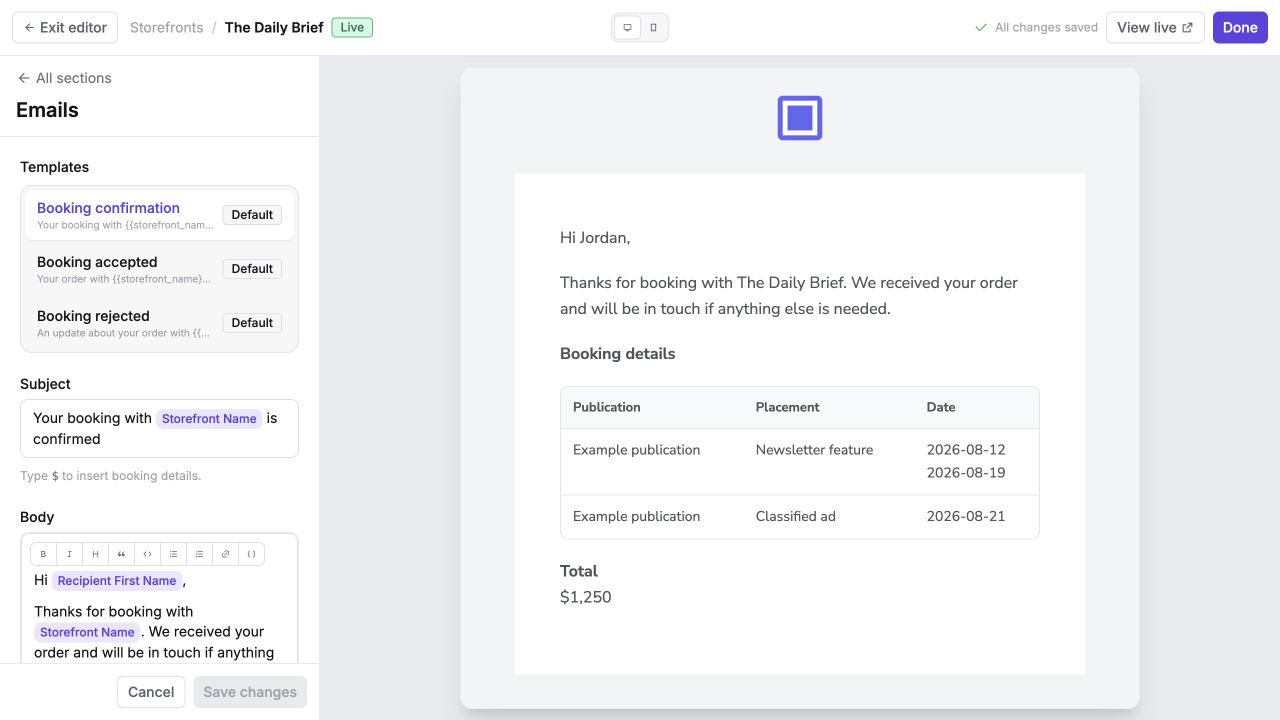
Edit the subject and message in the text editor. Type $ to add information from the order, such as the sponsor's first name, storefront name, items, or total.
The preview uses sample booking information so you can check the layout before saving. Choose the reset option if you want to return to the standard Sponsy email.
Emails cannot contain scripts, forms, or embedded web pages.
What sponsors see
Your public page shows the header, theme, links, publications, placements, bundles, and other blocks you added.
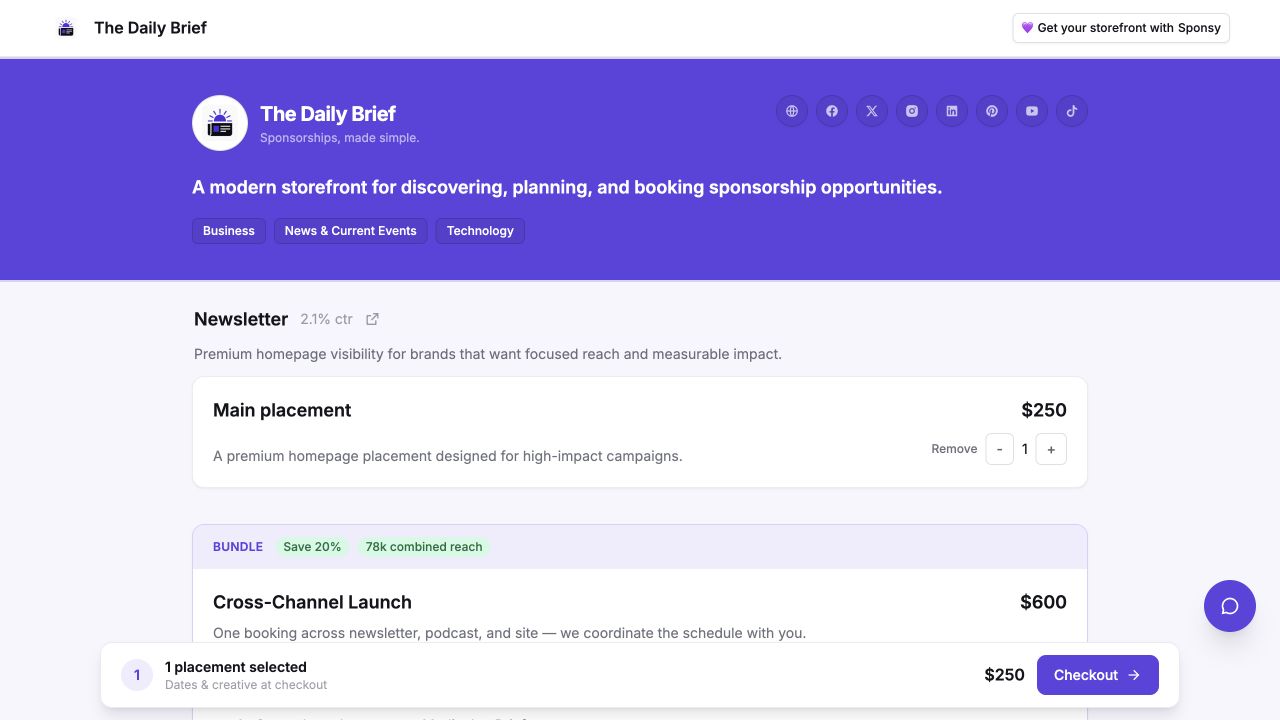
Sponsors can add a product, change its quantity, remove it, and continue browsing. Their cart stays at the bottom of the page and shows the number of selected placements, the total, and a checkout button.
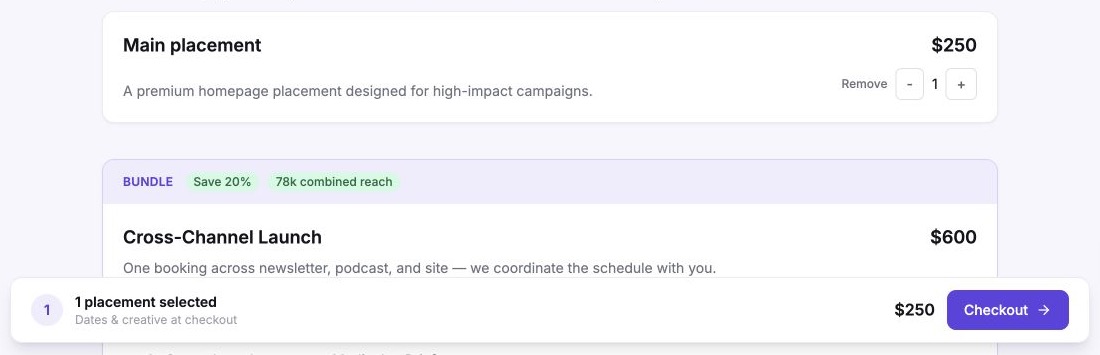
Bundles show the placements and quantities they include. Products with no available dates are marked as unavailable.
What happens during checkout
Checkout changes based on the products and settings you chose.
1. Choose dates
The sponsor chooses a date for each placement they are buying. Sponsy only shows dates that match the placement schedule, your Storefront date limits, and your available inventory.
If a bundle includes several placements or quantities, the sponsor chooses a date for each one.
2. Add creative
This step appears when you collect creative during checkout. The sponsor completes the placement's questions and uploads any required files.
3. Add details and confirm
The sponsor enters their name, email, company, website, and notes. They can apply a discount code, review the order, and accept your terms.
If payments are on, they continue to Stripe. If payments are off, they submit the order directly.
Before creating the order, Sponsy checks the dates and prices again. If another booking took a date while the sponsor was checking out, Sponsy asks them to choose another available date.
After the order is placed, the sponsor sees your thank-you page and receives the confirmation email.
Storefront emails to sponsors use your workspace's verified primary custom domain, including its sender name and email address. Replies go to the domain's Reply-To address when configured, or to its From Email address. If there is no verified primary domain, Sponsy uses its usual sender address.
Review orders
Open Orders to find every storefront order. Search by sponsor, filter by storefront, or choose All, Needs review, Accepted, or Rejected.
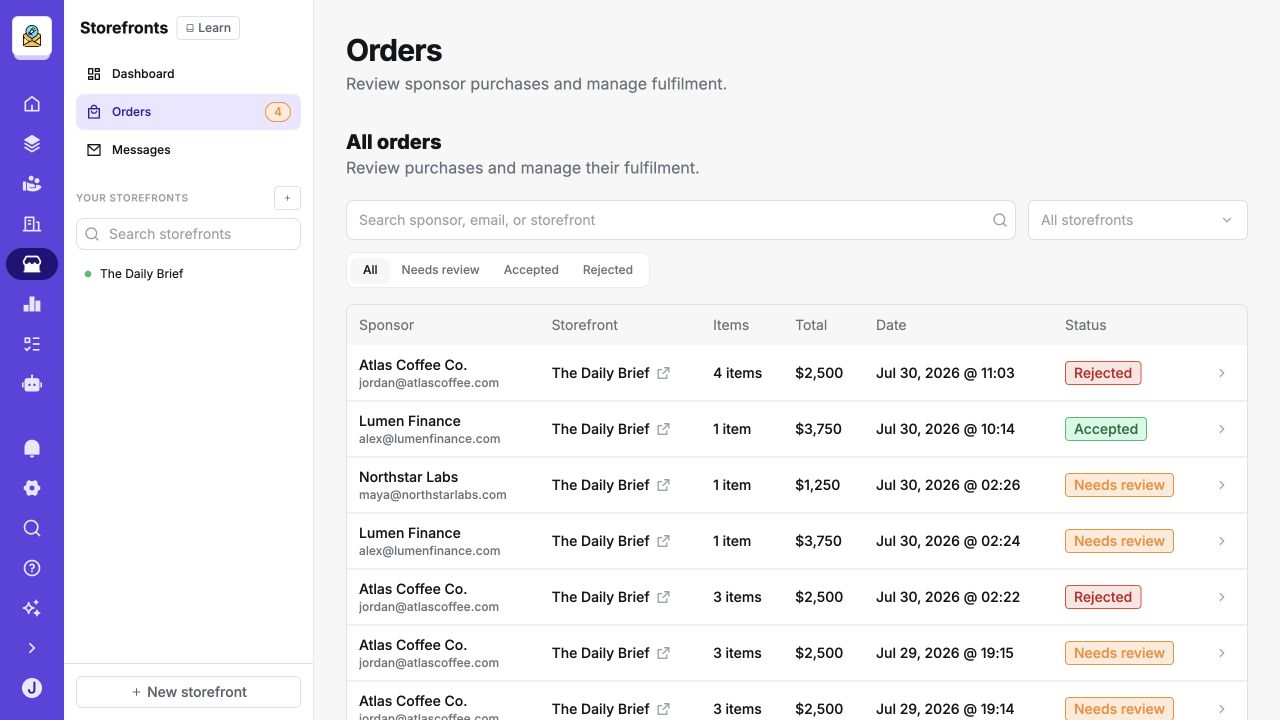
Open an order to see:
- the sponsor and their contact details;
- the storefront and order status;
- the company website;
- the original price, discount, final total, and payment details;
- each placement, quantity, and date;
- notes from the sponsor;
- the connected deal after you accept the order.
Open Submitted content to review the copy, links, images, and files provided for each placement.
Accept an order
Choose Accept, then decide where the order should go:
- Create new deal: enter a deal name and choose its status, sales representative, and slot statuses.
- Add to existing deal: choose a deal and confirm the slot statuses.
Sponsy books the selected slots and connects them to the deal. Your approval defaults are filled in for you, but you can change them before confirming.
Reject an order
Choose Reject and add a reason if you want to explain the decision to the sponsor.
For a paid order, Sponsy starts the refund and records whether it was successful. The sponsor receives your booking-rejected email.
Reply to sponsor messages
When messages are enabled, sponsors can ask a question from the public page before they book.
Open Storefronts → Messages to see the sponsor, storefront, latest message, time, and unread status. Open a conversation to read it and reply.
Your reply is sent by email using your verified primary domain when available. The sponsor can use the link in the email to continue the conversation in the storefront. Direct email replies go to your configured Reply-To or From Email inbox.
Use Storefront Messages for questions about products, pricing, dates, or custom packages. Use Customer Portal comments when the question is about a placement that has already been booked.
View Storefront results
Open a storefront's Analytics page, then choose the last 7, 30, or 90 days.
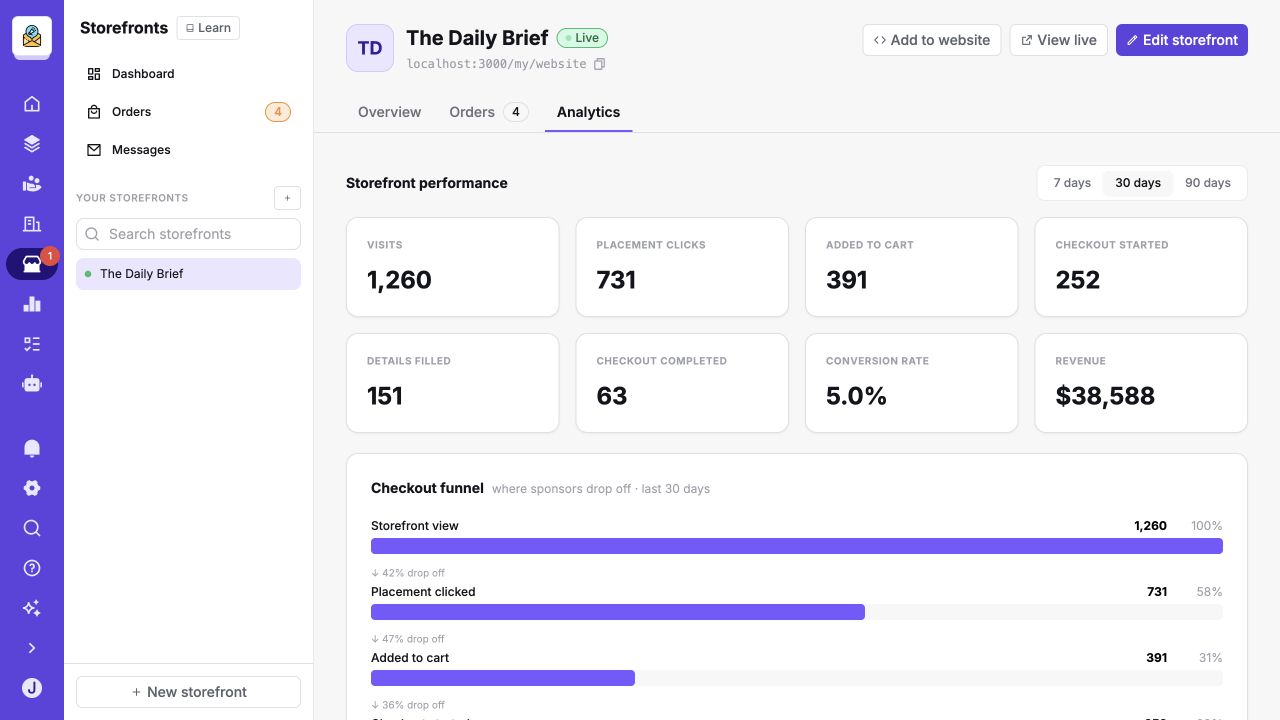
Note: Storefront analytics is not real time. New activity may take up to 30 minutes to appear on the dashboard.
You can see:
- Visits: how many visits the storefront received.
- Placement clicks: how often visitors opened a product.
- Added to cart: how often visitors added a product.
- Checkout started: how often visitors opened checkout.
- Details filled: how often sponsors completed their contact details.
- Checkout completed: how many orders were placed.
- Conversion rate: the percentage of visits that became orders.
- Revenue: the value of storefront orders, if you can view financial information.
- Visitor countries: the top countries represented by active storefront visitors.
- Traffic sources: the top source and medium combinations that sent sessions to the storefront, including direct and referral traffic.
The funnel shows where visitors stop. For example, many product clicks but few additions to cart may mean your product description or price needs work. Many checkout starts but few completed orders may mean the form is too long or dates are too limited.
The main Storefront dashboard also shows weekly revenue and revenue by storefront. People without permission to view financial information will not see those amounts.
Connect analytics tools
Open Integrations in the editor to connect Google Analytics, Mixpanel, or PostHog.
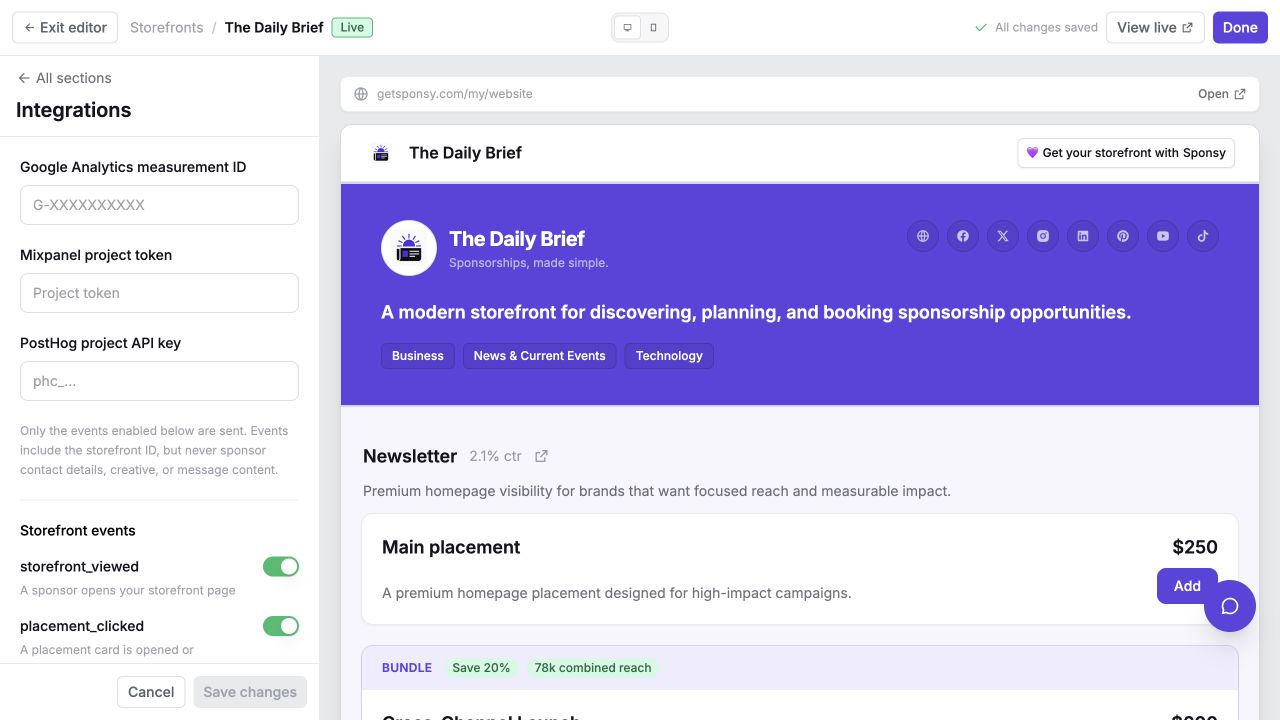
Enter the ID or key from your analytics tool, then turn on the events you want to send:
- storefront viewed;
- placement clicked;
- added to cart;
- checkout started;
- checkout completed.
These events include the storefront ID. They do not include sponsor contact details, creative, files, or messages.
You do not need to connect another analytics tool to use the Analytics page in Sponsy.
Share the storefront
Copy the public link from the storefront sidebar or detail page. Choose Add to website when you want to place the storefront on your own site.
You can choose:
- Inline embed: show the storefront inside a page on your website.
- Popup link: open the storefront in a popup when someone selects a link.
Copy the code and add it to your website. Test it on both desktop and mobile before sharing it widely.
You can also show a storefront in the Customer Portal. If you created a storefront for one customer, Sponsy shows that storefront to them instead of your general one.
Checklist before you go live
Before turning on Storefront is live:
- Check the name, description, price, and publication for every product.
- Check the placement schedules and open inventory in the Inventory Hub.
- Review both desktop and mobile previews.
- Add a placement and bundle to the cart.
- Complete a test checkout using your real payment, creative, terms, and discount settings.
- Review the confirmation, accepted, and rejected emails.
- Check who receives order notifications and which Slack channel is selected.
- Send a test message and make sure it appears under Messages.
- Check any Google Analytics, Mixpanel, or PostHog settings.
- Copy or embed the link after the storefront is live.
Troubleshooting
A placement has no available dates
Check that the placement has a schedule and open future slots. Then check the earliest date, latest date, lead time, and custom dates in Storefront settings.
A date will not appear if its slot is already booked, blocked, held, or outside the placement's schedule.
A bundle cannot continue to checkout
Every placement in the bundle needs an available date. Check the bundle's placements and quantities, then check the inventory for each placement.
A sponsor cannot submit creative
Open the placement's content fields. Check that the instructions are clear, required fields can be completed, file types are allowed, and the fields are available to sponsors.
The order total looks wrong
Check the product prices, bundle price, quantities, discount code, and workspace currency. The order shows the original price, discount, and final total.
The message button is missing
Open Storefront settings and turn on Allow storefront messages.
Analytics shows no visits
Check that the storefront is live and that visitors are using its current URL. If you changed the URL, the old link no longer records visits.
You do not need to connect Google Analytics, Mixpanel, or PostHog for Sponsy's own Analytics page to work.
A team member cannot see revenue
Revenue is only shown to people who have permission to view financial information. Update the team member's permissions if their role requires it.
Frequently asked questions
Can I create more than one storefront?
Yes, on Pro and Custom you can create multiple storefronts for brands, audiences, seasons, customers, or pricing plans. Starter includes one storefront.
Can I sell products from several publications?
Yes. Add several Publication blocks, or create a bundle with placements from different publications.
Can I offer a free product?
Yes. Set its storefront price to 0. Turn off payments if you want to review or invoice every order separately.
Can the storefront price be different from the placement's normal price?
Yes. The publication's default storefront price applies to every storefront, and a storefront can customize it further. When you accept the order, the final storefront price and any discount are added to the deal and slots.
A placement appeared on all my storefronts. Why?
Someone added it to the publication's storefront defaults, which every storefront follows. Hide it on the storefronts that should not offer it, or remove it from the defaults if it should be storefront-specific and add it there instead.
I changed a price on the publication but one storefront did not update.
That storefront has a customized price for the placement. Open its Publication block, find the row marked Custom, and choose Reset to publication default.
Does checkout prevent double bookings?
Yes. Sponsors choose from your open inventory, and Sponsy checks the date again before creating the order.
Can sponsors message us before booking?
Yes. Turn on Storefront Messages. You can continue the conversation in Sponsy or by email.
What happened to my old storefront?
It was upgraded automatically. Your products, prices, settings, coupons, and orders are available in the current Storefront. You do not need to recreate anything.