Team Management
The **Team Management** feature makes it easy to collaborate with your colleagues while keeping control over who can access different parts of your workspace.
The Team Management feature makes it easy to collaborate with your colleagues while keeping control over who can access different parts of your workspace.
Starter includes two seats, including the workspace owner. Pro includes 20 seats, and Custom has an agreed seat allowance. Pending invitations also use seats. Customizing roles and individual permissions requires Pro or Custom.
With Team Management, you can:
- Invite new team members and assign them roles.
- Control what each team member can see and do.
- Edit team information and permissions.
Let's explore how you can manage your team.
Team Management Overview
To access Team Management, click the Settings icon on the left sidebar and select Team from the menu.
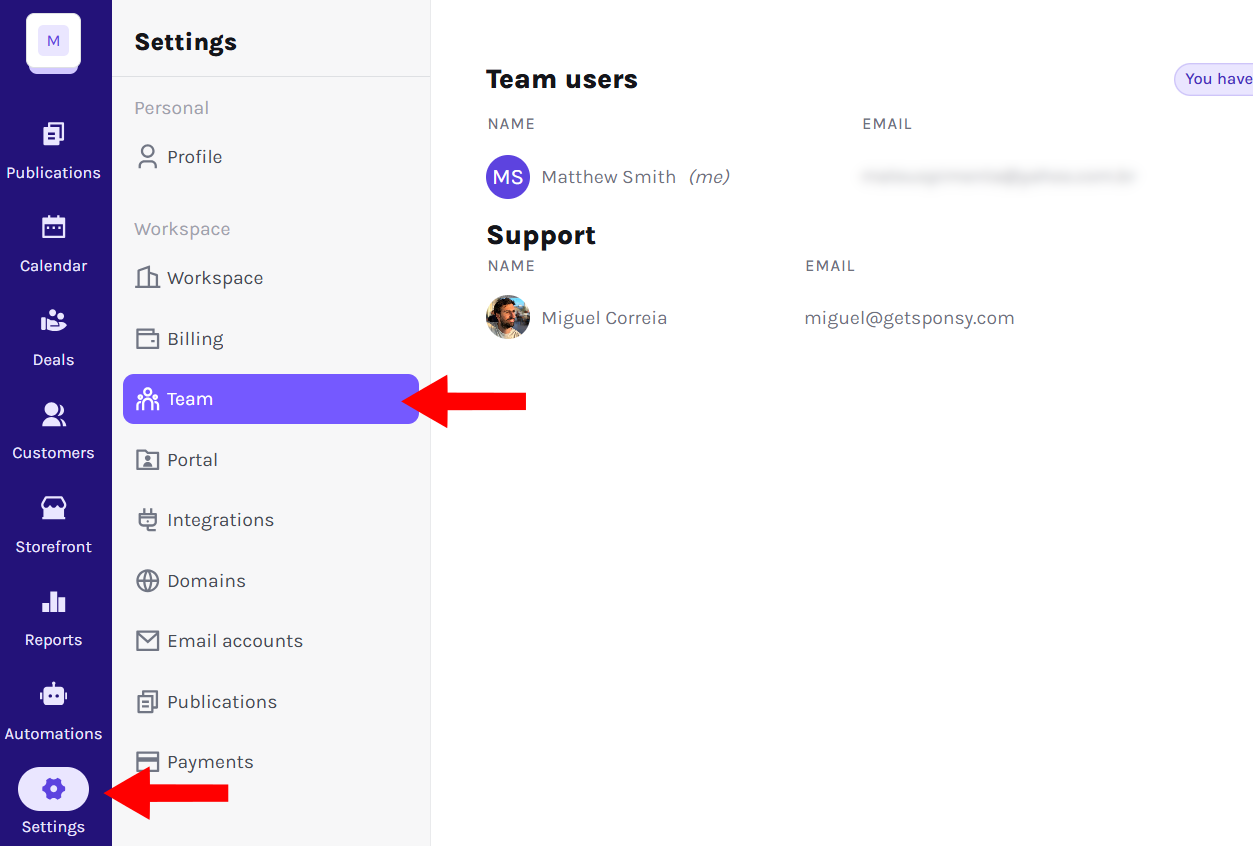
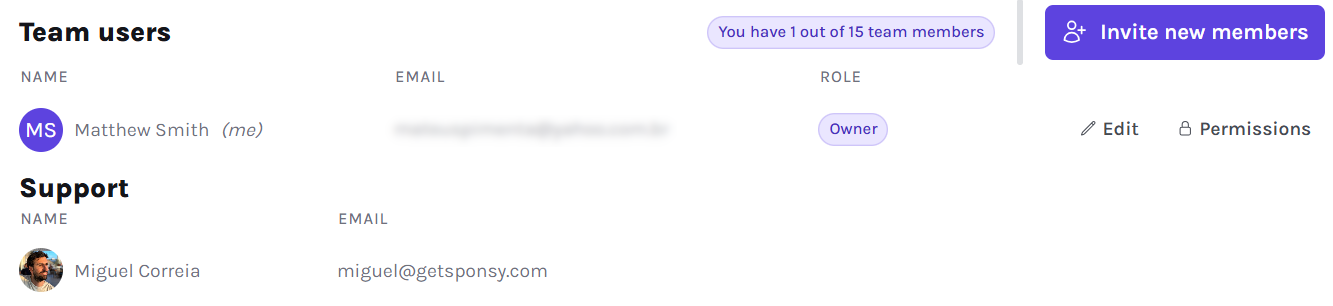
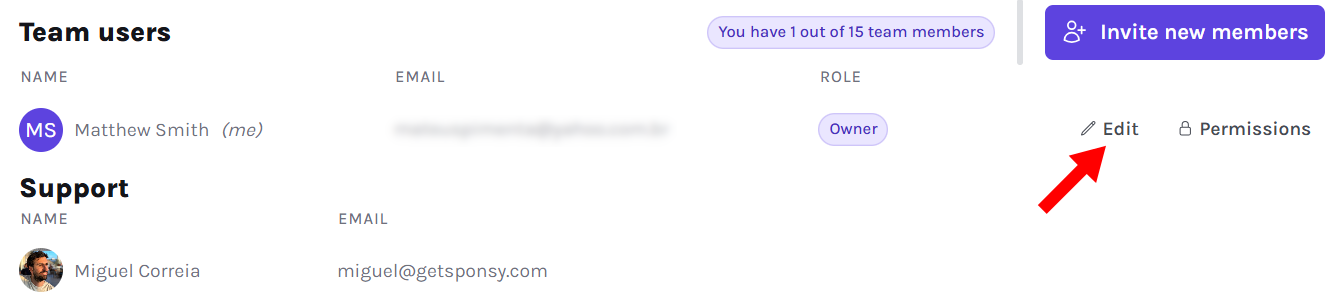
Here, you'll see a list of all current team members, along with their email addresses and assigned roles. Each team member has two management options: Edit and Permissions. Additionally, a Support Area displays contact details for a Sponsy representative in case you need assistance.
Team Members List
The team list gives you a quick overview of who is part of your Sponsy workspace. Each entry includes:
- Name
- Email address
- Role (Owner, Administrator, Collaborator, or Guest)
This view helps you identify team roles at a glance and make necessary adjustments easily.
Inviting New Members
Need to bring someone new on board? Sponsy makes this simple.
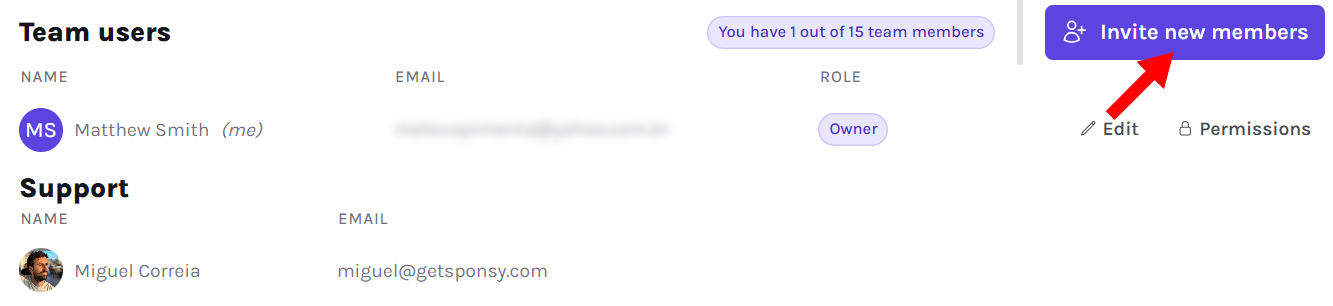
Click Invite New Members at the top right of the screen.
Enter the email addresses of the new team members. You can add multiple emails by clicking New Email.
On Starter, new members join as Administrators. On Pro and Custom, choose a role for each invitee:
Owner: Has full access to Sponsy, including the ability to add or remove team members.Administrator: Can manage most aspects of Sponsy but may have some workspace limitations.Collaborator: Can contribute content and access most features but cannot make administrative changes.Guest: Has read-only access to most workspace data. Deal item creation, editing, and deletion are enabled by default and can be removed individually.
To finish, click Send Invitations.
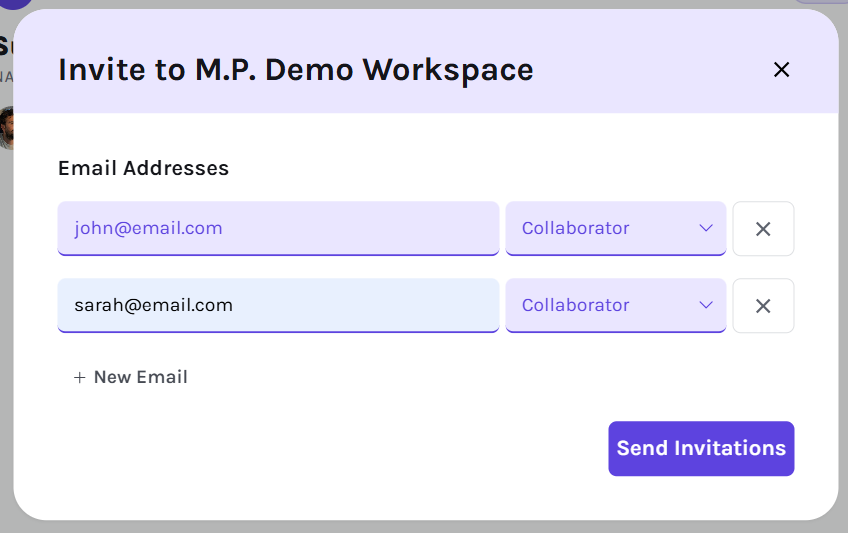
Example: Sarah, your new campaign manager, needs access to Sponsy. You enter her email, assign her the Collaborator role, and send the invite. She will receive an email prompting her to join Sponsy. If she doesn't accept within a few days, you'll need to resend the invitation.
Editing Team Members
Sales reps
In Settings → Team, click Edit beside a member, turn on Sales rep, and save. This marks them as a sales rep in the current workspace without changing their role or permissions.
To keep sales rep dropdowns focused, enable Only show sales reps in sales rep dropdowns above the team list and click Save. Sales rep fields across Sponsy then offer only team members marked as sales reps. Other member fields, such as task assignees and contact points, still show the full team.
The setting starts off, so existing workspaces keep their current dropdown options. Mark your sales reps before enabling it. If no members are marked, the sales rep dropdowns have no choices.
Unmarking a member does not remove them from existing deals or customers. Their existing assignments stay visible, and you can clear or replace them.
Member details
If a team member's role or details change, you can update their profile with ease.
Click Edit next to the team member's name.
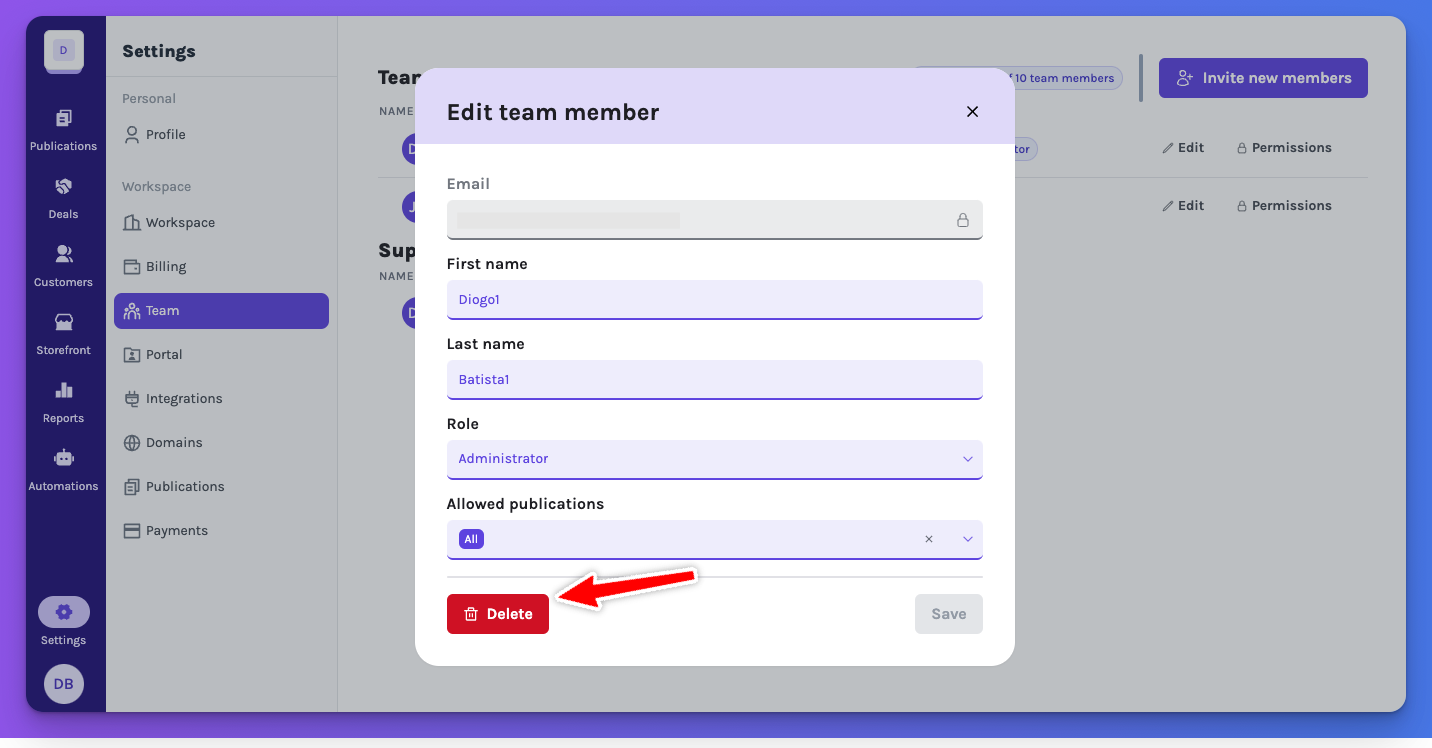
Update their first name or last name, and define which publications they can access. On Pro and Custom, you can also adjust their role. Then, click Save to apply the changes, or Delete to remove the team member from Sponsy. The member's email is shown for reference and cannot be edited here.
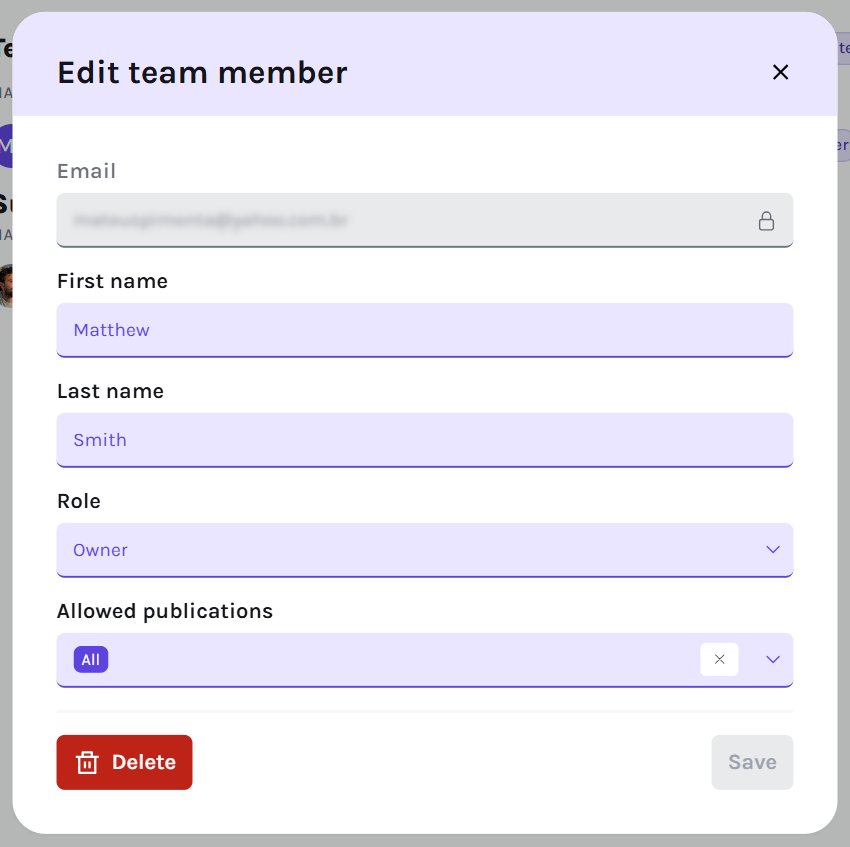
Example: John was originally a Guest but now needs to contribute to a sponsorship proposal. You edit his profile, changing his role to Collaborator and granting him access to specific publications. Now, he can actively participate in the project.
Only workspace Owners can delete members. If you don’t see the button, you likely don’t have the necessary permissions.
Editing Team Member Permissions
On Pro and Custom, you can adjust individual permissions for more control over team actions.
Click Permissions next to a team member's name.
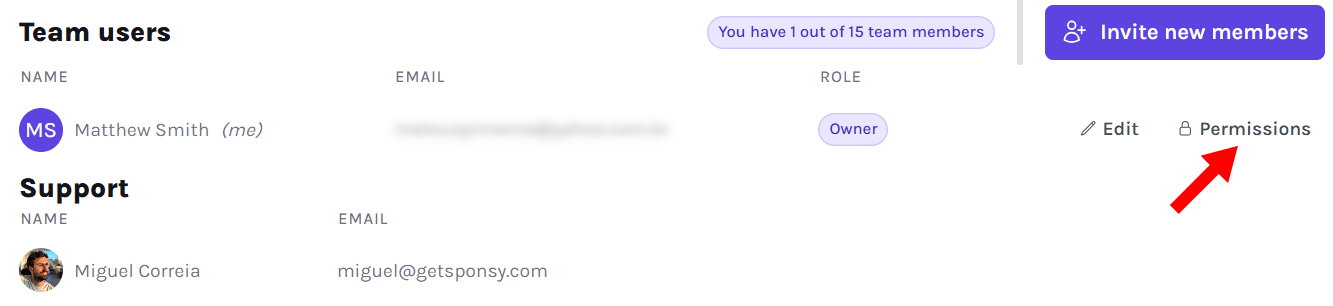
Turn specific actions on or off. Then, click Save to confirm changes, or Cancel to discard them.
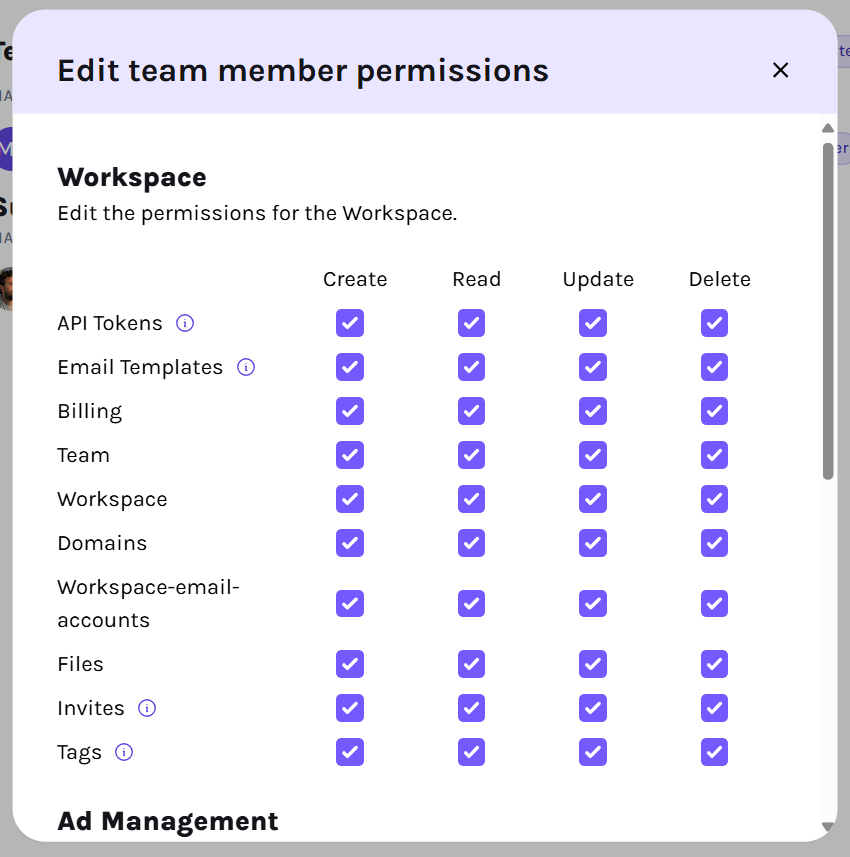
This level of customization helps ensure each team member has the appropriate level of control within Sponsy.
Deal items
Deal Items has separate Create, Update, and Delete permissions. These control adding line items to an existing deal (including duplicates and flights), editing individual items, and removing them. Creating or deleting a whole deal follows the deal permissions, including its items. Reading items follows Deals → Read.
Every role, including Guest, has these three item permissions by default. Existing team members receive them too. On Pro and Custom, turn off individual actions under Settings → Team → Permissions when someone should not have that access.
To let a teammate work on line items while keeping deal details read-only, leave the Deal Items actions enabled and turn off Deals → Update. They can manage items without changing the deal's name, customer, status, notes, or other details. This also works for deals synced from HubSpot or Pipedrive.
Financial and slot permissions still apply. Financials → Update is required to change prices. Removing a booked item or unbooking its slot requires Slots → Delete as well. Booked slot editing follows the separate slot permissions.
The permission editor shows the teammate's name and email in its header. These stay visible as you scroll through the permissions.
Financial visibility
Financial visibility is controlled separately from a teammate's base role. This lets you give someone operational access without exposing pricing or revenue data. You can choose Hide financials when inviting a teammate; changing an existing member's individual permissions requires Pro or Custom.
When financial visibility is hidden for a teammate, they can still work with operational data such as booked slots, customer names, contacts, ad copy, schedules, comments, and day-to-day workflow details. Sponsy hides financial values such as prices, deal values, revenue, and financial reports.
Use this permission for contractors, external collaborators, campaign managers, or team members who need to help execute campaigns but should not see commercial terms.
Tips and Best Practices
- Regularly review team roles and permissions: As your team evolves, some members may need more (or less) access. Periodically check and adjust roles.
- Use the Guest role strategically: If an external stakeholder needs temporary access, assign them a Guest role instead of a full-fledged team membership.
- Encourage acceptance of invitations: Team members need to accept their invitation within a few days. If they forget, you'll have to resend it.
Notes and Restrictions
- Only Owners can invite or remove team members.
- Invitations expire if not accepted within a few days.
- Guests have read-only access to most workspace data, with deal item actions enabled by default. Remove those actions individually if they should only view items.
- Financial visibility can be restricted per teammate without changing the teammate's base role.
Delete a user
To remove or edit a user in Sponsy you have to go to https://getsponsy.com/settings/team and click on the "Edit" button in the user in question.
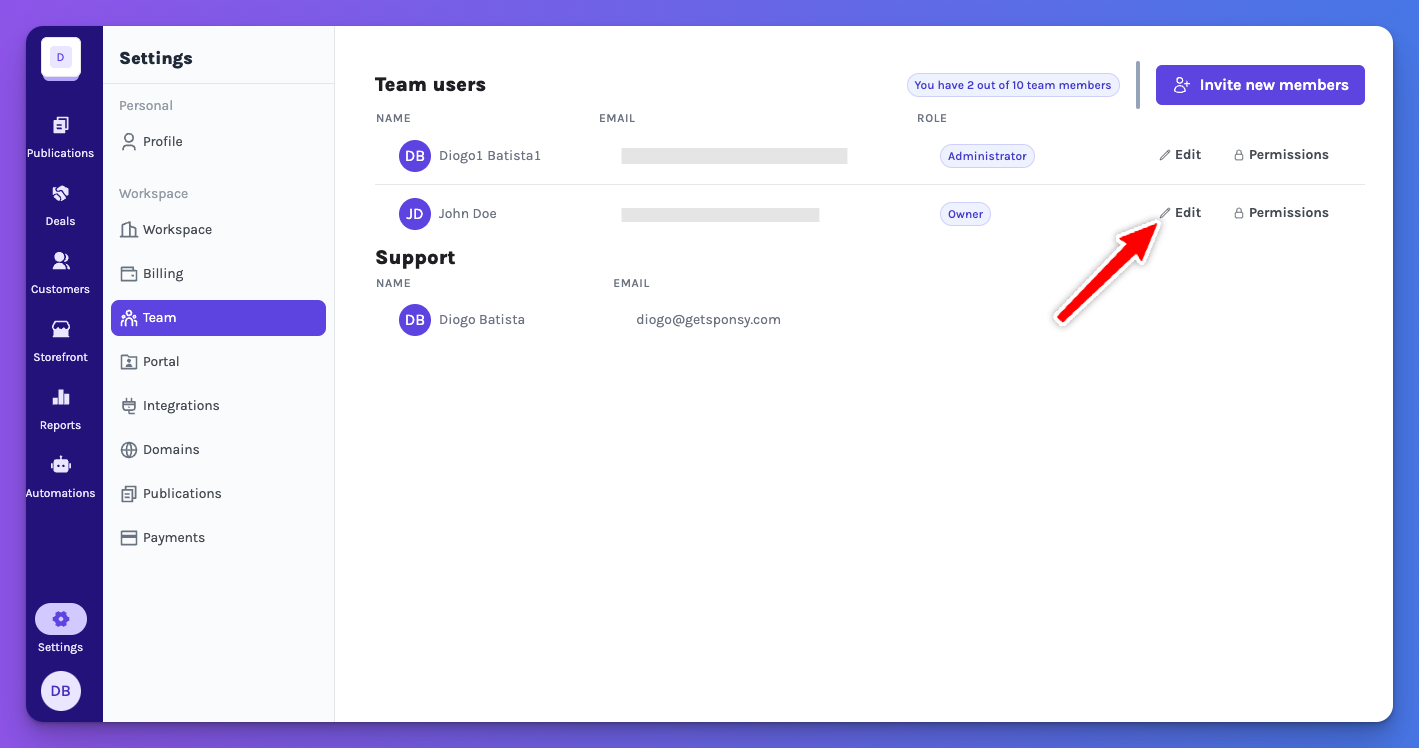
A modal should appear and you should be able to delete the user via the button on the left hand side.
Note that only the Owners of the workspace can do this action, so if the button does not show to you it is because you do not have the right permissions to do so.