A sponsor asks for two Thursday newsletter placements in June. Before you quote a price, you need to know which Thursdays are open, what the sponsor has already booked and whether someone on your team has started a proposal. Sponsy MCP lets you ask those questions in an AI client that can read your Sponsy workspace. With write access, you can also turn the dates you agree on into a draft proposal.
Find the dates you can offer a sponsor
Start with a question you would give the person who runs your ad calendar. “Use Sponsy to check which Thursday lead placements are available in The Morning Ledger in June 2027.” The publication, placement and date range give the assistant enough information to look up a real answer. If you sell two editions of a newsletter, name the one the buyer asked about.
Availability and bookings answer different questions. Ask for available dates when you want options to quote. Ask for booked slots when you want to find the ad someone already bought. For example, a Thursday can have a booked lead sponsorship and still have a classified available. Naming the position avoids offering a buyer the wrong space.
Keep the follow-up in the same conversation. Ask for the open dates in a short table, then pick the two you want to discuss with the buyer. Checking availability leaves the inventory open. If the buyer gets back to you next week, check those dates again before you confirm them.
Pick up a customer conversation where it left off
Say you’re covering a colleague’s accounts while they’re away. A sponsor emails about “our second placement,” and there are two deals with similar names. Ask Sponsy to look up the customer and list their booked slots for the month. Seeing the publication, placement and date together gives you a much better way to identify the ad than guessing which deal the email refers to.
Once you have the right slot, ask about that booking specifically. You might want the headline the sponsor supplied, the landing page attached to the ad or the status your team uses to track creative. A field that’s still empty is worth calling out in the reply. It tells the editor which detail they need to collect.
You can ask the assistant to draft a reply using those facts. For instance, ask it to confirm the booked date and ask the sponsor for the missing link. Your teammate can read the answer alongside the booking before replying in the original email thread.
Prepare a proposal with the actual placements and prices
On a workspace with proposal write access, you can ask Sponsy MCP to create a draft. Give it the customer, publication, placement, dates and price you would enter yourself. If the buyer asked for two placements at $1,200 each, say “$1,200 per placement.” If the agreement is $1,200 for both, say that instead. The person reviewing the offer should be able to tell which price you meant.
An example request is “Draft a proposal for the two June dates we picked. Include a newsletter lead sponsorship on each date at $1,200 each. Ask for a headline, body copy and a destination URL. Leave the proposal in draft.” Creating the draft in Sponsy gives the sales team a record they can open and edit. That action doesn’t publish the offer, email the sponsor or book the slots.
If the sponsor changes their mind, locate the existing proposal and check its current state first. A colleague may already have revised the price or shared a version with the buyer. Review the items, dates and total together before deciding what to change. For a published offer, you can also look up its status when the buyer asks which version they received.
Connect your AI client to the right workspace
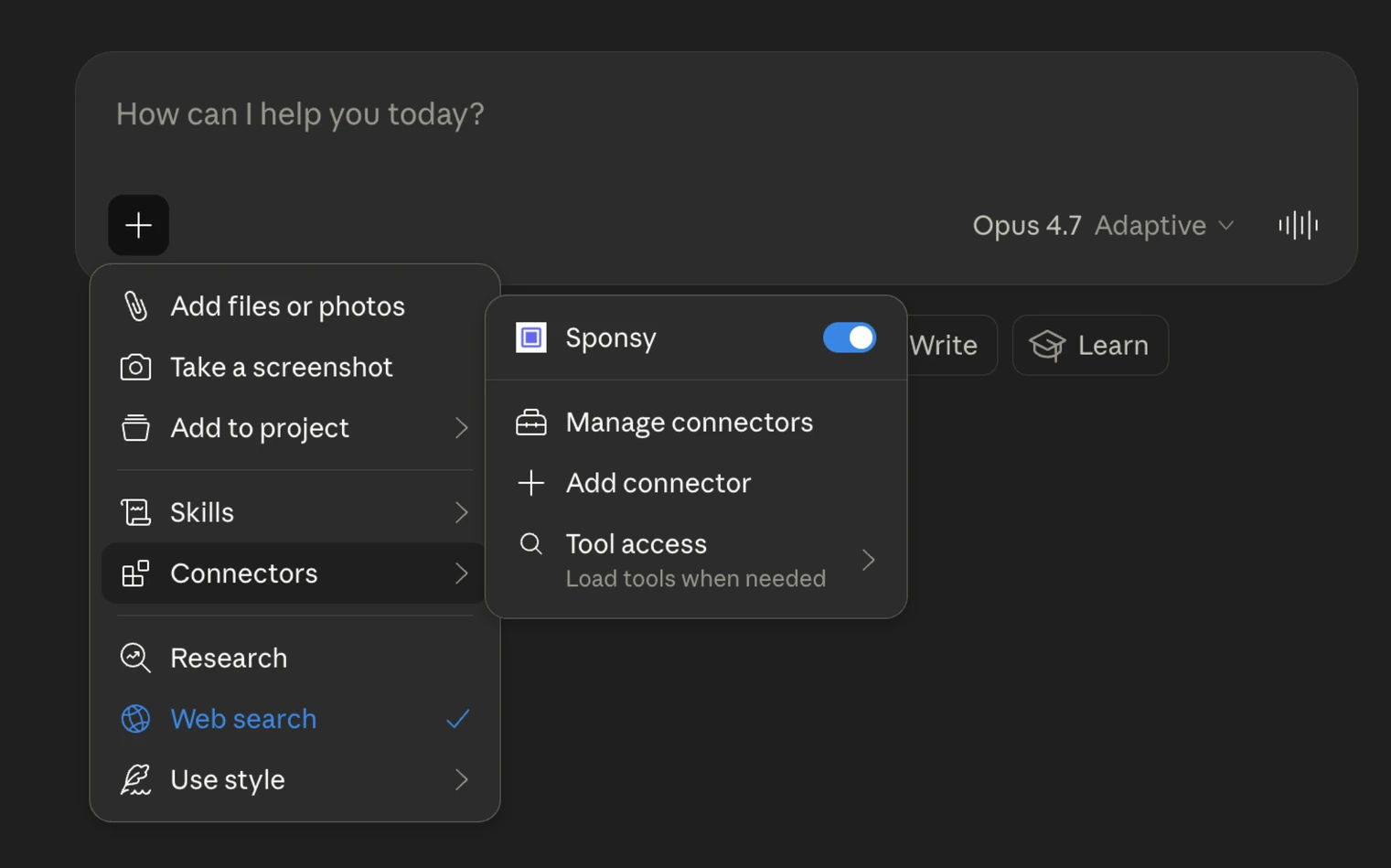
Sponsy hosts the Model Context Protocol (MCP) server. Add the hosted server to your AI client, sign in with your Sponsy account and authorize the connection for your workspace. If you belong to several workspaces, choose the one that manages the publications you want to ask about.
The setup guide has separate instructions for Claude, ChatGPT, Codex and Cursor. The same server address works across them. The menu for adding a connector and the place where you turn it on for a conversation depend on the client. If your organization manages connectors centrally, the person who administers your AI workspace may need to enable it for your team first.
Try a small read before getting into a live deal. Ask to see your publications and check for a title you recognize. If the assistant answers in general terms, make sure Sponsy is enabled in the current conversation and ask it to use Sponsy explicitly. If it lists unfamiliar publications, check which workspace you chose at sign-in.

Frequently asked questions
Who can use Sponsy MCP?
Connect a supported AI client with your Sponsy account. Starter supports read-only access, such as checking available dates and looking up bookings. Pro and Custom also support write actions such as drafting a proposal, subject to your workspace permissions.
Do I need an API key to connect Claude or ChatGPT?
No. Add Sponsy’s hosted server in the client, then sign in with your Sponsy account and approve the workspace connection. The client handles OAuth. The setup guide includes the server address and the steps for each supported client.
Can I check inventory without changing a booking?
Yes. Looking up availability or reading a booked slot leaves it as it is. You can ask which dates are available, check a specific booking and discuss options with the buyer before anyone makes a change in Sponsy.
When would I use the REST API instead?
Use MCP when a teammate wants to ask a question or prepare a draft in an AI client. If you’re building a scheduled export or another integration that runs in your own software, use the REST API v2 reference linked below.