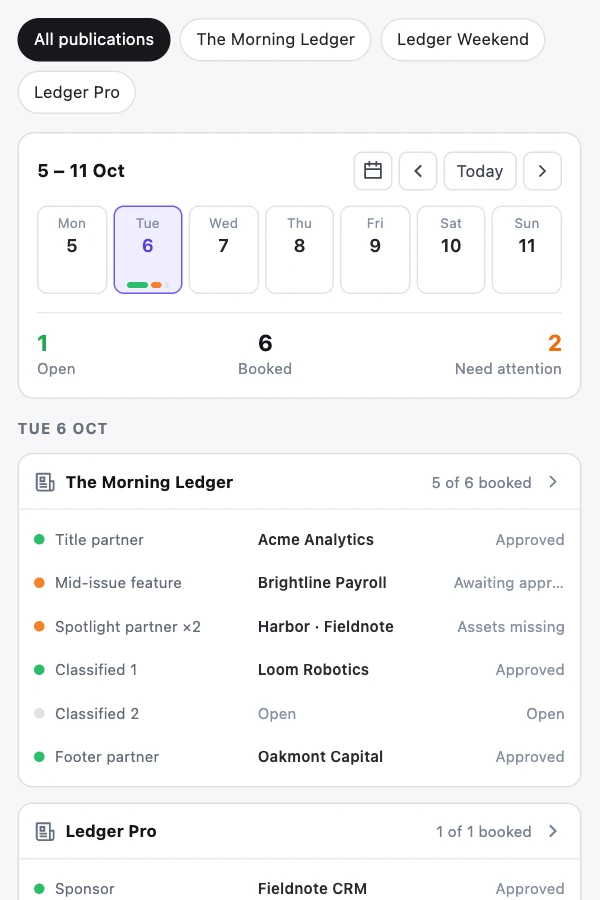
The Sponsy Chrome extension puts the booking you’re working on beside the browser tab where you need it. An editor assembling an issue in beehiiv can find the correct ad block. A salesperson replying in Gmail can check next month’s availability. Both work from the publication schedule and customer records in Sponsy. The extension is in beta.
Build an issue using the scheduled ad
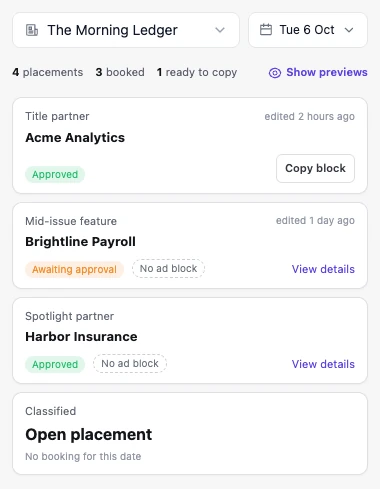
Start in the editor where you are preparing the newsletter. Open the extension, check the workspace and choose the publication and its send date. The issue list shows the placements for that date and which slots are booked. Look for the sponsor and placement name together. A brand running both a lead and a classified may have different creative for each.
Turn on previews when you need to see the rendered block before copying. A quick copy from the card works when the preview looks right. Opening the slot gives you the full block and individual fields. If an editor only needs the destination link to fix a button, copying that one field makes more sense than replacing an entire ad.
The extension gets send dates from the schedule in Sponsy. A draft open in beehiiv does not establish which date that issue will actually go out. Select the intended date explicitly. This matters when your team prepares several issues on Monday or moves a send for a holiday.
Insert the block in beehiiv
Once you have the correct slot, copy its block into the beehiiv editor. Where a beehiiv block is available the extension uses that format. Otherwise it can copy the HTML as a beehiiv HTML snippet. You can also type a slash in the editor and choose the Sponsy block to insert it directly.
Preview the finished issue in beehiiv. The Sponsy preview is where you check the slot’s content and template. The newsletter preview is where you see how that block sits next to the lead story, the section heading and any competing calls to action. Check the link and the image after insertion, especially if the sponsor updated an asset late in the day.
If the panel shows that a slot has no ad block, open its detail view and choose Create ad block. The form opens with the placement selected. A configured block that is not ready is a different situation. Open the slot in Sponsy and check whether it has the content required to render the template.
Answer an availability question inside a sponsor conversation
A buyer writes to ask whether you have space in the first two weeks of next month. In a supported Gmail thread, open the side panel and check which customer it matched. The extension uses participant addresses to find contacts. In HubSpot it can use a contact email or match the company domain to the website on the Sponsy customer record.
Choose Check availability, set a range and narrow the results to the publications and placements the buyer cares about. Open dates are selected initially. Deselect dates you do not want to offer, then copy the summary for email. The preview below the controls shows exactly what will go on the clipboard.
The summary is a list of options at the time you checked. It does not reserve them. If the buyer comes back later, verify the date before booking or send a proposal with the dates you are offering. Open calendar takes you to the corresponding filtered inventory view when you need the wider picture.
Read the history behind a reply
For a matched advertiser the customer card can show revenue, slot count and the customer-since date. Switch the third metric to a measure relevant to the question, such as average CTR or average revenue per slot. Financial values depend on your workspace access. A dash means the required data is unavailable.
Look below the card for deals and upcoming slots. If a buyer refers to “the second October mention,” use the placement, publication and date to locate it. Open the slot in the extension for the creative or open the deal in Sponsy for the commercial context. You can also open the customer portal from the matching customer view.
If a Gmail thread has no match, you can still check availability. Confirm the workspace and try a thread opened from Inbox or Sent. Threads opened from Gmail search results have a detection limitation. That is worth checking before deciding that a sponsor’s contact record is missing.
Start with an existing ad design
Publishers often have a familiar ad layout long before they adopt a booking system. An ad block draft can start with existing HTML, a newsletter URL or a screenshot. Use the import to create a starting point, then review the template and its variables in Sponsy.
Try it with a real example that has a long headline and another with a short one. Check what happens when an optional field is empty. For teams running child placements, confirm that the block is coming from the intended placement. Once the template and fields match your issue format, editors can use the slot’s copy actions for each new booking.
Frequently asked questions
Where can I get the extension?
Install Sponsy from the Chrome Web Store. Sign in to your Sponsy account, open the extension and select the workspace whose publications you want to work with.
Does the extension publish the newsletter for me?
You control the final send in your newsletter editor. The extension helps you select the booking and insert or copy its content. Preview the completed issue before publishing.
Can I copy a single field instead of the whole ad?
Yes. Open a booked slot to access its individual content fields. Use their copy buttons when you need a single headline, link or other value in the destination tool.
How do I see inventory across titles?
Open the calendar in the extension header. Browse all publications or filter the list, select a date and inspect the placement rows. An open row leads to the issue view and a booked row can open its slot details.